Scan a room
Capture and save a LiDAR room scan in the Hometrace mobile app.
Updated October 22, 2026 · 2 min read
Capture the room in the mobile app, save it with a useful name, then return to add notes and pins.
Check your device
New scans need a LiDAR-equipped iPhone Pro or iPad Pro, iOS 17 or later, and a Hometrace app version with the room scanner. Not every iPhone or iPad Pro has LiDAR. Allow camera access when asked.
Room scans also need to be available on your Hometrace account. These steps use the redesigned room screens.
Capture the room
- Open the inspection and its album.
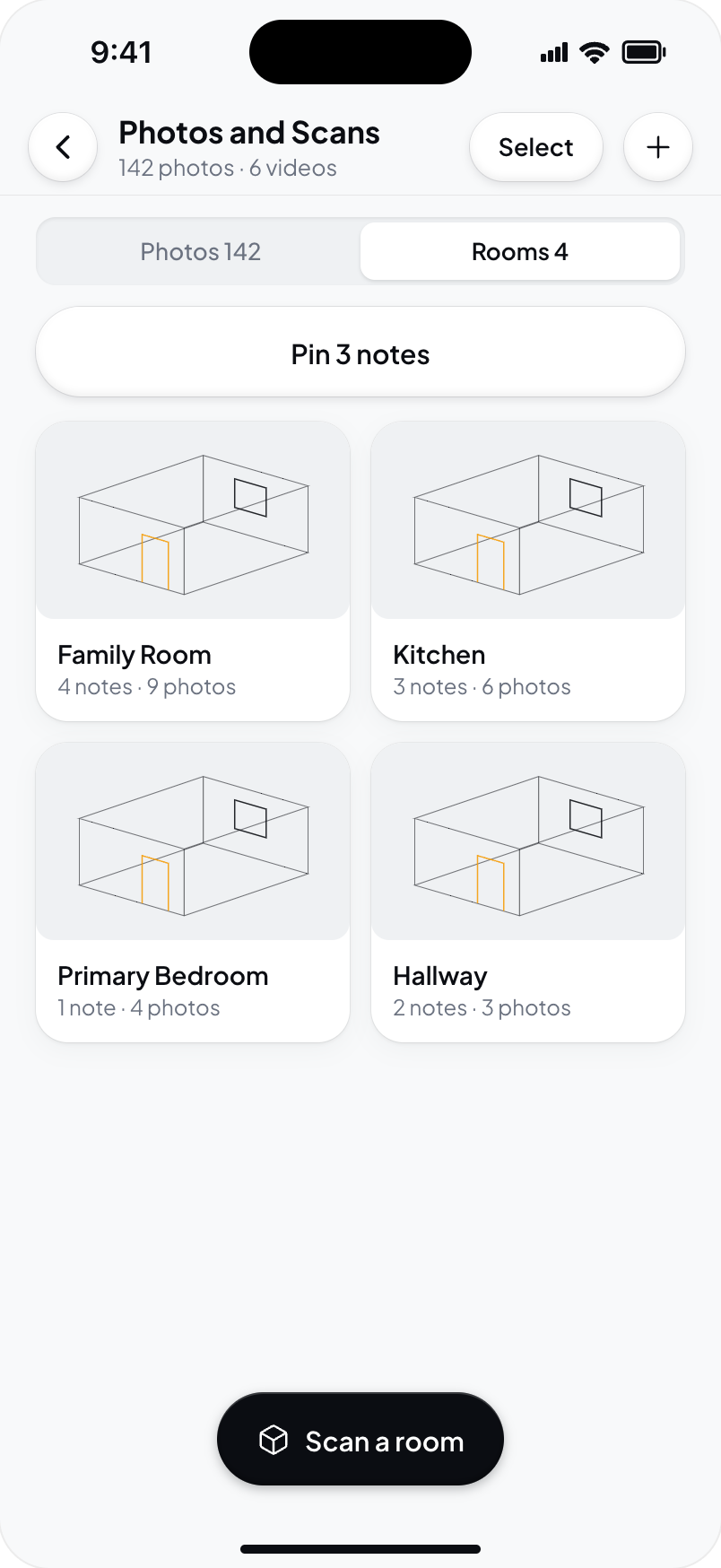
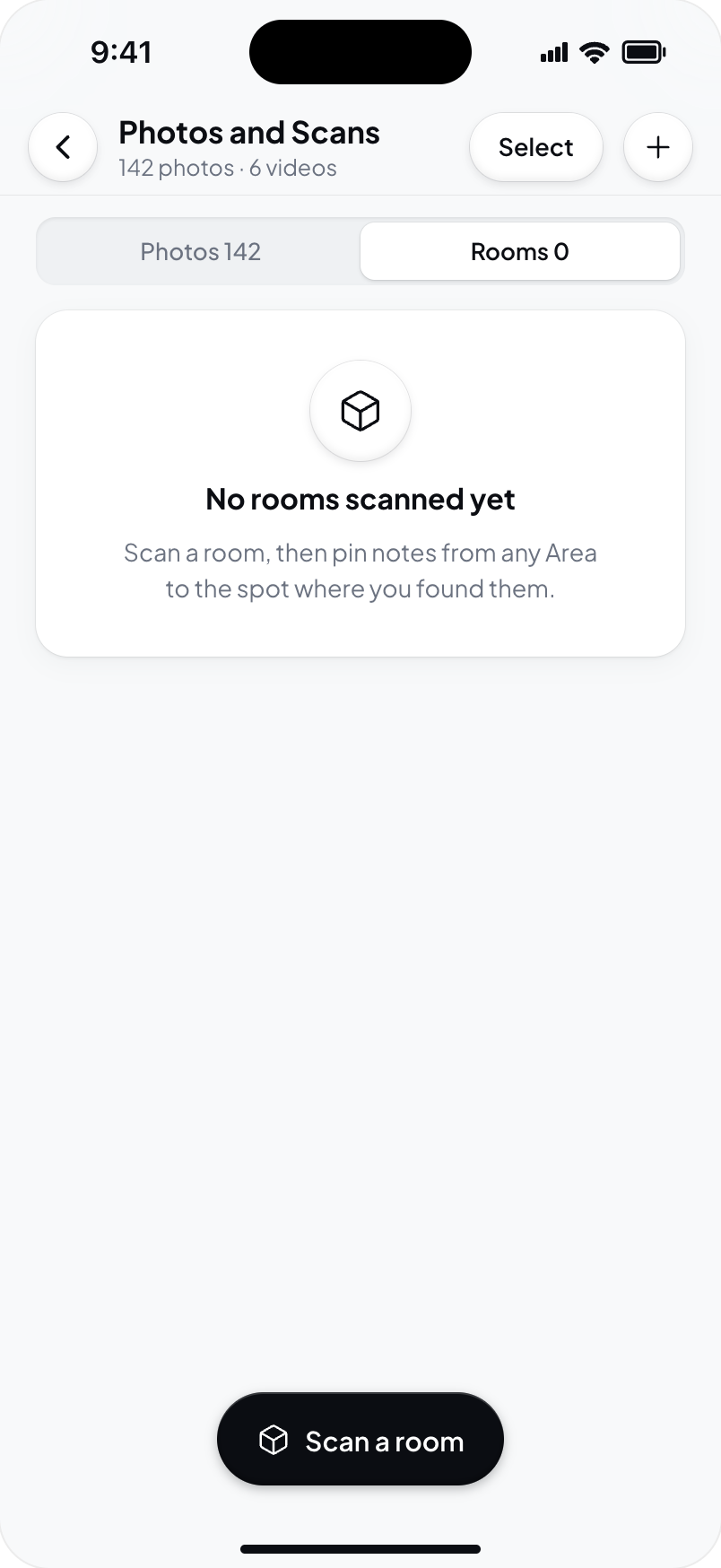
- Choose Rooms, then Scan a room.
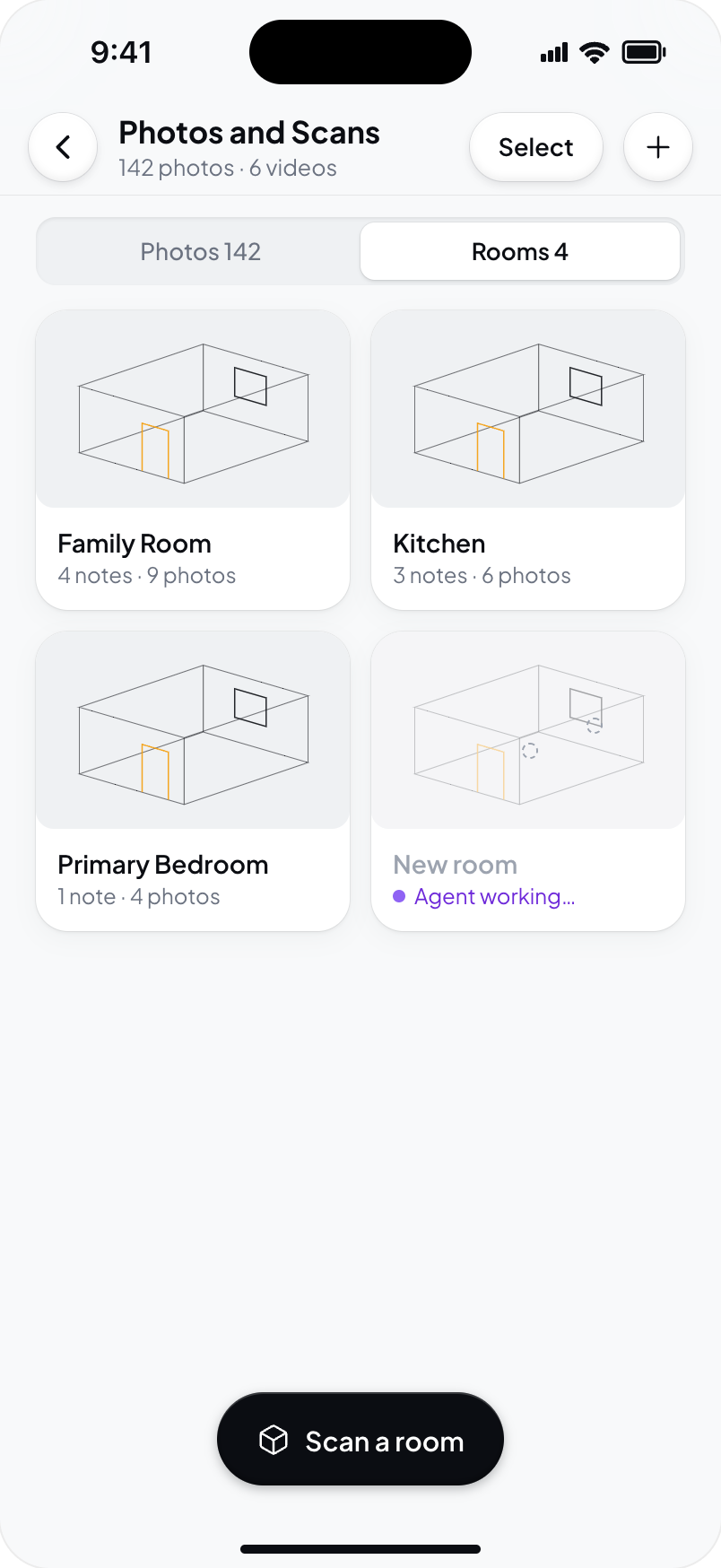
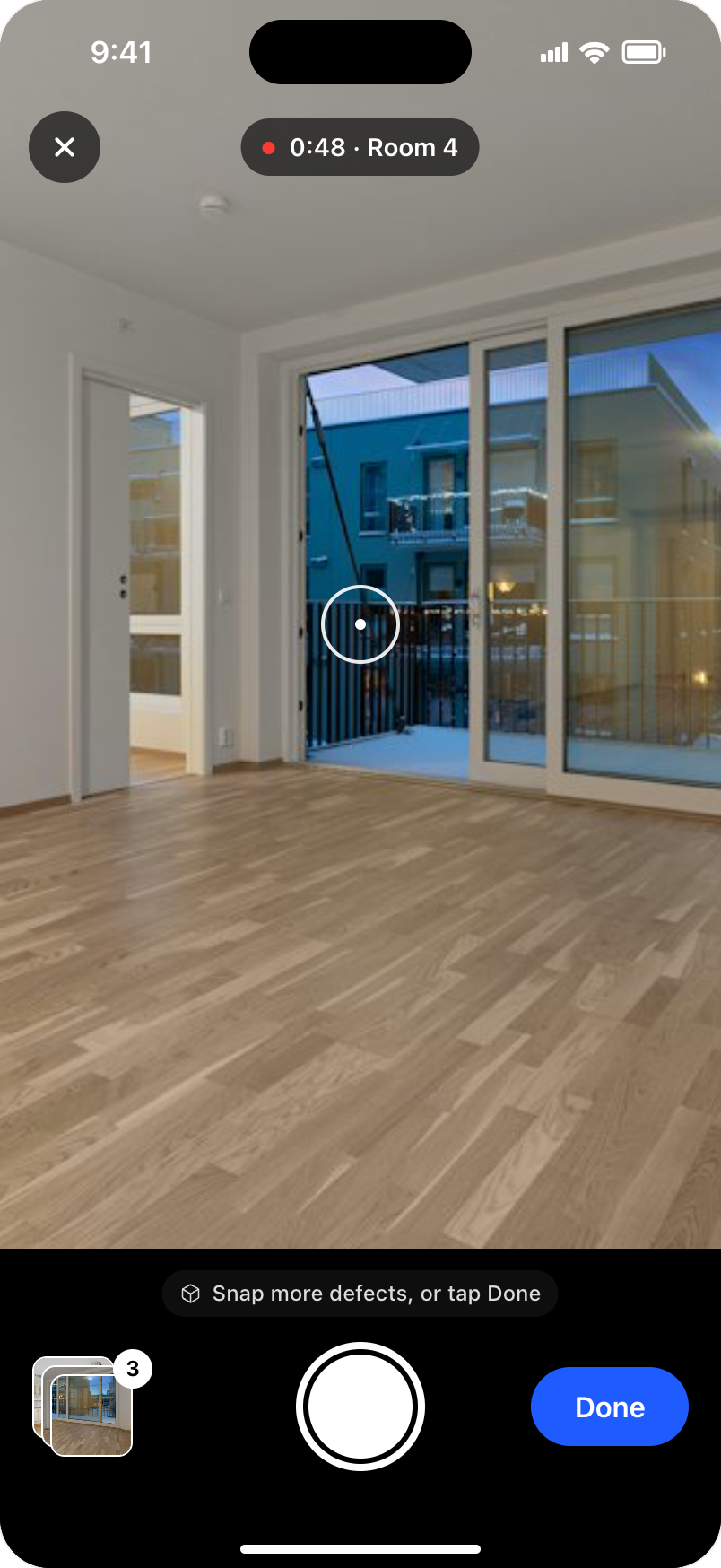
- Walk slowly around the room and follow the scanner's guidance. Move closer when it asks you to capture a wall.
- Tap Done to finish the scan, then wait while Hometrace builds the room.
You can take photos during capture. You can also take more after saving the room.
Name and save
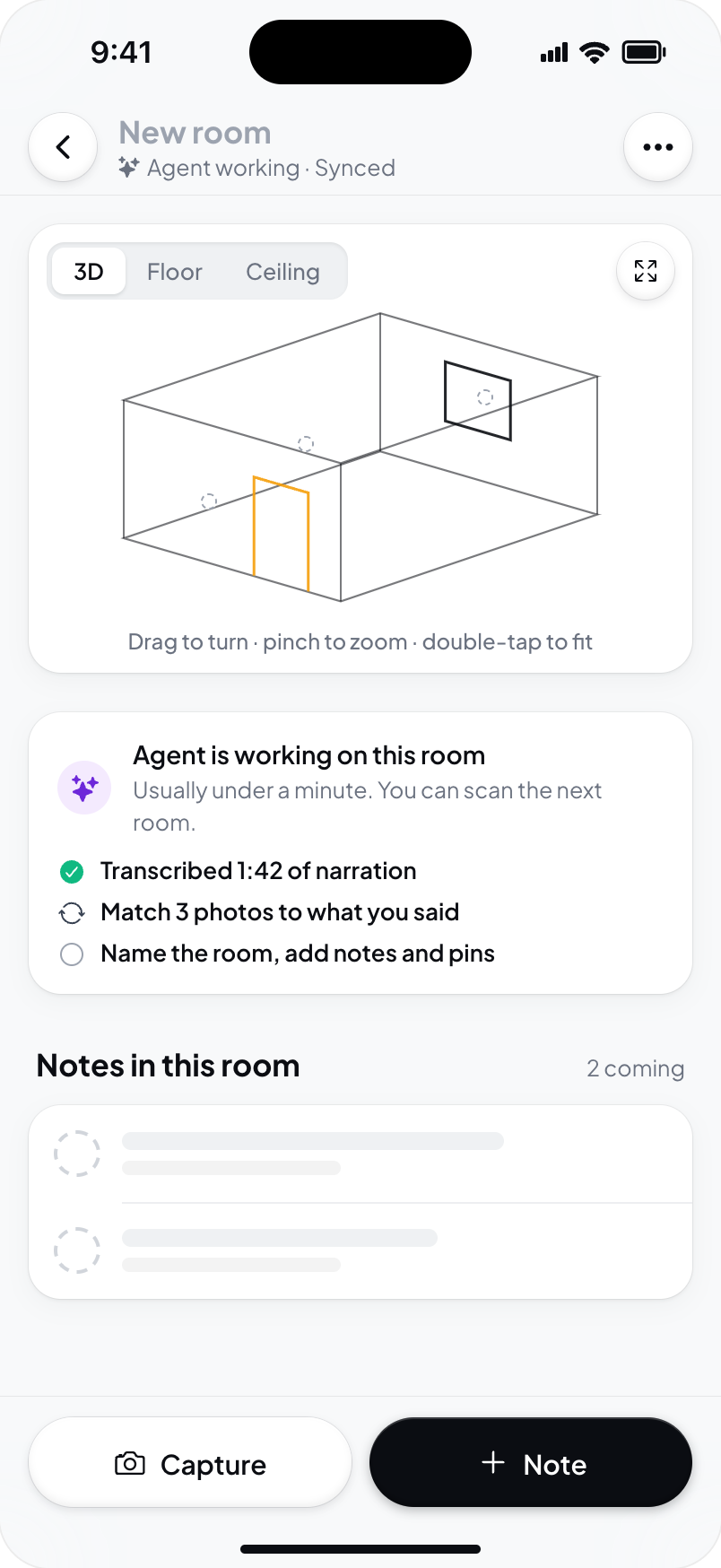
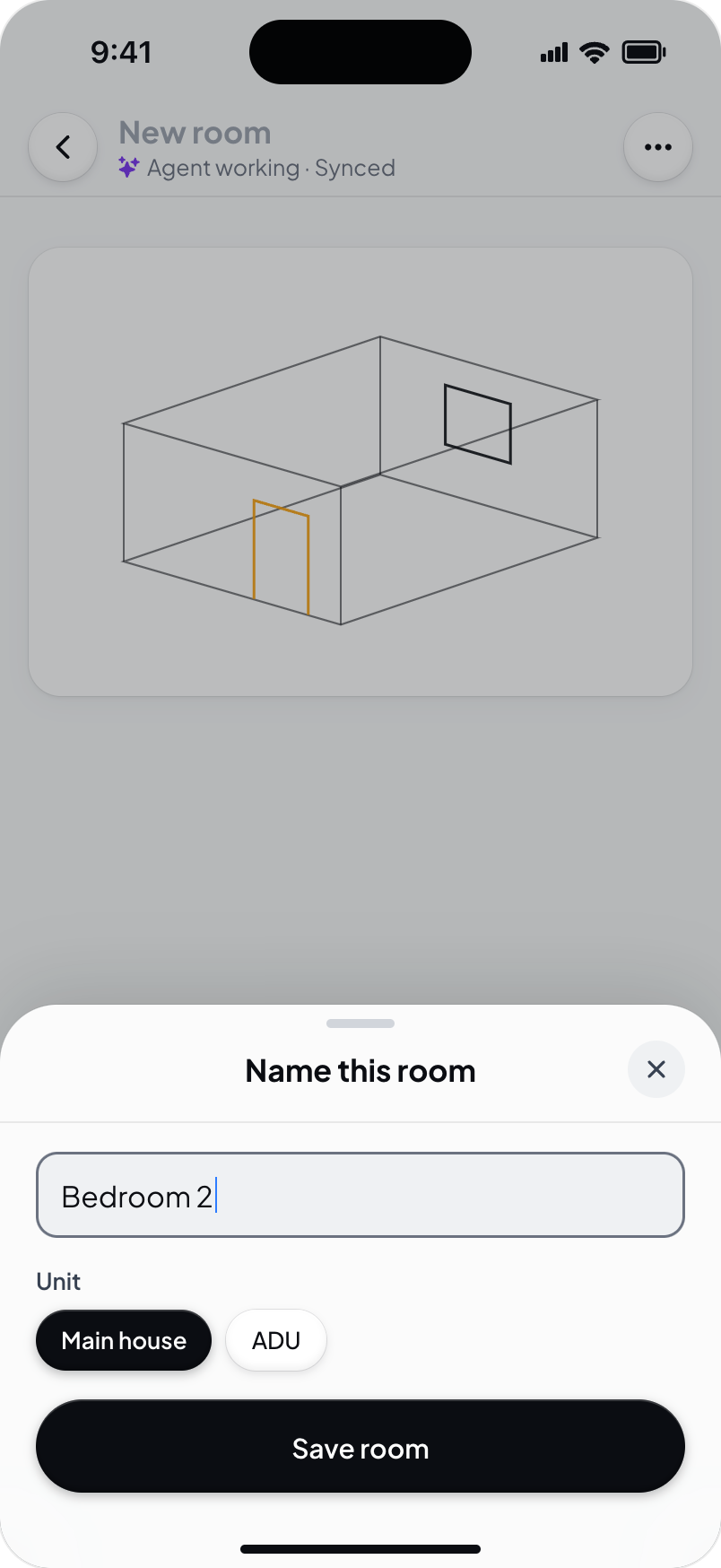
On Review scan, check the result. In Name this room, enter a name you will recognize, such as Upstairs bathroom, then choose Save room.
If you closed the name sheet, use Name and save to reopen it. Use Rescan if you need to capture the room again before saving.
The room is saved when you choose Save room. If a scan is cancelled or fails, photos already taken remain in the inspection album.
Open a room without LiDAR
A device without LiDAR cannot capture a new scan. Scan a room is hidden, but rooms already saved for the report can still be opened, viewed, and pinned.
On a non-scanning phone, Rooms appears once the report has saved rooms. Capture a room on a supported device and let it sync before looking for it elsewhere.
Keep working
Use Capture for photos and videos, or Note for a report note. You can leave placement until later. See Use the room album and Pin findings and specs to rooms.