Use 3D room scans
Scan rooms, collect photos and notes, and give clients a room view of the inspection.
Updated October 22, 2026 · 2 min read
A room scan gives your inspection a 3D model and a floor-plan view. Keep photos, videos, and notes with the room, then pin items to show where they belong.
Start with a saved room
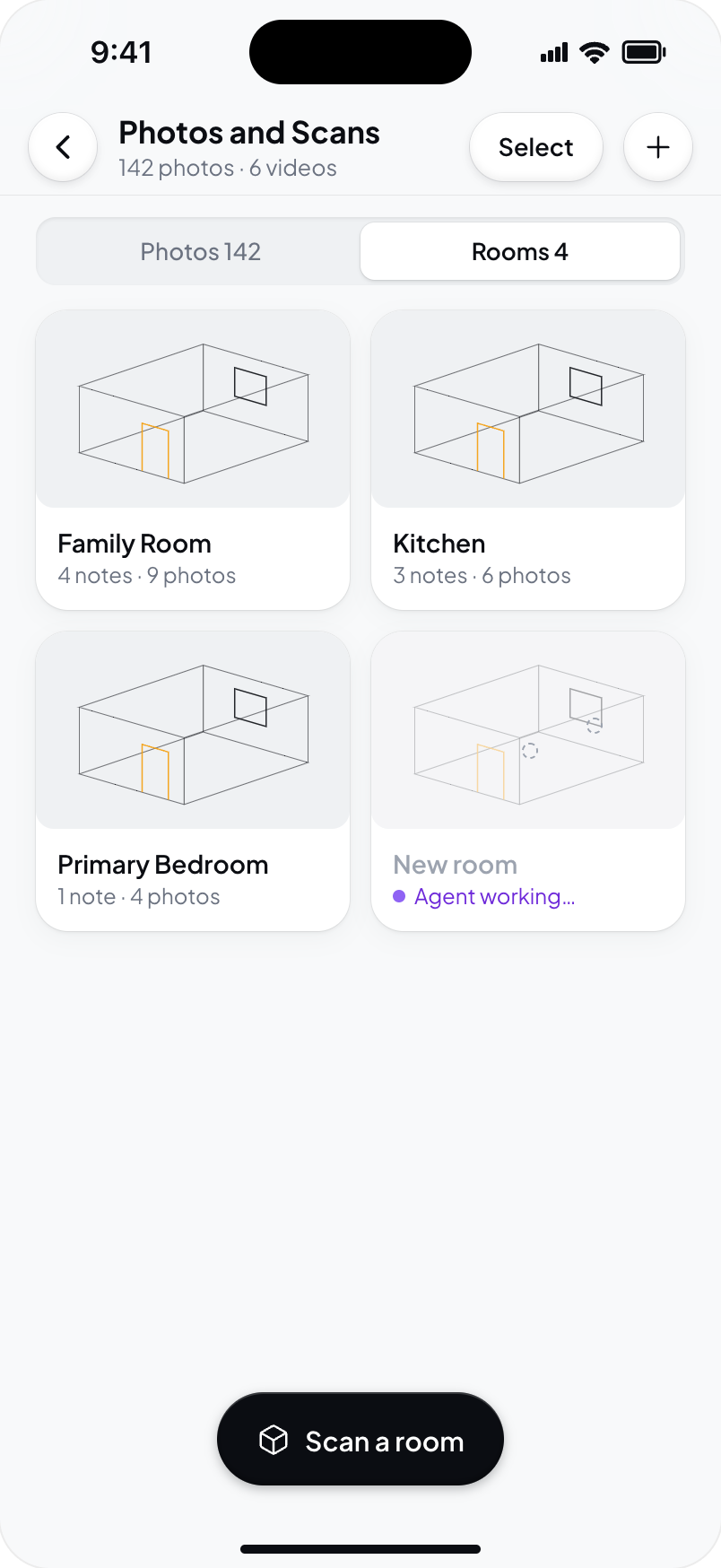
In the inspection album, open Rooms and choose a room. To capture a new one, use the Hometrace mobile app on a LiDAR-equipped iPhone or iPad Pro. See Scan a room for requirements and steps.
Rooms have their own names. They do not replace your report's Areas and subsections. A kitchen room can contain notes from Electrical, Plumbing, and Interior, with each note keeping its place in the report.
Look around in 3D or Top
Choose 3D to turn the model or Top to look down at the floor plan. On touch devices, drag to turn, pinch to zoom, and use two fingers to pan when zoomed. Double-tap or use Reset view to start again.
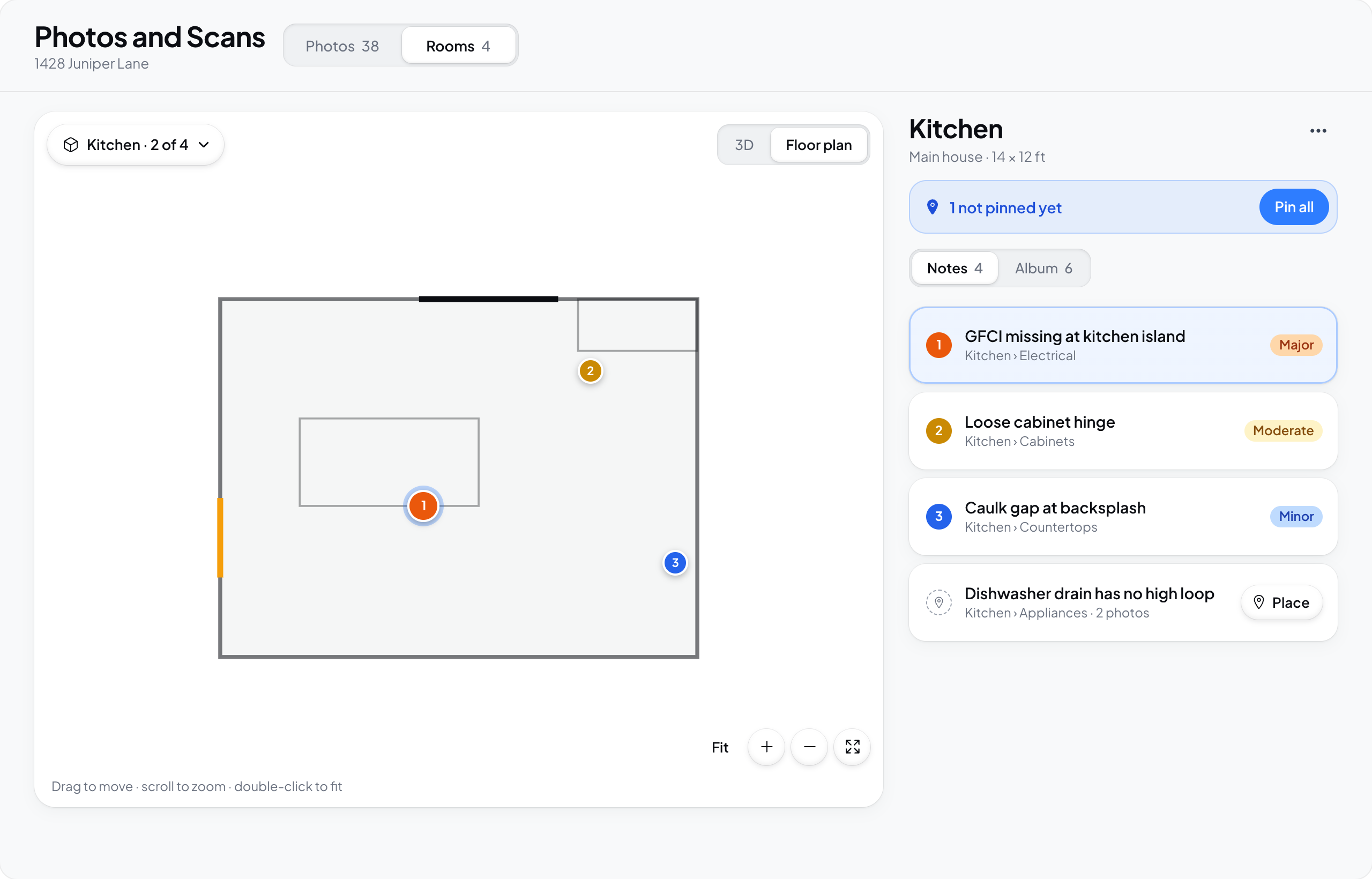
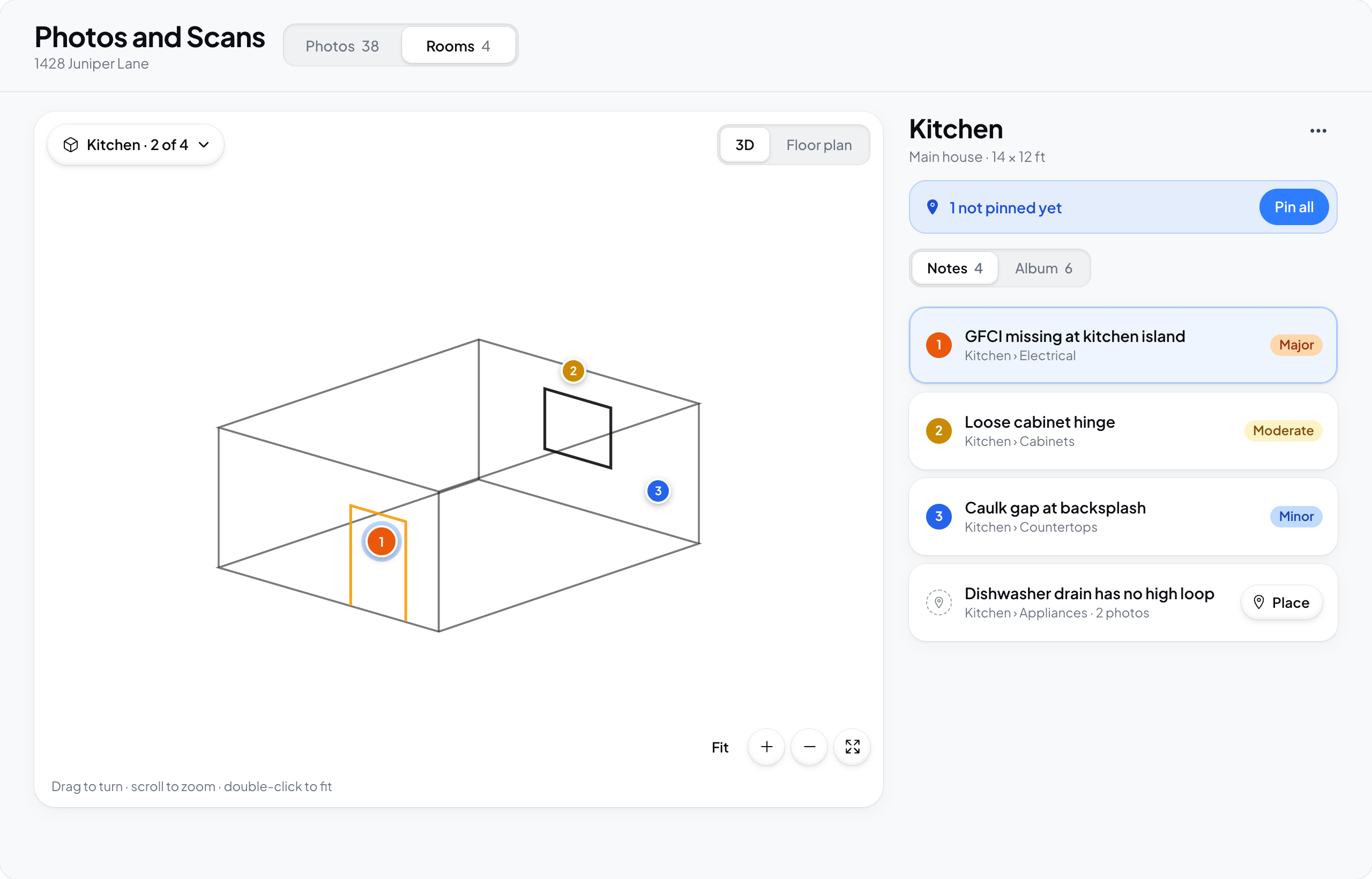
Expand the viewer for more room. On the web, use the zoom buttons, or expand and scroll with your mouse or trackpad to zoom. Fit brings the room back into view.
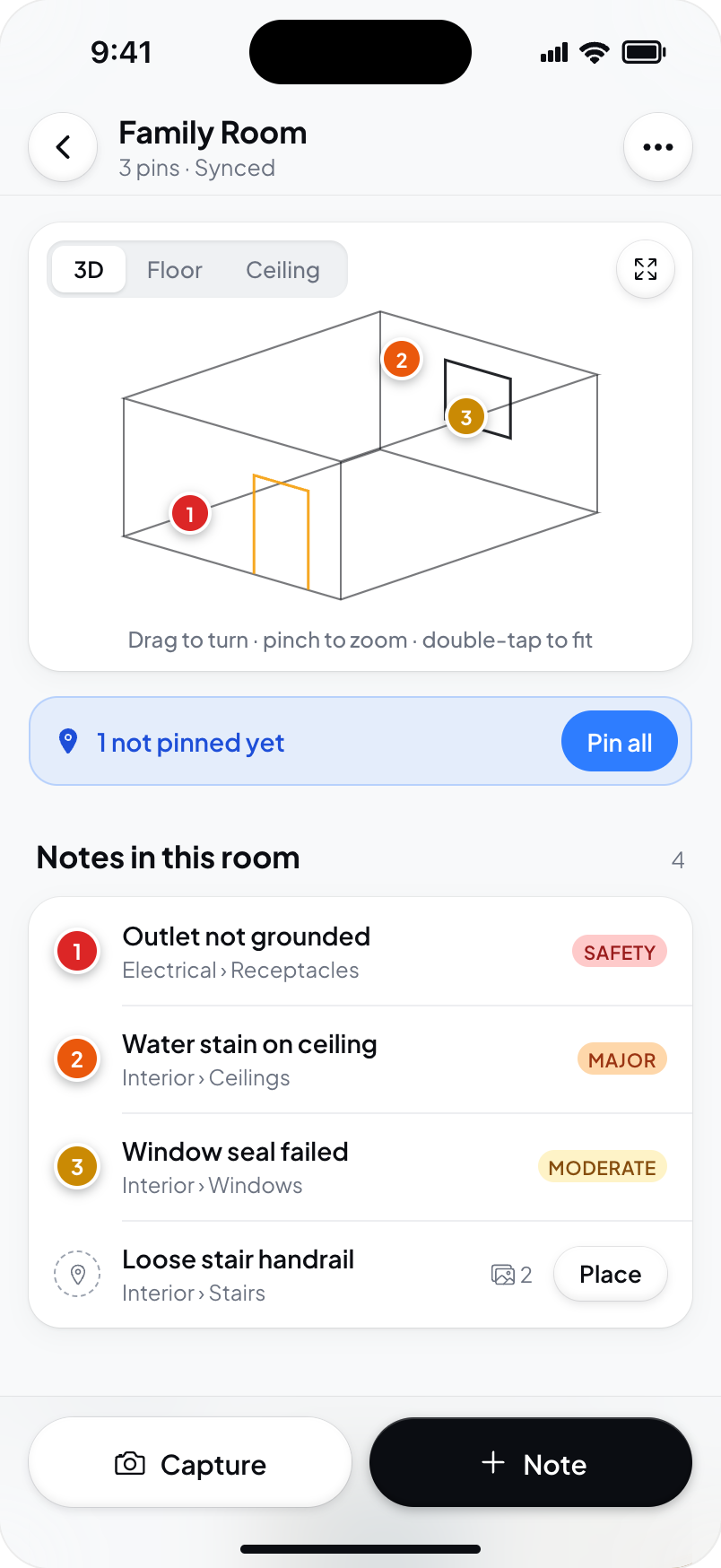
Capture now, pin later
Use Capture to collect photos and videos in the room album. On a phone, Note lets you select several notes at once. Add N saves one unpinned note for each selection; Add and pin queues them all for placement. You can save photos and notes without choosing a spot on the model.
When you're ready, use the not pinned yet strip or a note's Pin action. See Pin findings and specs to rooms.
Finish on desktop or iPad
Open the saved room on the web to edit its notes, upload photos and videos, and adjust pins. Notes and Album sit beside the viewer on larger screens. The native iPad app also uses a split view when there is enough space.
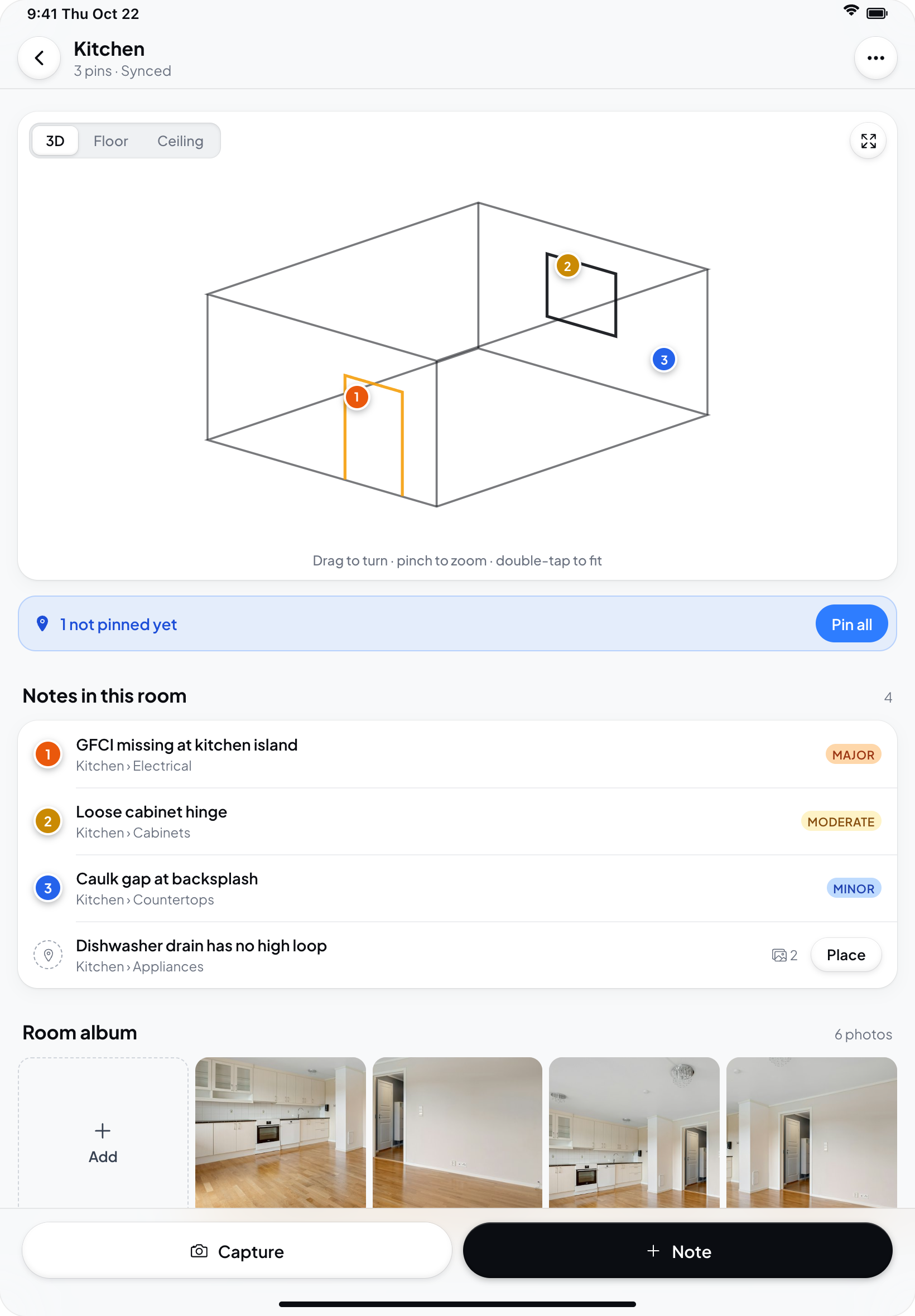
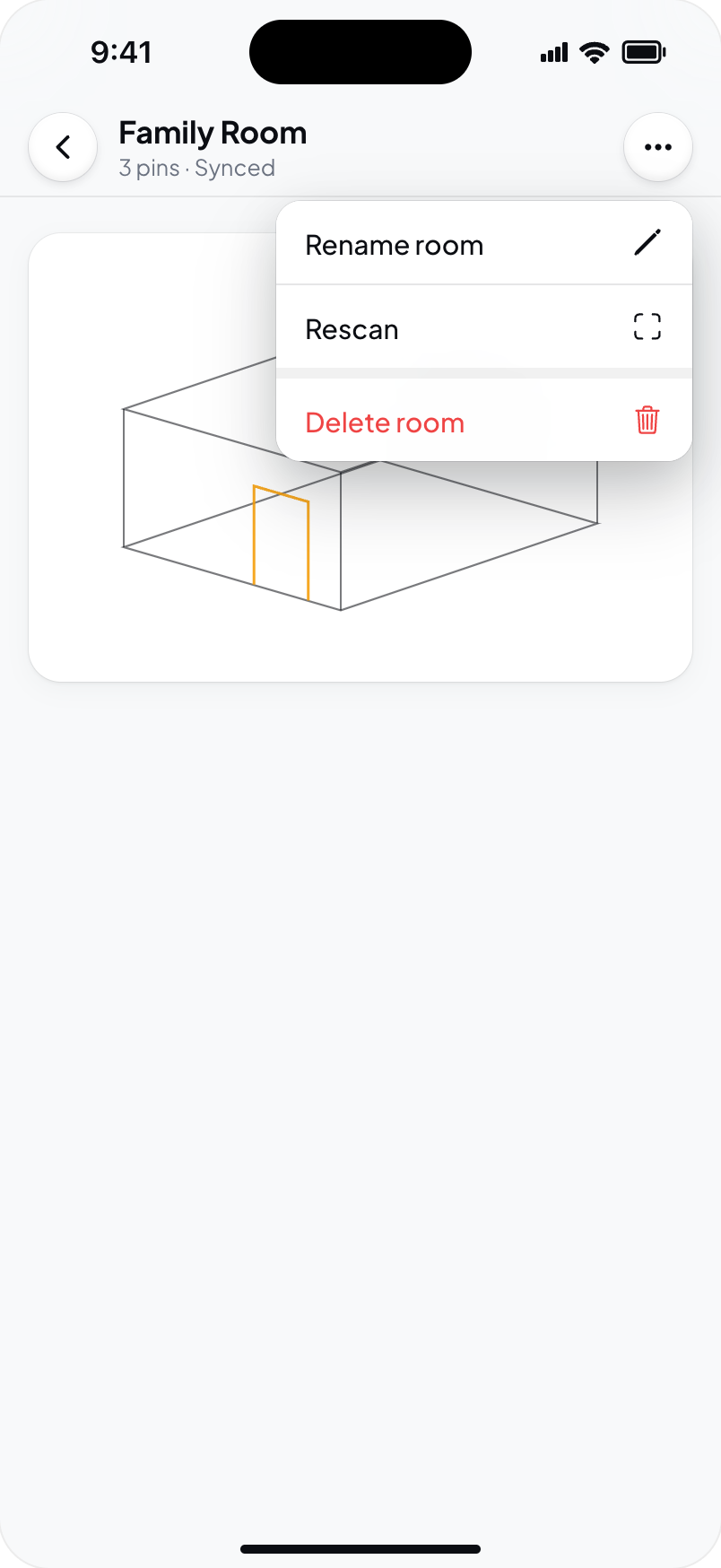
You can rename a room and, on a multi-unit inspection, keep it with the correct unit. Capturing a new 3D scan requires the native app and LiDAR.