
Write inspection findings with your voice
Long-press the Hometrace button to dictate findings and take photos while you inspect, then check what Hometrace filed.
Updated September 19, 2026 · 4 min read
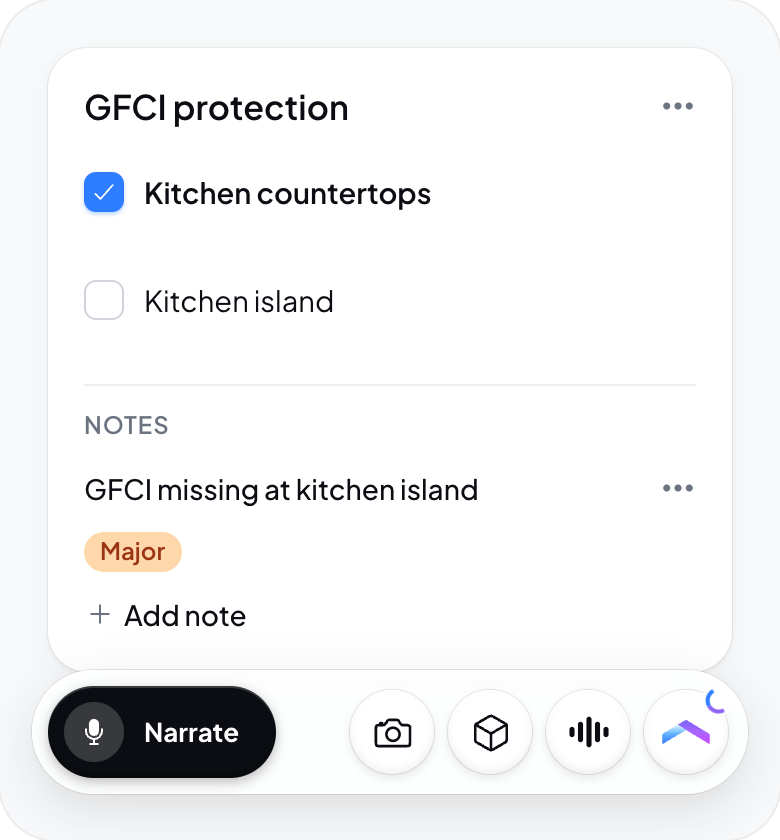
Narrate observations while you walk the property. In the redesigned native app, Narrate records what you say and lets you capture supporting photos. Hometrace processes each submitted batch and files eligible changes into the report for you to review.
If you are new to Hometrace, start with Getting started.
Start recording
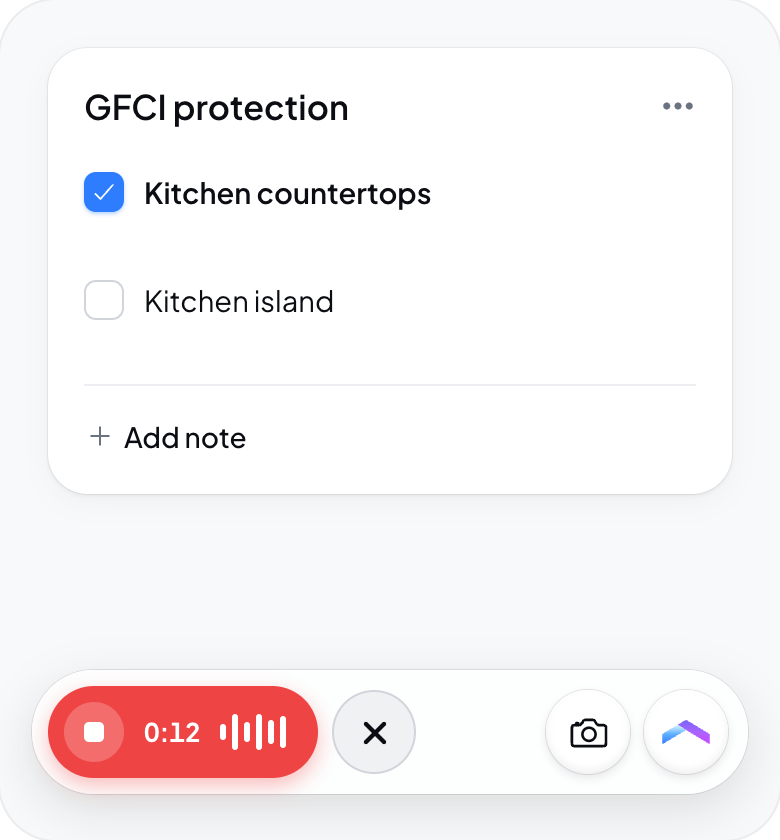
Open the inspection and the service, report, and unit you are working on. Tap Narrate in the narration bar. Allow microphone access when asked. The recording control shows a timer and waveform while it listens.
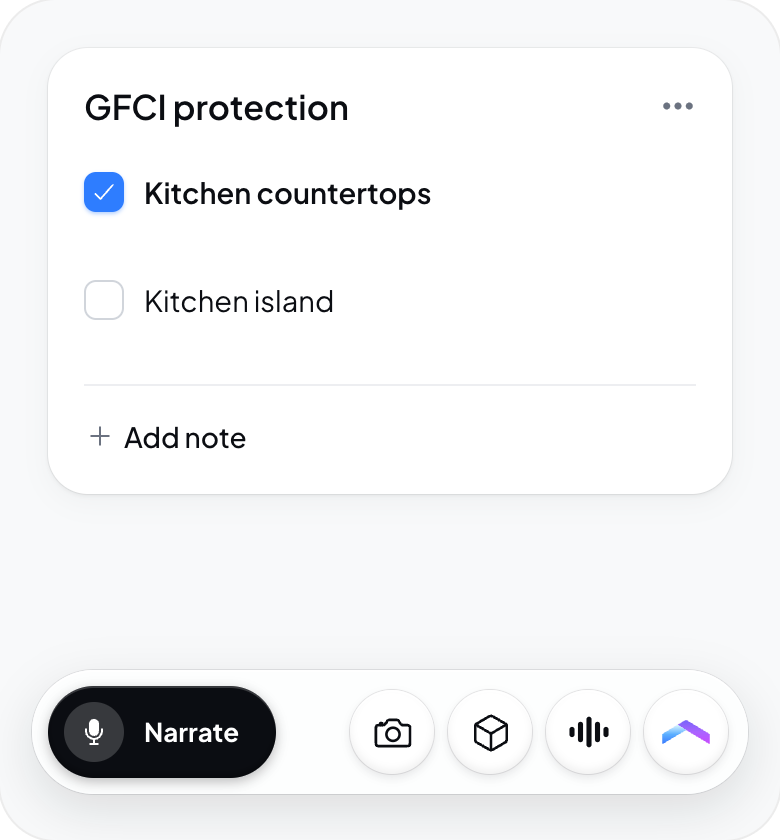
The report stays usable while you record. Pick a spot away from wind or loud equipment when possible. If you start narration outside an inspection through the Hometrace agent controls, say which inspection the work belongs to and check its destination before relying on the result.
Describe what you inspected
There are no special commands to learn. Name the room or system, describe the condition, and say what you want recorded.
- “In the upstairs bathroom, deficiency: the sink drain is leaking at the trap. Recommend repair by a plumber.”
- “Roof covering material is asphalt shingles, approximately 15 years old.”
- “Limitation under Attic: stored belongings blocked access to the far end.”
- “Moving to the kitchen now. The outlet beside the sink did not trip when I tested the GFCI.”
Identify deficiencies, general notes, and limitations when the distinction matters. Give your actual test results. Hometrace cannot infer what happened during a test from a photo alone.
Take photos while narrating
Use the camera control beside the recording control. A camera card lets you capture the condition you are describing while narration continues. Close the camera card to return to the report. In an inspection, check that the photos belong to the correct inspection and report.
The room-scan control appears only on supported devices and when the feature is available. Use the room-scan guide for that workflow.
Stop sends; X discards
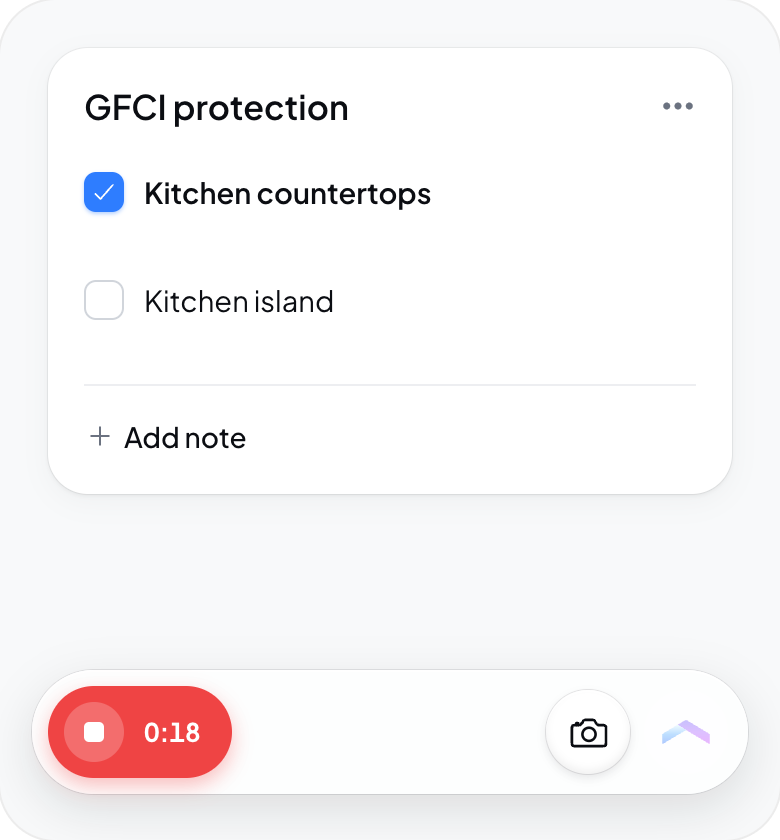
Tap Stop to send the recording and captured photos as a batch. Processing runs in the background. Wait for the recorded work to appear in the agent activity and review the completed result.
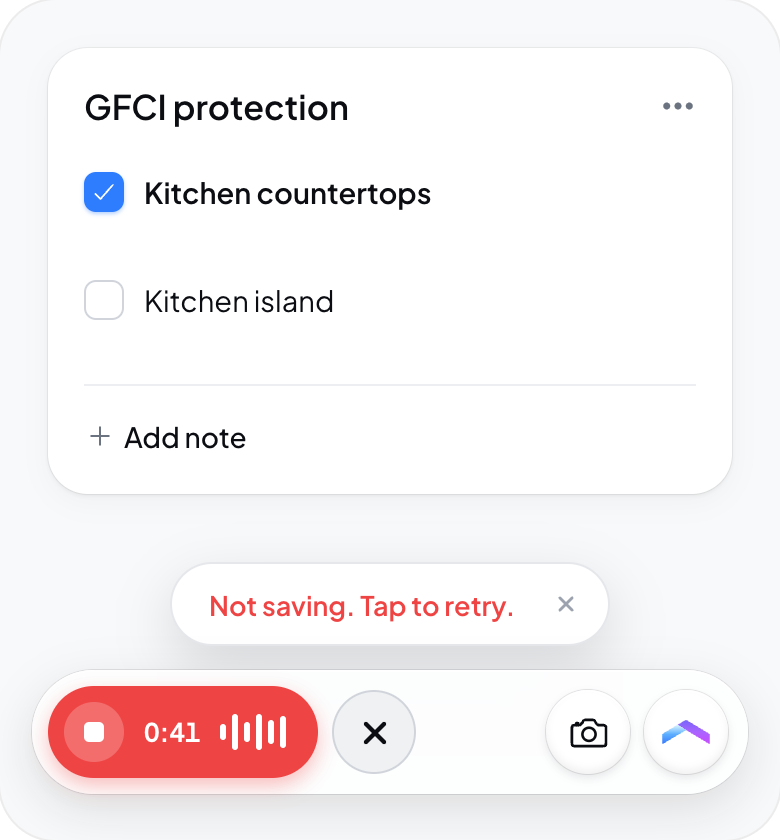
The X beside an active recording is Discard. It throws away the current take and sends nothing. Do not use it to submit a recording.
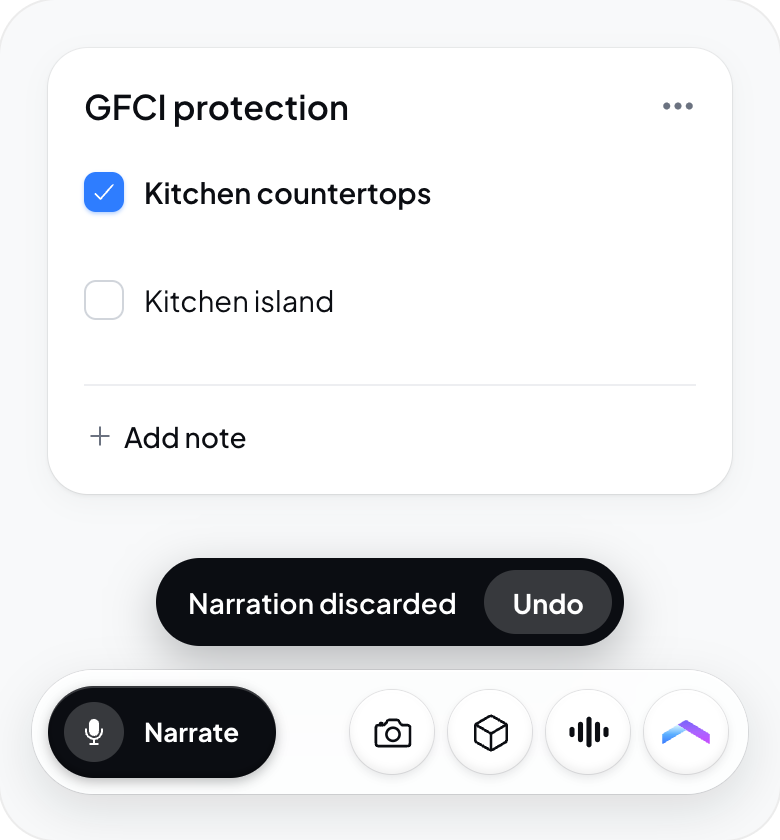
After Stop, the bar returns to Narrate. Once the submission settles and no camera, scan, or unsent photos need it, the recording dock can close automatically. Tap Narrate again for the next batch.
Review what was filed
Open the inspection’s Review destination and inspect the saved edits. Check the location, field values, wording, severity, and supporting photos. Correct or undo work that is inaccurate. A progress line saying processing started does not mean the report is finished.
See Review and undo what Hometrace changed.
Work with no signal
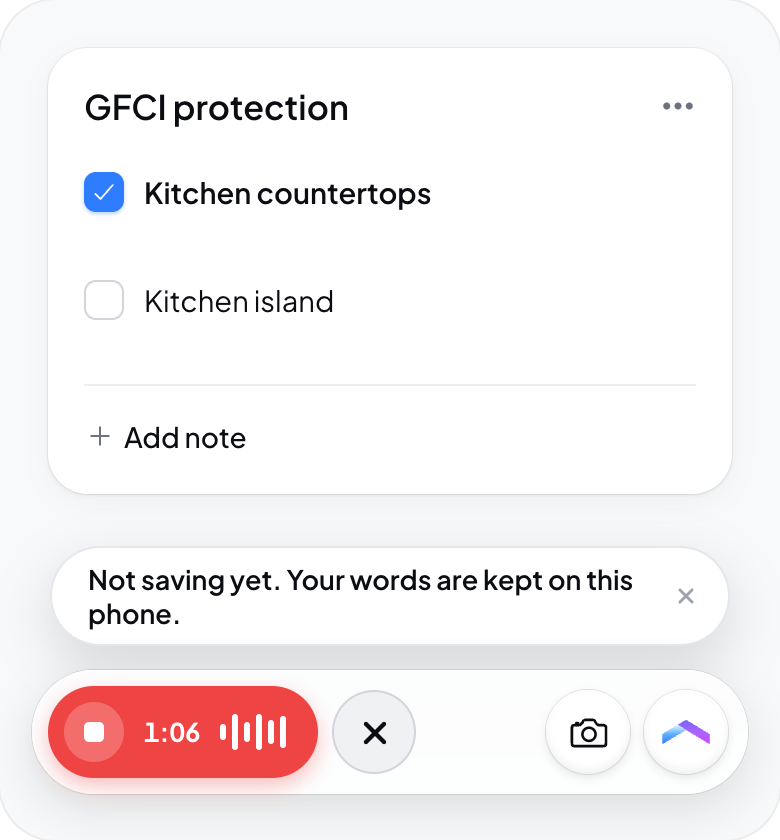
Dictation can be saved on the device while offline and uploaded when a connection returns. Check the recording status and sync state before leaving the inspection or assuming the work is on the server. Live voice conversation needs a connection.
Switch to live voice
When available, the live voice control opens a two-way voice conversation. Finish or submit the current recording before changing modes. Follow the on-screen connection, listening, and speaking status. The live conversation and a saved dictation batch have different processing states; review the report after either workflow.
Field microphones
The microphone beside a report field records into that field. It is separate from Narrate, which sends a batch to Hometrace. Field microphones are unavailable while the dictation dock owns the microphone. Finish or discard the active take before using another recording control.
Recordings
Dictation audio is retained for seven days after transcription so a garbled batch can be processed again, then removed by the retention process. The local recording is removed after upload is confirmed.
Continue with Photo analysis and Reviewing Hometrace changes.