
Using the Mobile App
Install the Hometrace mobile app on iOS or Android and use it for offline-first inspections in the field.
Updated May 4, 2026 · 4 min read
The Hometrace mobile app is built for inspectors working in the field: basements, attics, crawlspaces, and everywhere in between. It saves field work locally and syncs with your account when a connection is available.
Install and sign in
Install on the device you use during walkthroughs:
- iPhone or iPad: Download Hometrace on the App Store.
- Android: Download Hometrace on Google Play.
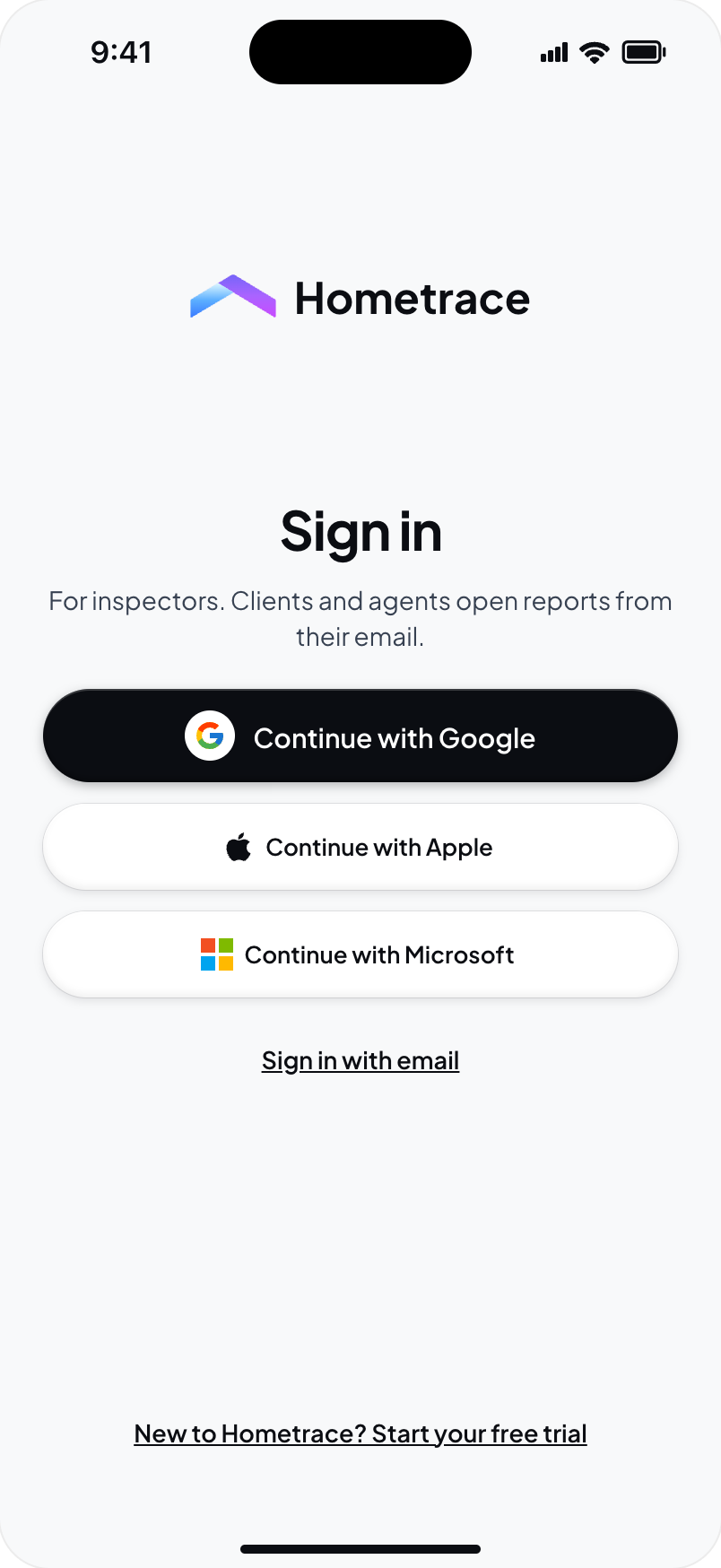
Use the same Hometrace account as on the web. Inspectors sign in with their email and password, or with an available Google, Microsoft, or Apple sign-in option connected to their account. Inspector sign-in does not use a magic link. If you need a password, use the password reset option on the sign-in screen.
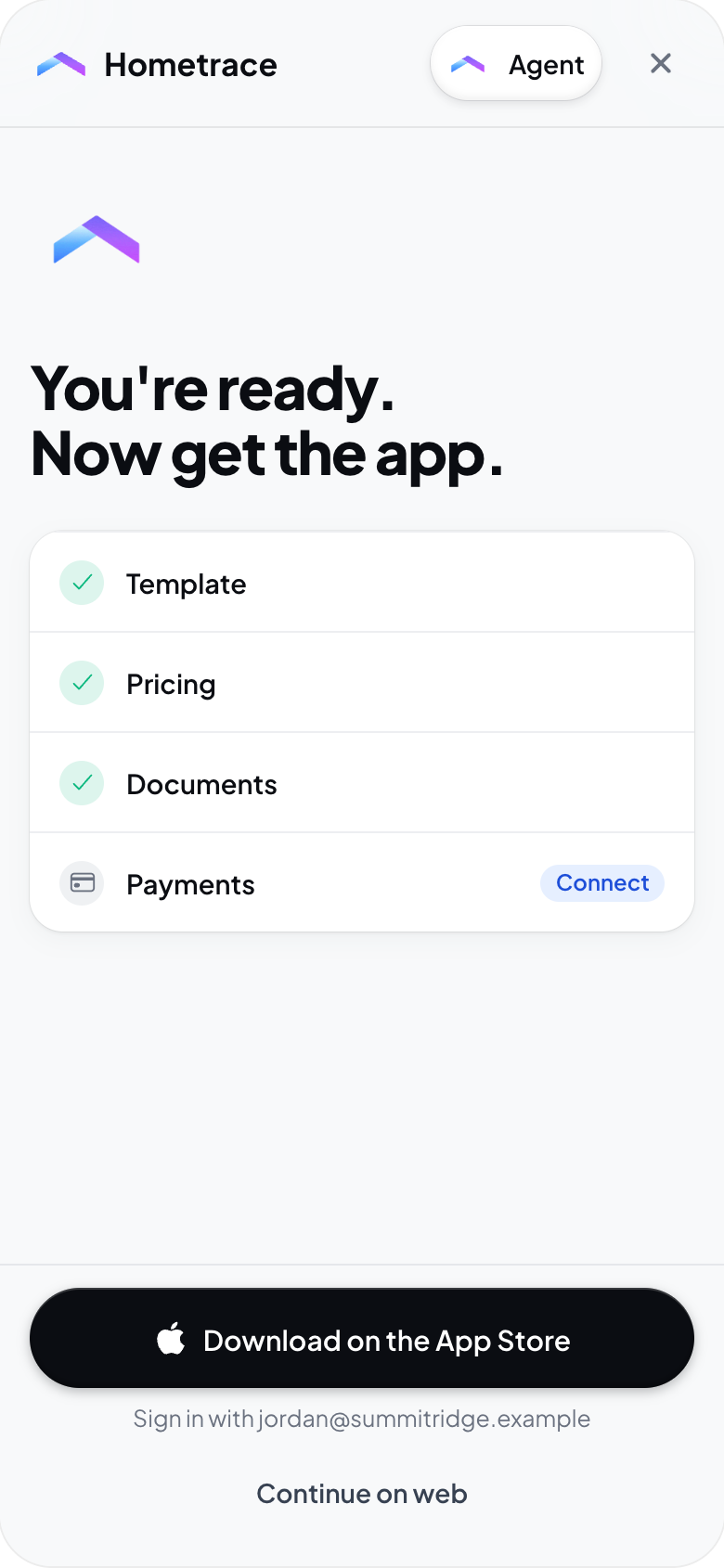
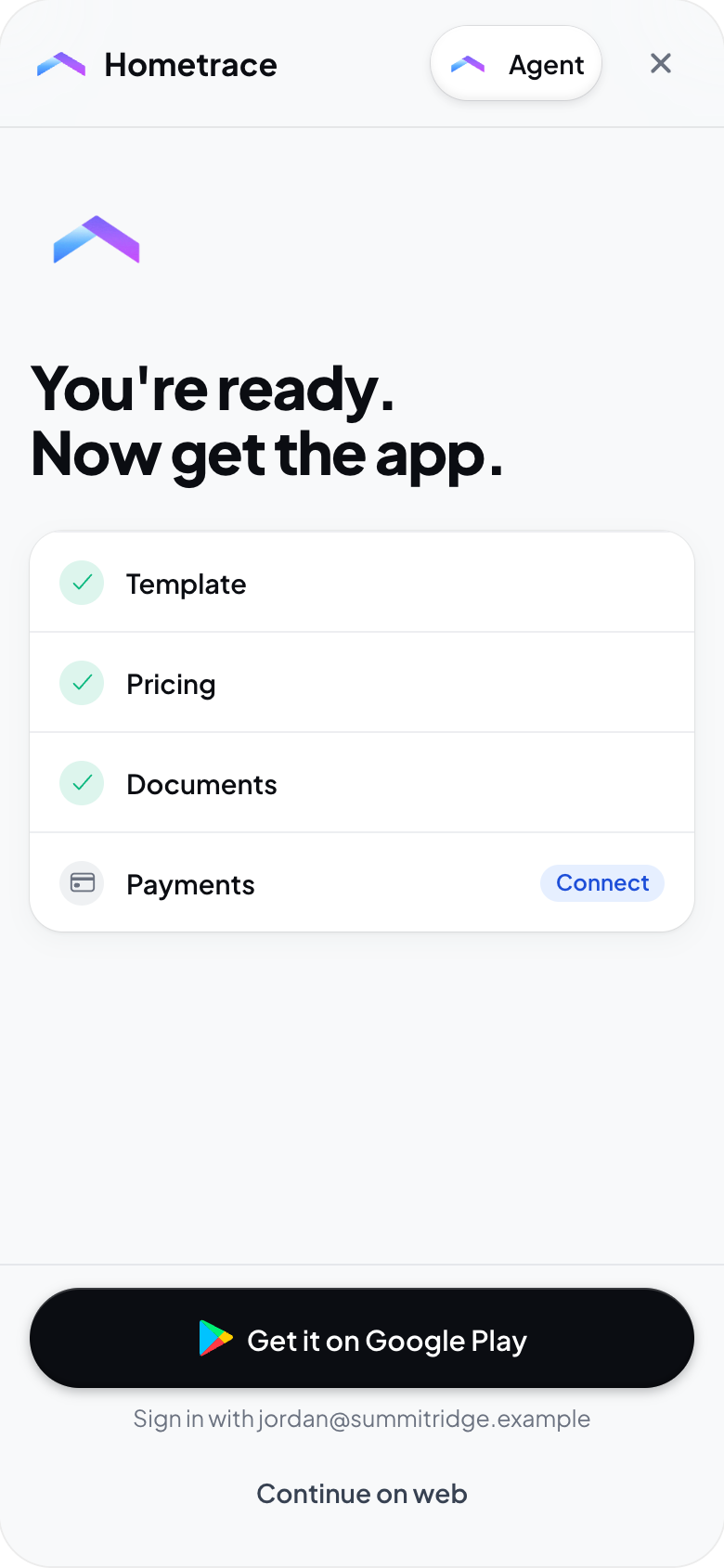
If you are finishing setup on web, the Ready step helps you install the app. Desktop web offers a QR code and Send link by text; mobile web offers the store button for your device and Continue on web.
Field work
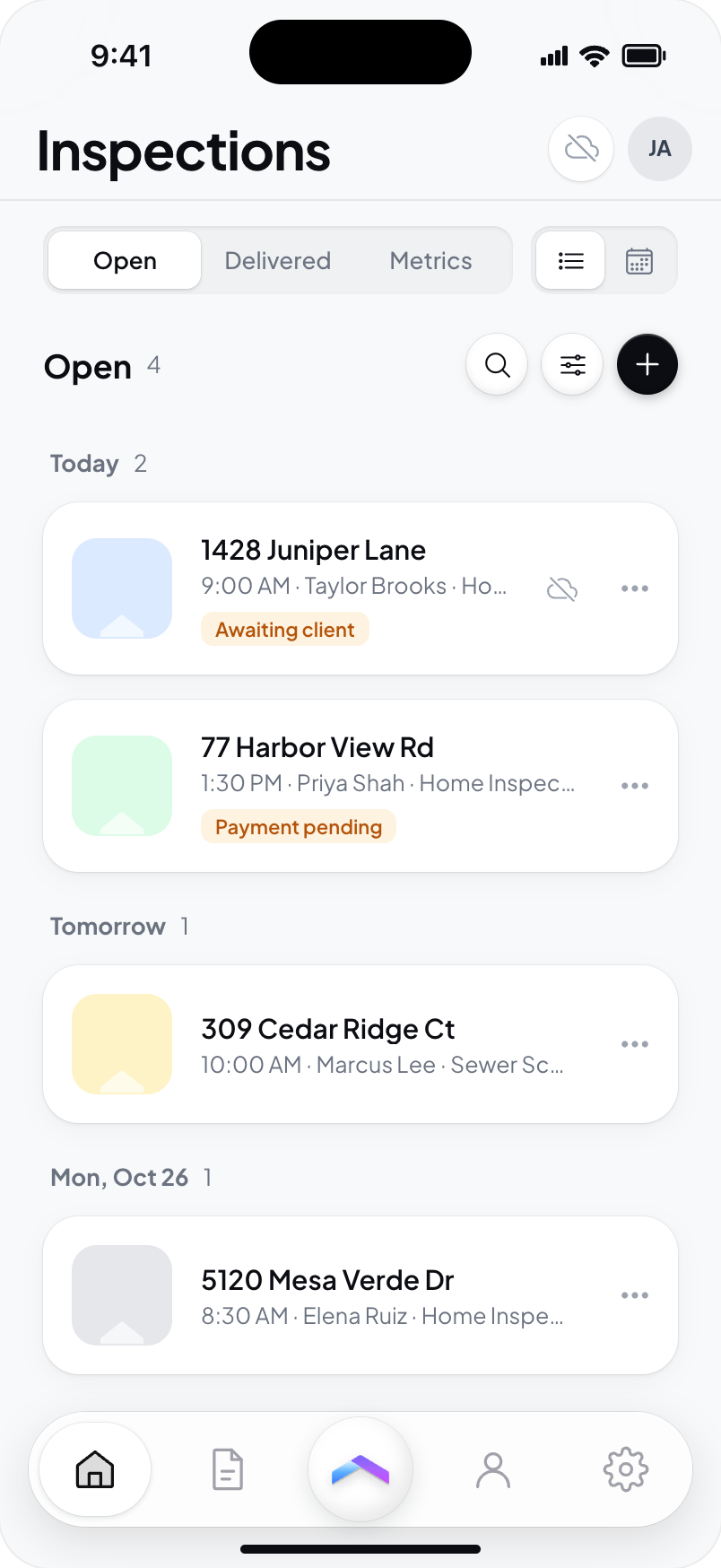
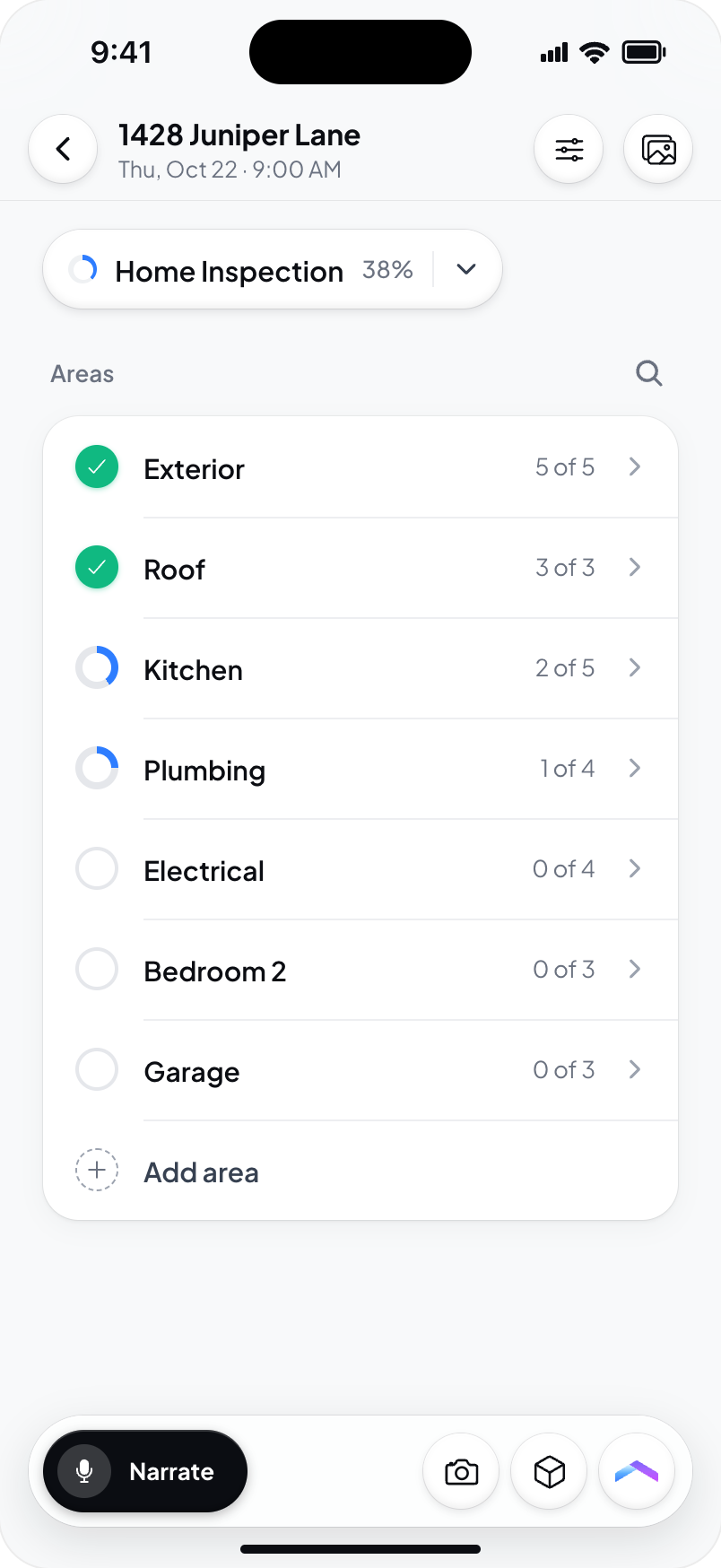
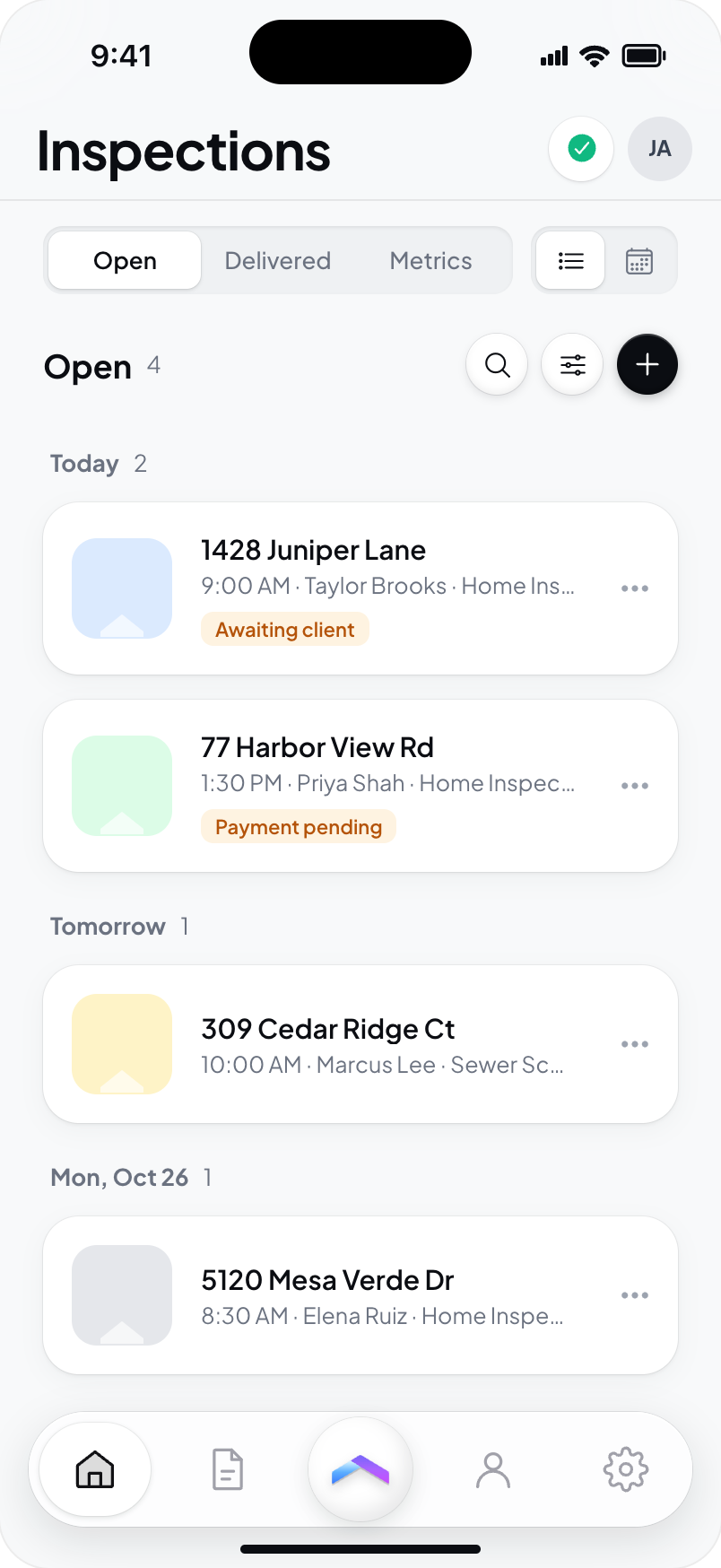
Inspections created on web and in the mobile app sync to the same account. The native app provides local field storage; using Hometrace in a mobile browser does not provide the same native offline workflow.
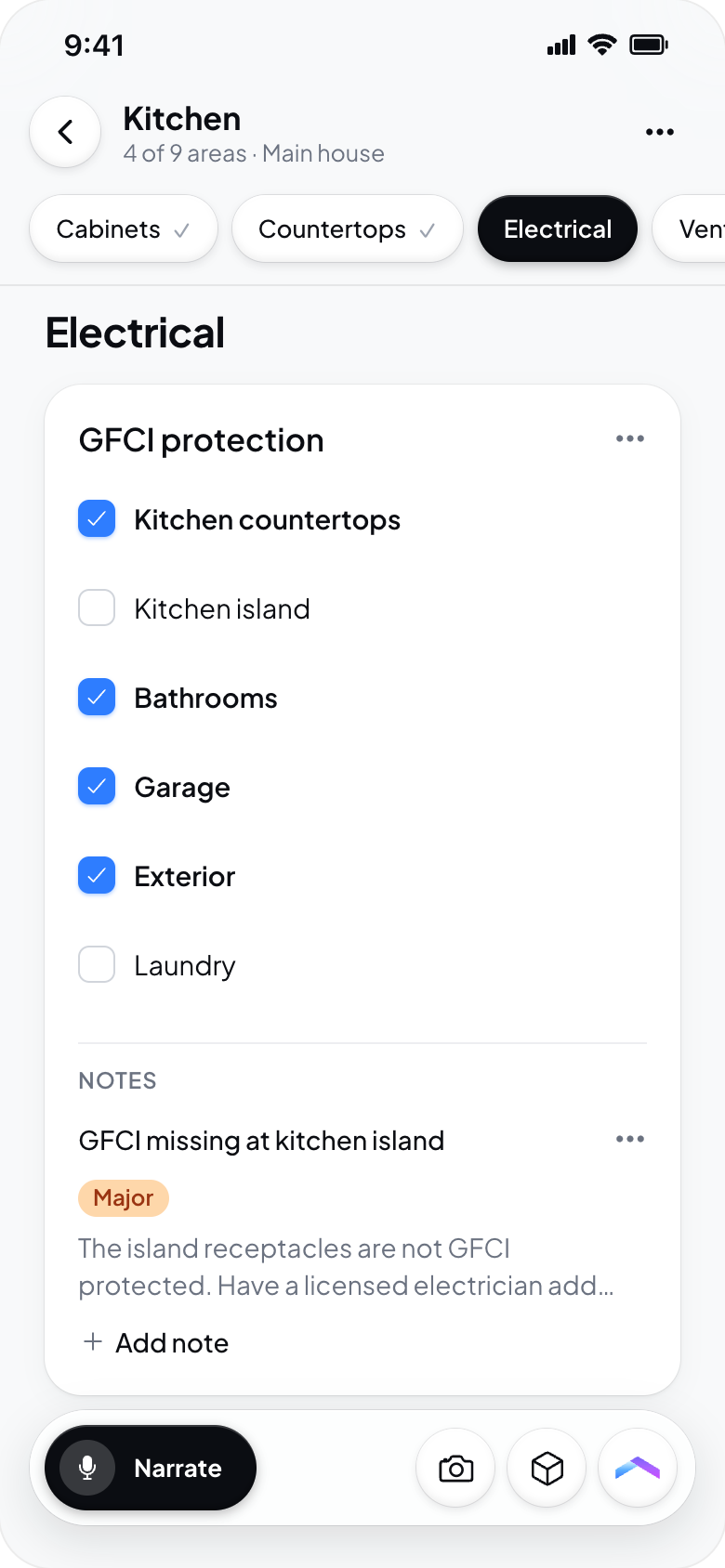
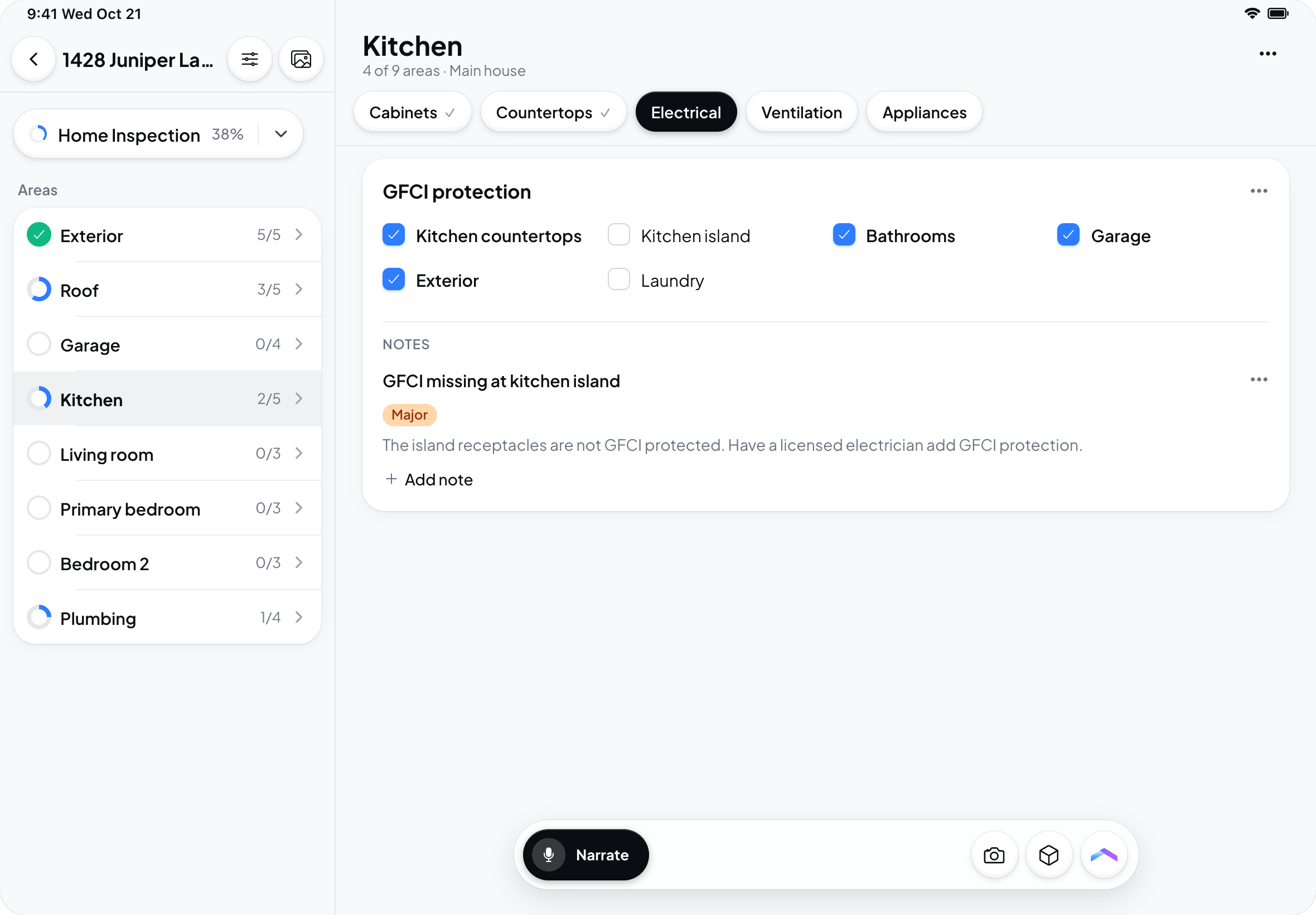
- Voice AI: talk through findings as you walk, then check where Hometrace filed them and review the wording. See Voice AI.
- Photo Analysis AI: capture photos, then start analysis when you want Hometrace to analyze them. Taking a photo by itself does not mean AI analysis has run. See Photo Analysis AI.
- Offline field work: continue supported editing and photo capture using data already downloaded to the device. Work saved locally uploads when you reconnect. AI processing, live voice conversations, report delivery, and other server actions need a connection. A recorded voice note may wait locally to be sent when you are back online.
Room-scan capture has separate hardware requirements. Availability on one iPhone or iPad does not imply that Android or every Apple device can capture a scan. Follow the room-scan guide for supported devices.
Prepare for limited connectivity
- Open the app while connected to Wi-Fi.
- Open the inspection you will work on and confirm its report and template content are available.
- Open Sync from the sync indicator and let pending uploads and downloads finish.
- Check that the needed content and photos are present before leaving connectivity.
Use the Sync sheet
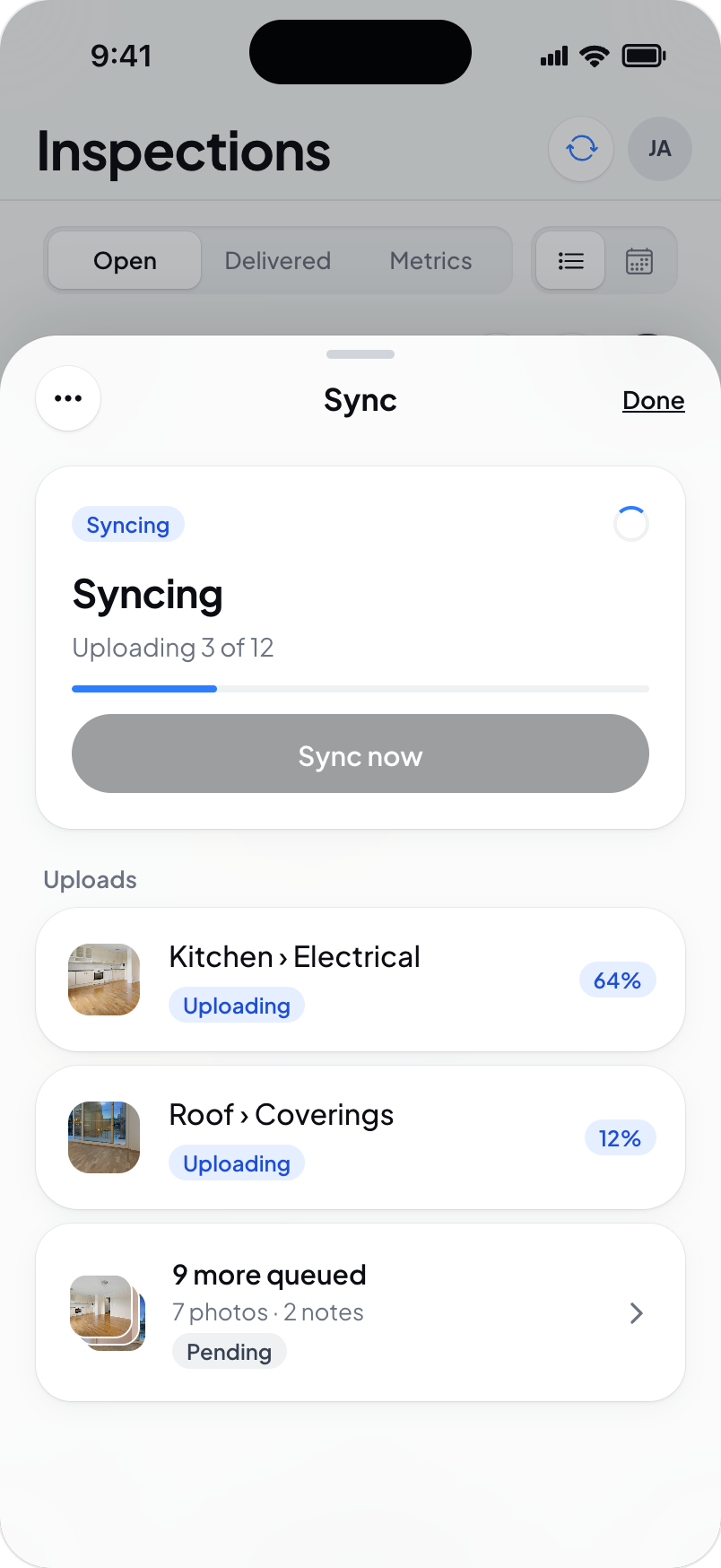
Tap the sync indicator to open Sync. The sheet shows connection status and offers Sync now to check and run sync.
- Needs attention lists items that need action. Use the available Retry or Retry all control and read any explanation shown. Some conflicts offer Try as new change or require review instead of an ordinary retry.
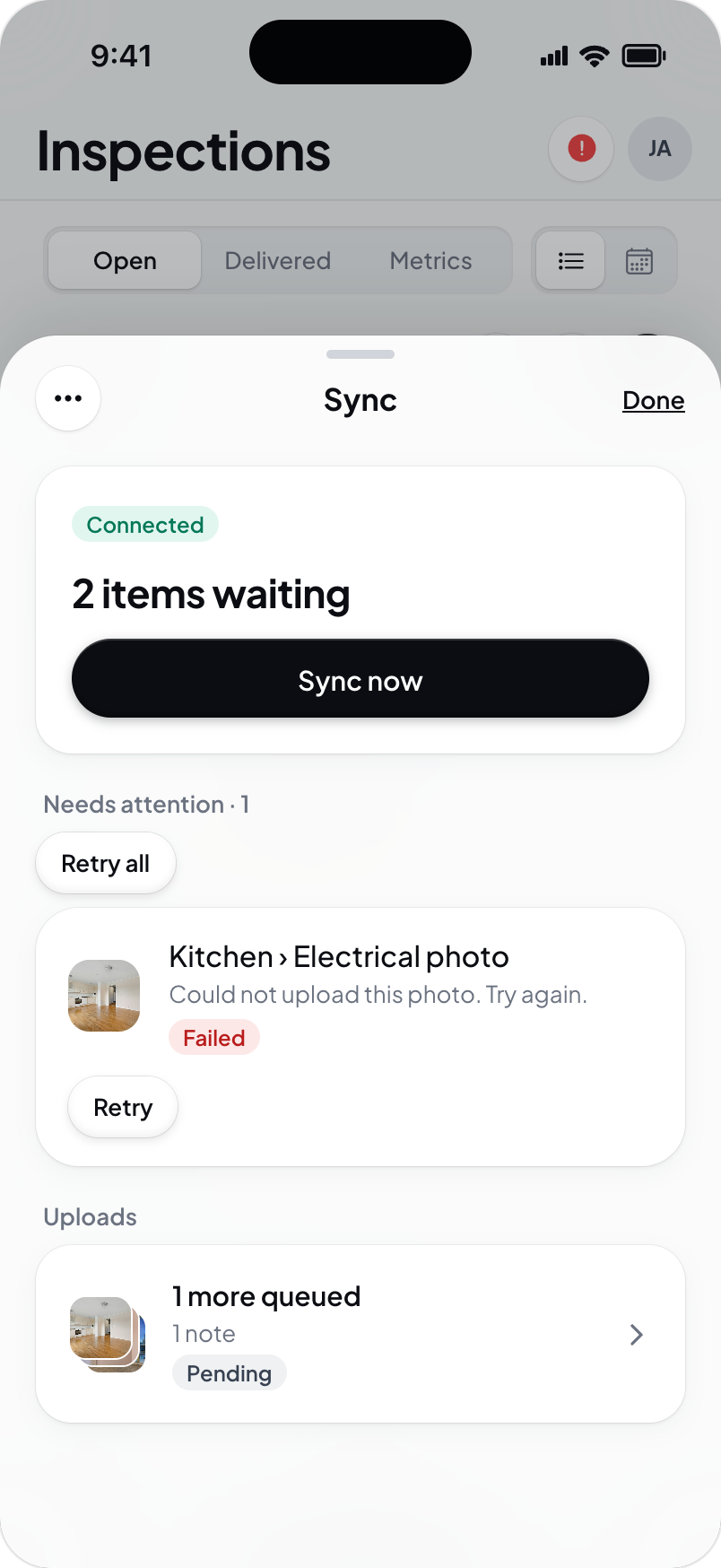
- Uploads shows active work and additional queued items. Tap the queued summary to see more.
- Waiting for server data lists downloads that are waiting or have failed.
- Everything's up means the sheet has no pending work to show and says that every photo and note is on the server.
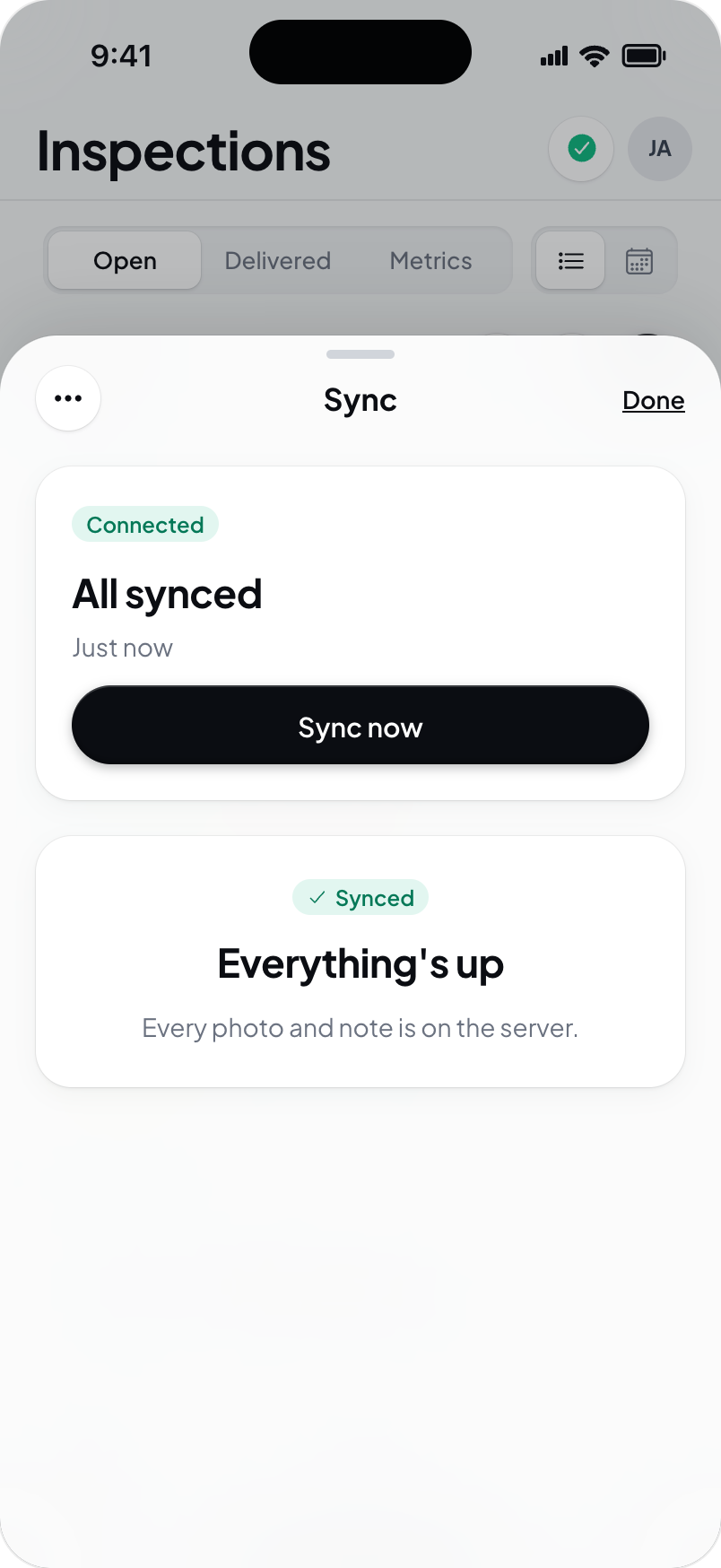
Use Done to close the sheet. The ellipsis opens Sync tools, which includes recovery actions. If sync remains stuck, contact support with the displayed item and error before using Reset everything.
Field tips
- Battery: carry a portable charger for long inspections and lower brightness when practical.
- Storage: leave enough free space for your inspection photos and videos. Locally saved work still needs room on the device.
- Photos: take close-ups of issues plus a wider context shot of each area. Use your device flashlight where needed.
- Notes: capture observations while details are fresh, then check saved wording, location, severity, and recommendations before delivery.
Troubleshooting
Photos not appearing: check camera and photo permissions in your device's system settings. On iPhone or iPad, find Hometrace in Settings. On Android, open the app's App info, then Permissions. Exact system menus depend on your OS version.
Sync not working: check your connection, open Sync, and read Needs attention. Try switching between Wi-Fi and cellular and use the available retry control. Keep the locally saved work on your device while support investigates.
App slow or laggy: check available storage and send support the device model, app version, screen, and steps that caused the problem.
Getting help
Email support@hometrace.co with details and screenshots of any error. Avoid including client information in screenshots unless needed for the support request.