
How to Use Final Checks on Mobile
Run Final Checks from the Hometrace mobile app, review report-quality results, accept safe text fixes, and handle sync or offline states.
Updated July 23, 2026 · 4 min read
Final Checks reviews report text and specs before delivery. In the redesigned native app, results appear in Review, under Final checks, with three groups. Spelling and grammar fixes can already be saved to the report when you open the results.
Before you begin
Connect to the internet. Finish the edits you want included and let report text sync where possible. Review saved AI work and any pending suggestions. The inspection needs a report with report areas and available AI-feature allowance.
Final Checks tries to flush and sync report text, but a pending photo or document upload is not itself a reason to block text review. The app does not require you to clear every local sync counter before starting. If results are older than your latest edits, finish syncing and rerun.
Run Final Checks
- Open the inspection in the Hometrace mobile app.
- Go to Review & send and tap Run final checks.
- Follow the progress while the report is checked. You can cancel an active run with its cancel control.
- Open Review, then Final checks, to inspect the results. The completed row also gives you a route back to results.
Reconnect before starting or reviewing server-backed work if you are offline. Do not assume locally saved text has reached the server until sync succeeds.
Review the three groups
Empty fields lists blank specs and missing condition values. Use Fill in where offered, or Open to return to the report item. Supply what you actually inspected; Hometrace should not invent missing inspection information.
Spelling & grammar lists fixes already applied to the report. Inspect the original and changed wording. Accept keeps and confirms a fix; Undo reverses it when it can still be safely reversed. Accept all and Undo all act on the eligible fixes in this group. If the report item has changed, an undo may be unavailable.
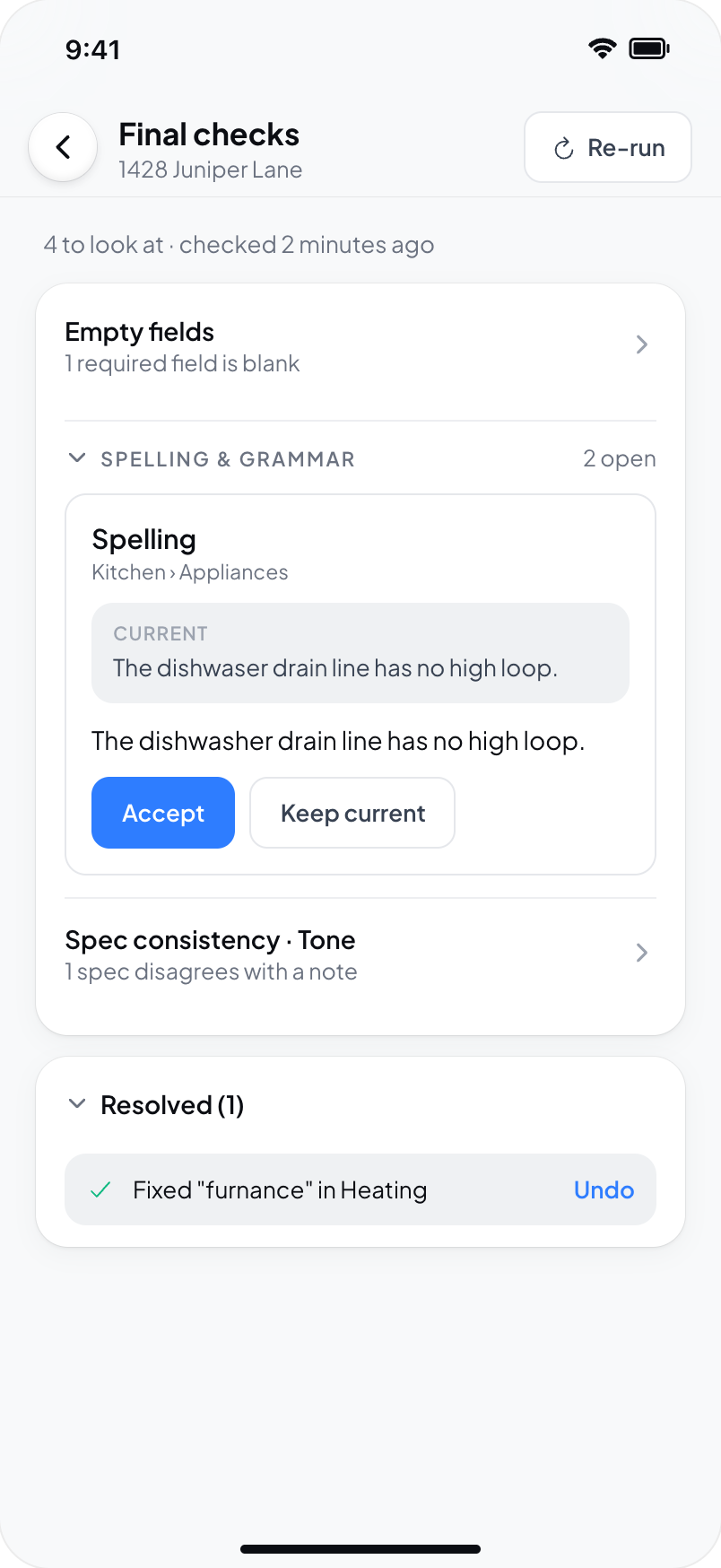
Spec consistency · Tone groups possible contradictions, duplicate or inconsistent notes, severity concerns, and unprofessional wording. Open Review for a result and decide whether to edit or resolve it. These flags require your judgment.
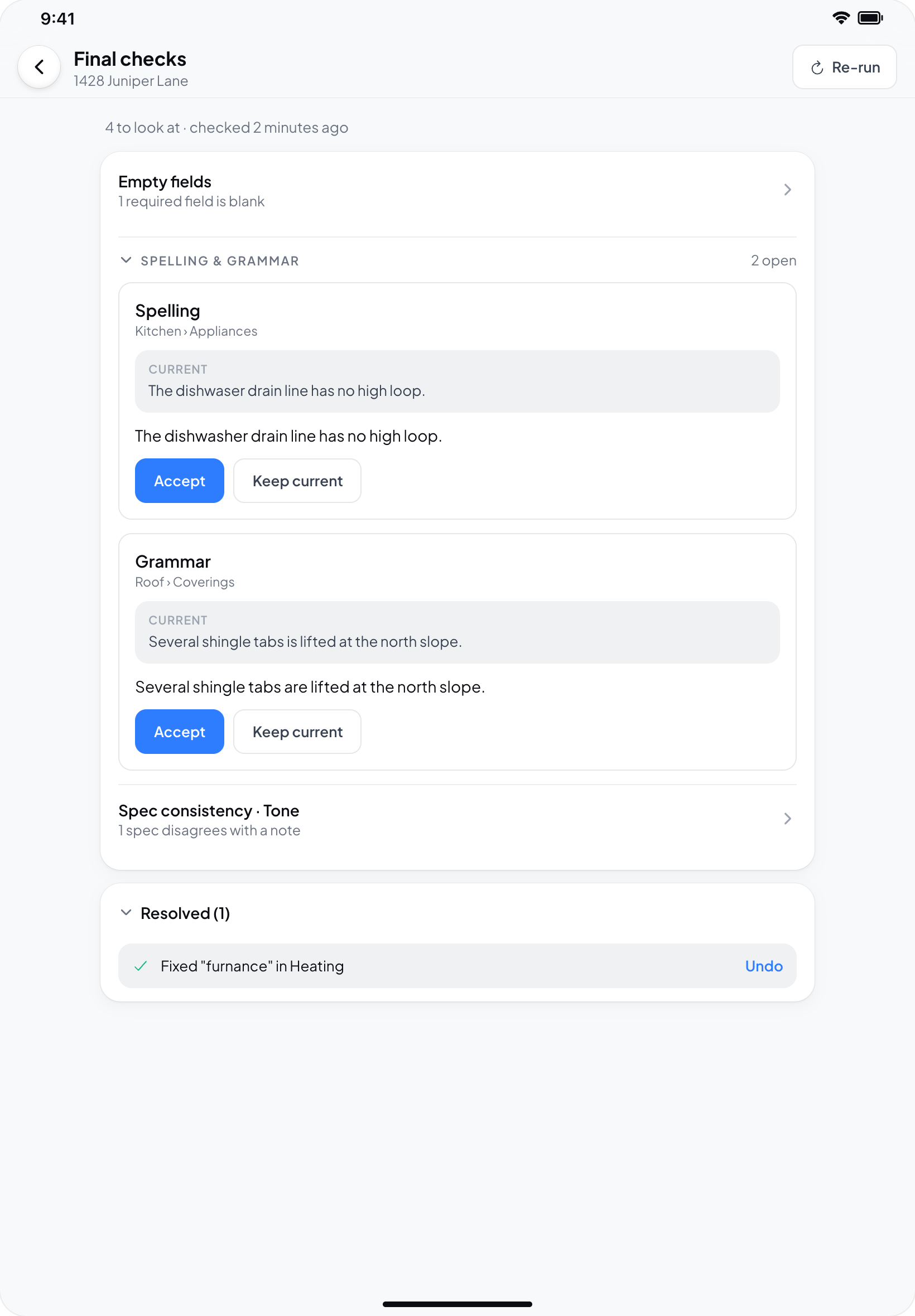
Check the report, service, unit, section, and subsection context when an inspection contains multiple reports. A clear badge means there are no remaining items counted for review; it does not prove that every inspection detail is complete or correct.
Run it again after edits
If report content changes after a completed run, the results may be marked as older data. Finish your edits and use Re-run to check the current content. If part of the run failed or was cancelled, use the available retry or rerun action and wait for a completed result.
Publishing
Final Checks is recommended rather than a hard publishing requirement. Hometrace may warn if it has not run or if results still need attention. Review the warning before choosing Publish Anyway.
Troubleshooting
An area could not be checked: Confirm the report is current, then retry the failed work or rerun the check.
A fix cannot be applied or undone: The target may have changed since the run. Check the current report and run a fresh check rather than applying old text blindly.
AI allowance reached: Final Checks shares the account’s AI-feature allowance. Follow the displayed limit notice. A monthly allowance notice and a subscription requirement are different states.
No issues found: Preview the report and complete your normal inspector review before publishing.
What Final Checks does not do
Final Checks reviews report content. It does not inspect photos, replace inspector judgment, guarantee that every error will be found, independently verify the home, or provide a code-compliance or safety certification.