
Import an Existing Template
Bring your existing Spectora, Home Inspector Pro, or HomeGauge template into Hometrace without rebuilding from scratch.
Updated September 14, 2026 · 3 min read
If you already use Spectora, Home Inspector Pro, or HomeGauge, you can import your existing template into Hometrace. You can also import a Hometrace JSON bundle or prepare a CSV using our template format.
What you'll need
Use the export format for your source:
SourceFileMaximum size
Spectora
.xls or .xlsx
50 MB
Home Inspector Pro
.tpz template bundle
20 MB
HomeGauge
.ht5 template
20 MB
Hometrace
.json template bundle
50 MB
Other software
.csv in Hometrace's format
50 MB
The import screen shows export instructions for each source. For Spectora, use the Plain Text export from its data page. For Home Inspector Pro, export a Template Bundle. For HomeGauge Desktop, use Templates, Manage Templates, select your template, then Export. To copy a Hometrace template, open it and choose Download.
Import your file on web
- Open Templates in your inspector dashboard and choose Import.
- In Import a template, choose Your current software.
- Follow the displayed export instructions. For Other software, use Download CSV template and fill in that format.
- Drop your file into the upload area or choose Browse Files.
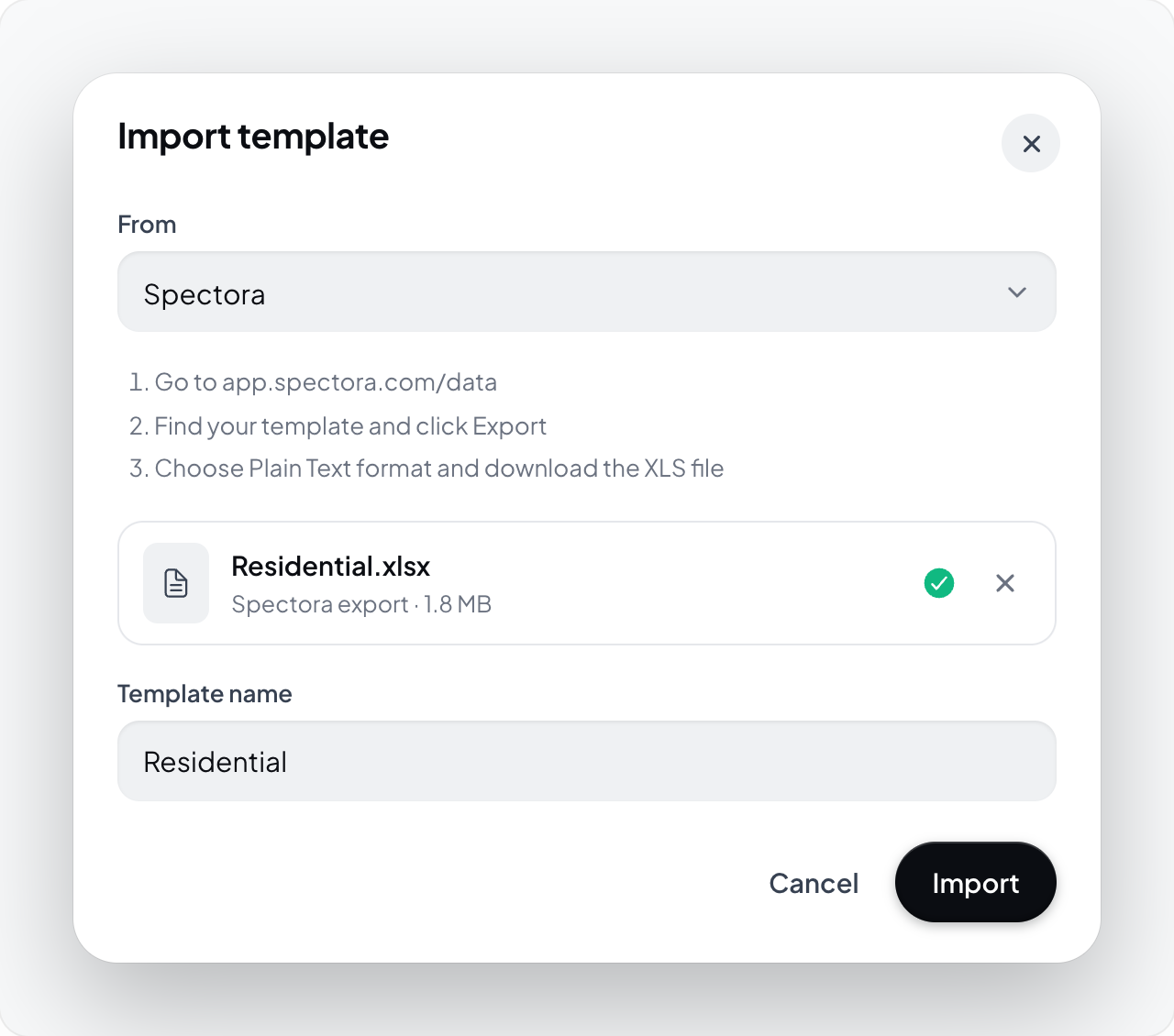
- Check Template name, which starts from the filename, and change it if needed.
- Choose Preview when offered, review the imported counts and any options or warnings, then choose Import. Sources without a preview use Import directly. A recognized TREC template can show an additional confirmation before import.
- Open the imported template and review sections, notes, spec values, and defaults before using it for an inspection.
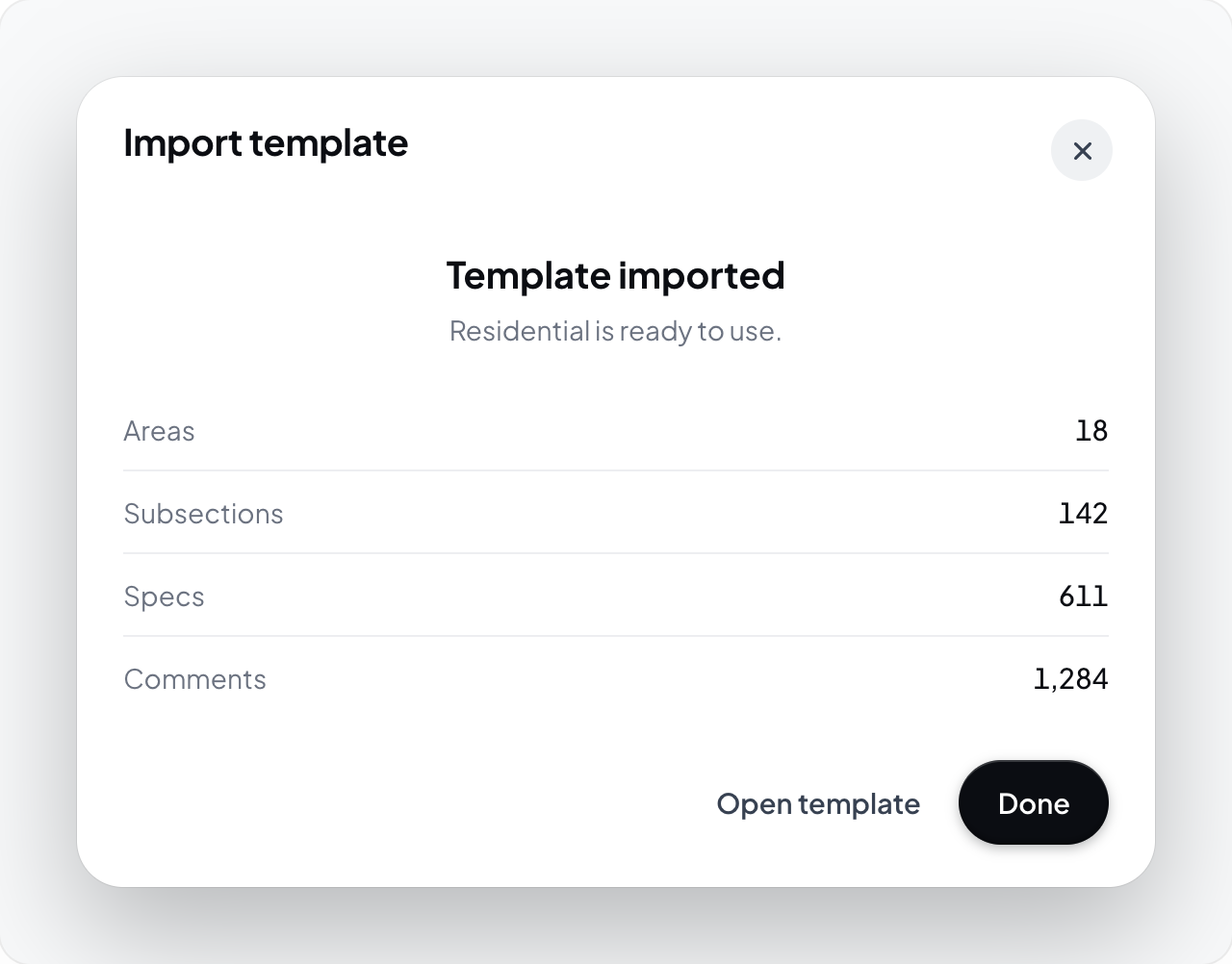
Import uses your file as a starting point. It does not guarantee that every behavior from the original software will transfer.
Tips by source
- Home Inspector Pro: review section structure, comment library, and inspection logic. Photo annotations and HIP-specific automations may need manual work.
- Spectora: review the section and spec hierarchy and comment options. Custom calculations may need to be entered again.
- HomeGauge: review sections, inspection items, Styles & Materials menus, comment categories, and rating columns. AutoText fields become placeholders such as
[location]. Repeatable section names and inspector-only help text are not imported. Read the preview and import options before confirming. - Hometrace: use a downloaded JSON bundle and give the imported copy a new name.
- Other software: start with the CSV downloaded from Hometrace. An arbitrary export CSV may need reformatting.
For larger or more complex templates, or a source we do not import directly, ask about a done-for-you migration. Reply to your welcome email or contact support@hometrace.co.
Import with a connected assistant
If you use a supported ChatGPT or Claude connection and template import is available for your account, you can ask the assistant to bring over a source template. Have it show you the import preview and any gaps before agreeing to create the new template. This route creates a new template rather than replacing an existing one.
Next step
Open the Templates page to import your file.