Inspection Reports
Build inspection reports with sections, subsections, findings, Voice AI, and Photo Analysis AI.
Updated May 4, 2026 · 3 min read
Hometrace inspection reports organize your work into sections, subsections, specs, and notes. Notes record findings, observations, and limitations, with photos and other supporting information. Work can sync between the native mobile app and the web workspace so you can capture in the field and finish on a keyboard.
Build an inspection
- Create an inspection with its property, date, and services. Choose the appropriate template for each report-producing service. You can use a built-in template or import an existing template.
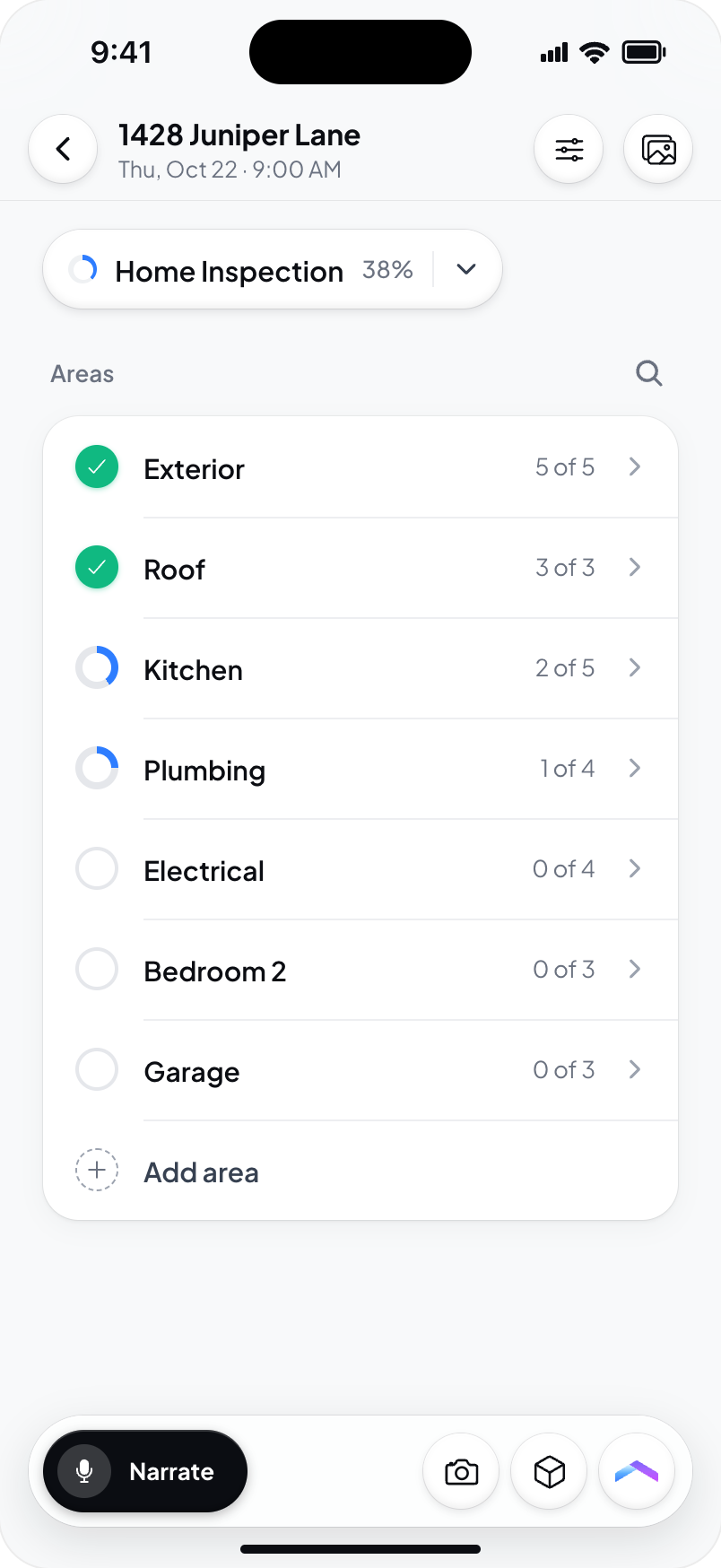
- Open a service and its report. For an inspection with multiple services or units, check that you are editing the intended report and unit.
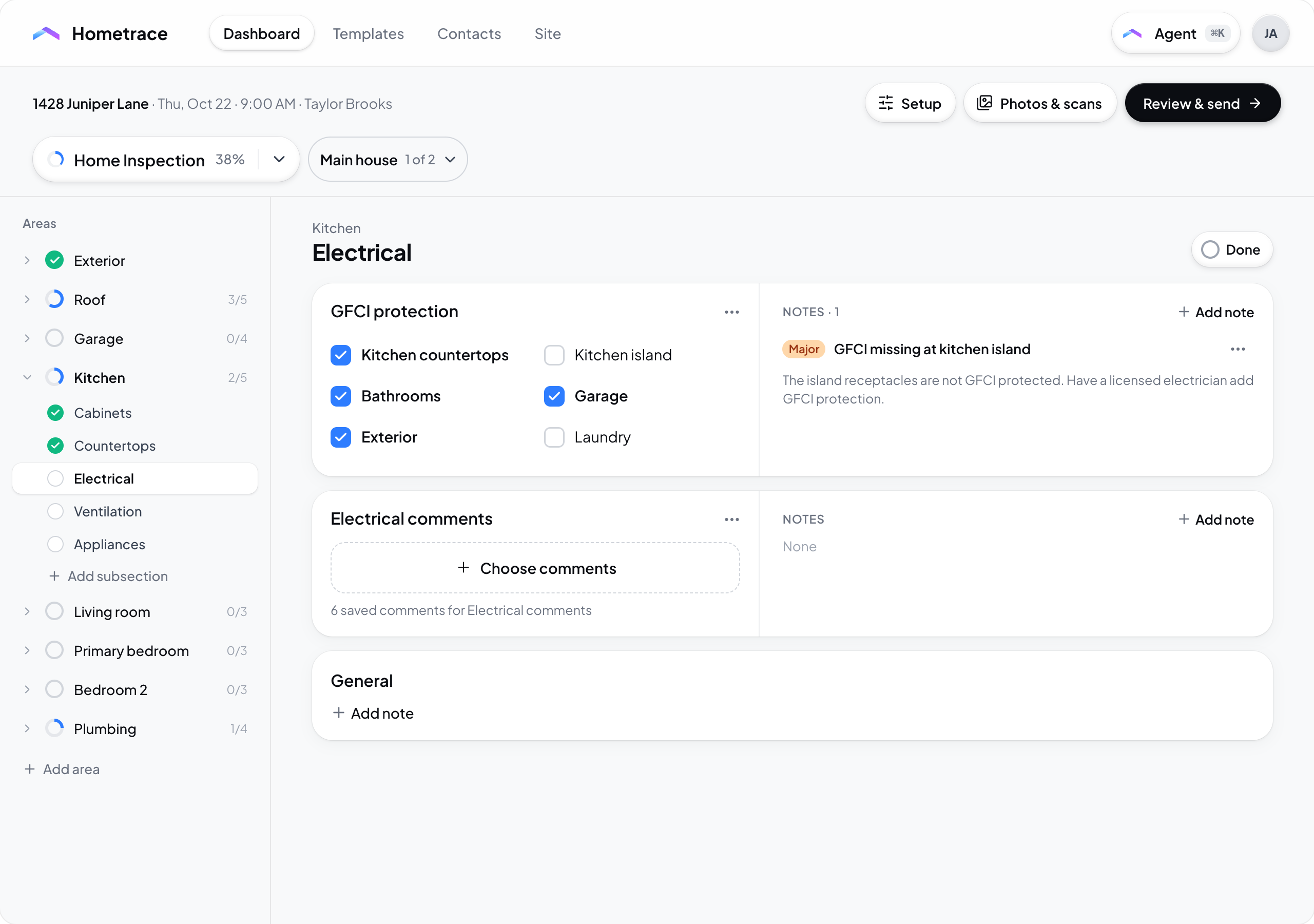
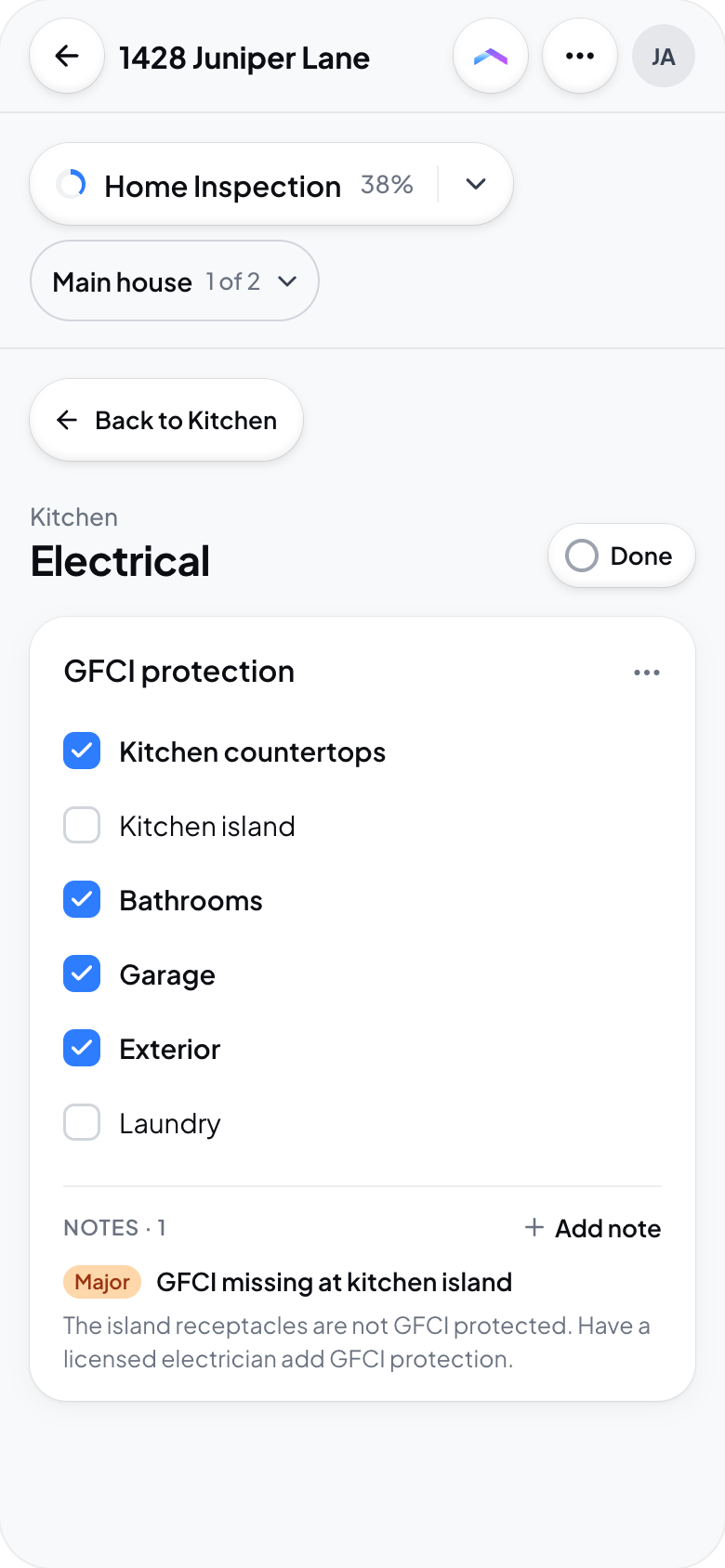
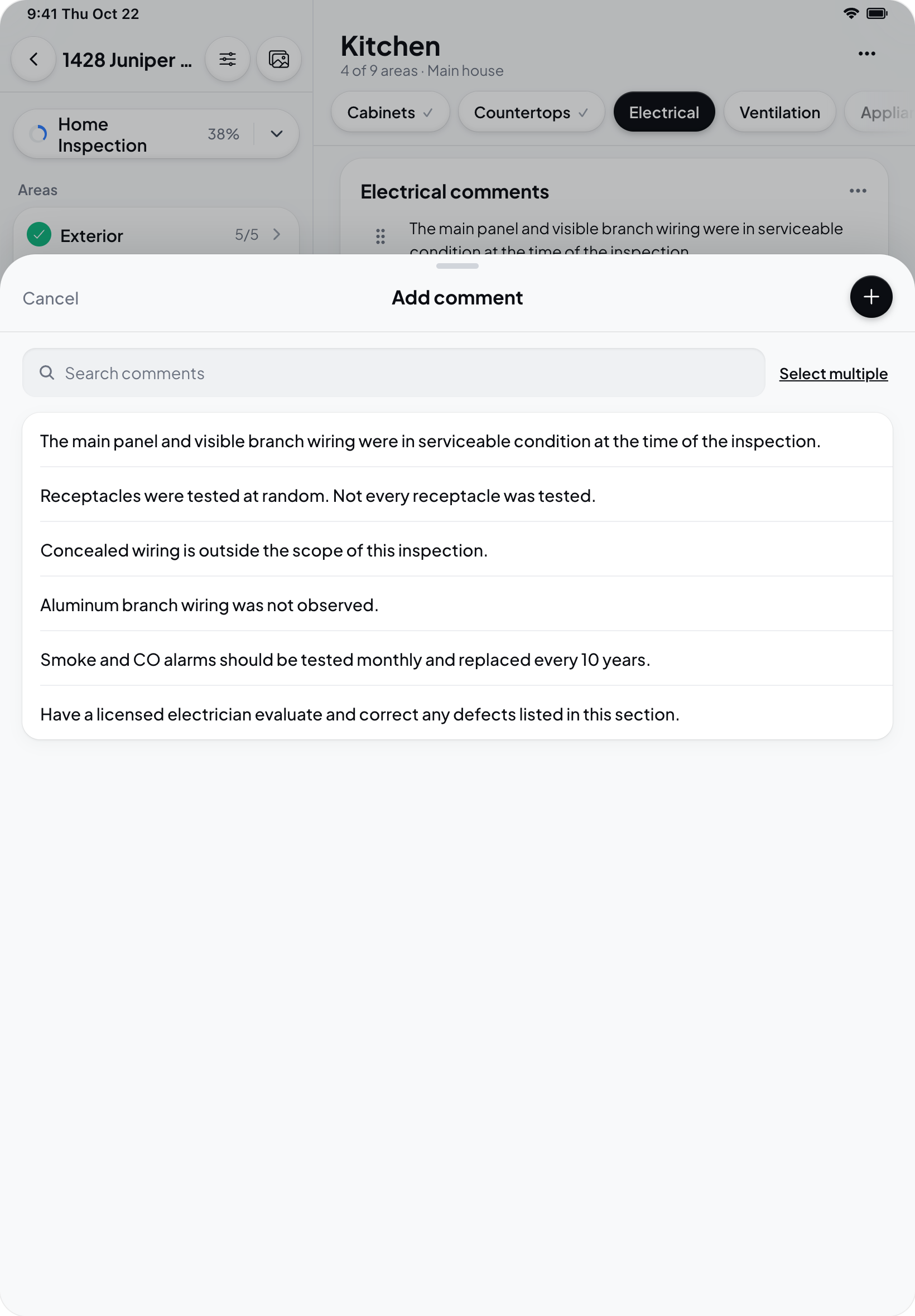
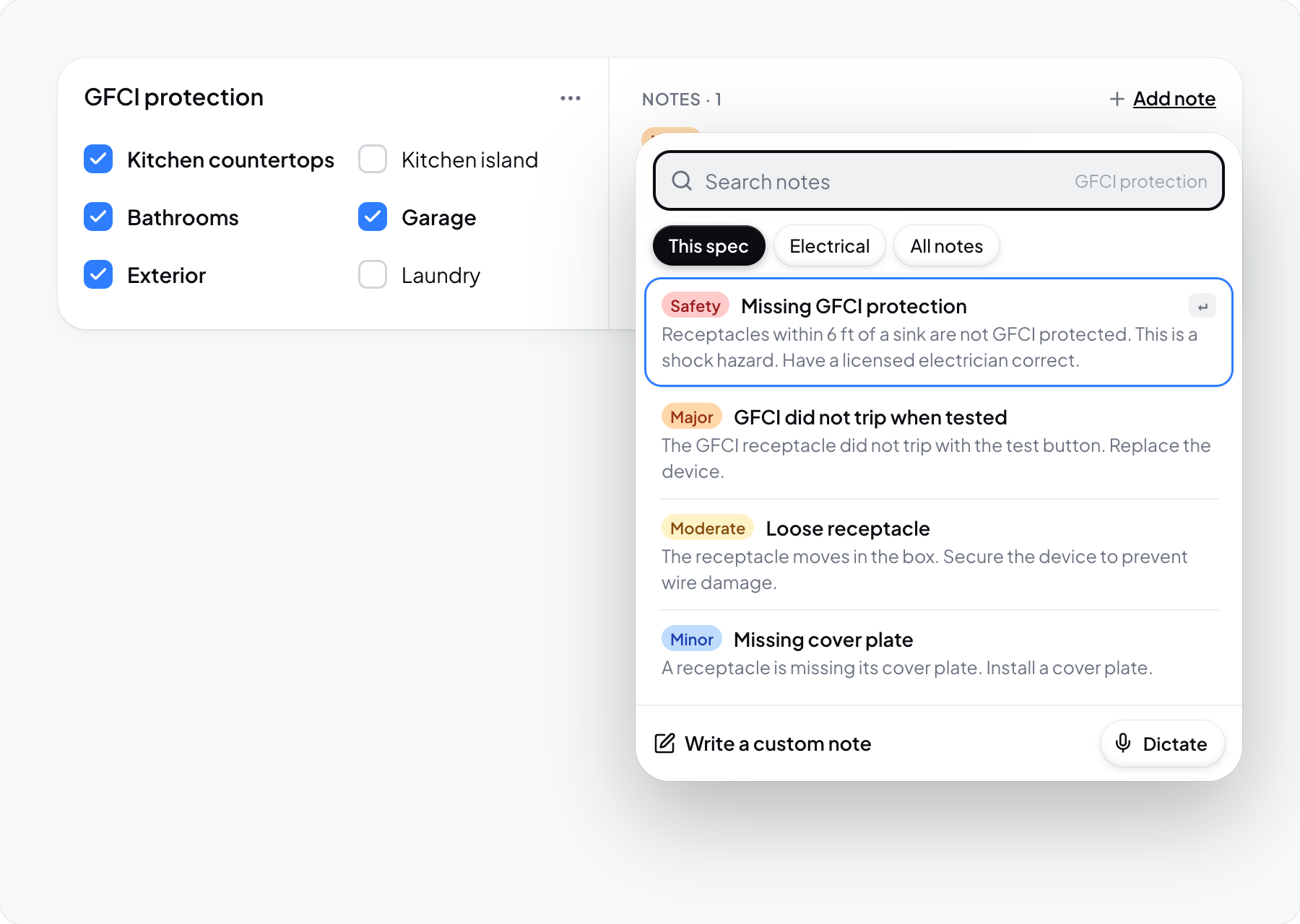
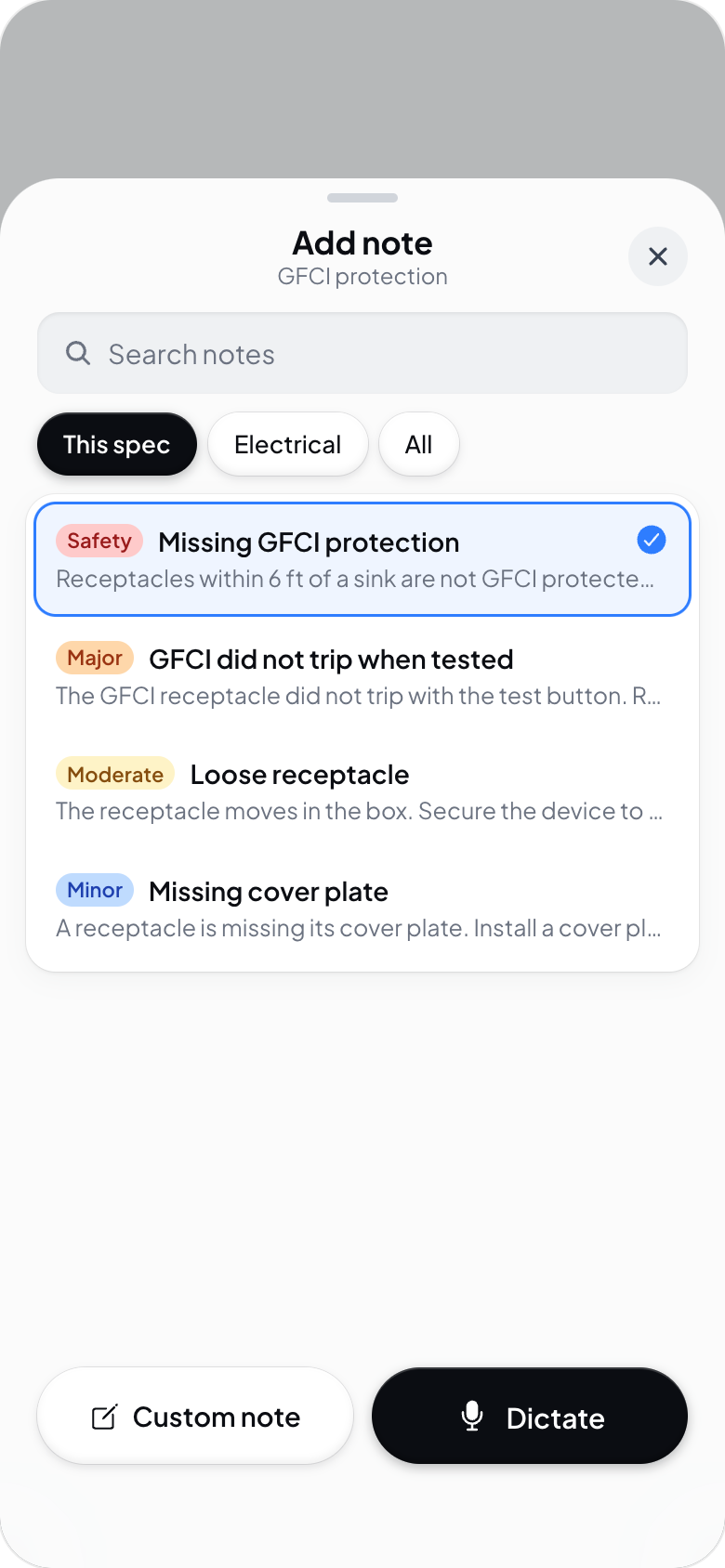
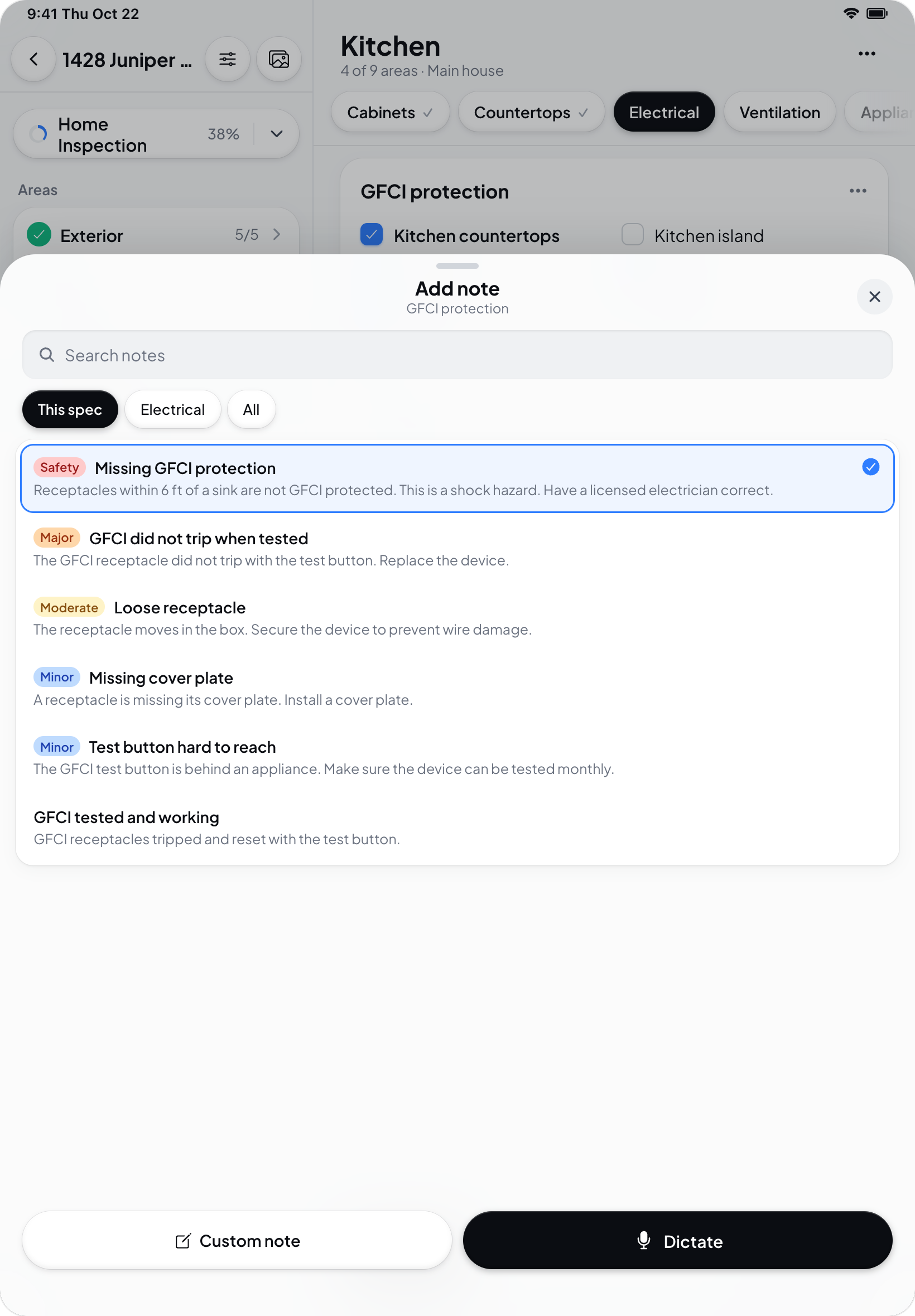
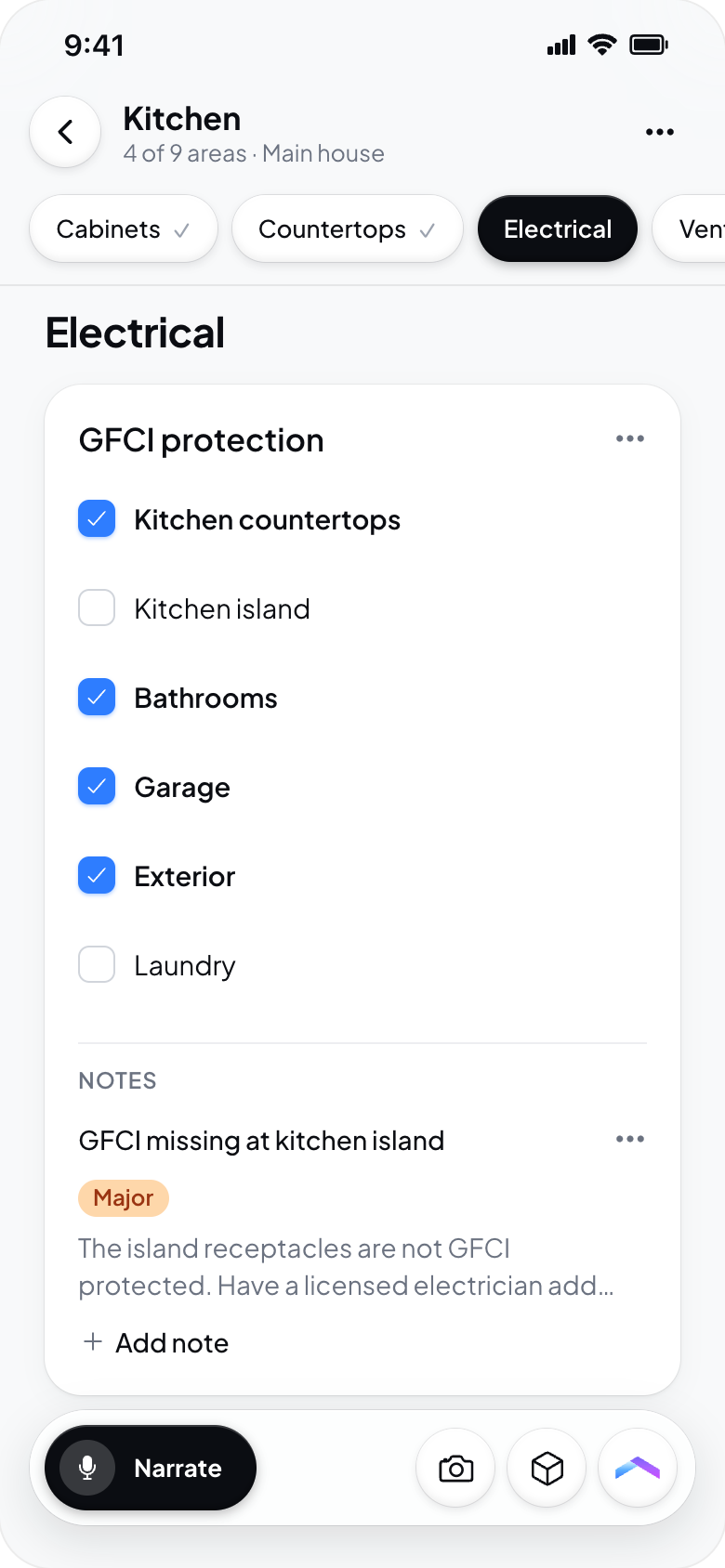
- Complete the specs and add notes in the relevant section and subsection. In the redesigned note selector, select a note once to add it. You do not need to select it and then press a separate Add button. Saved spec comments have their own selection controls.
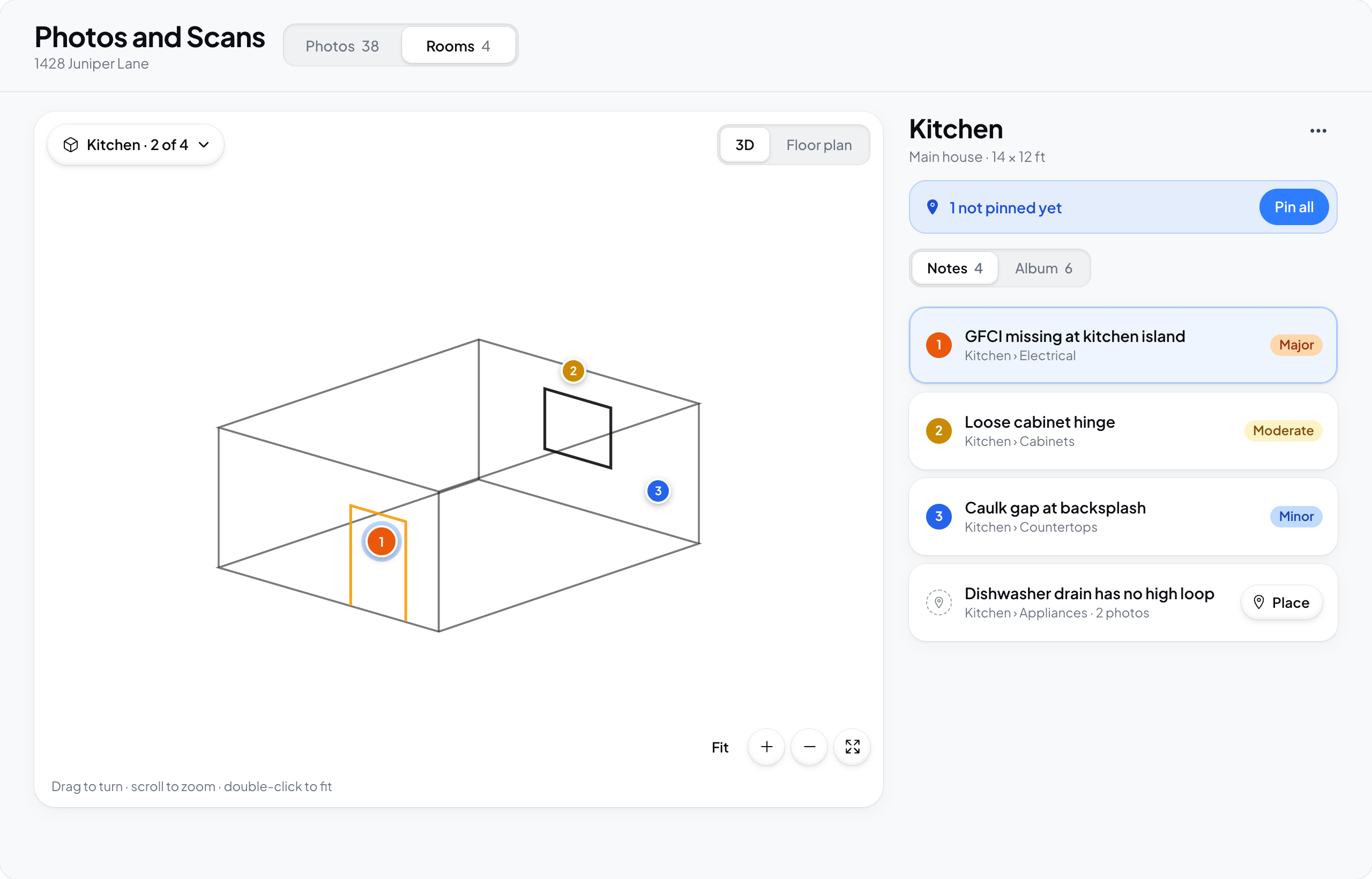
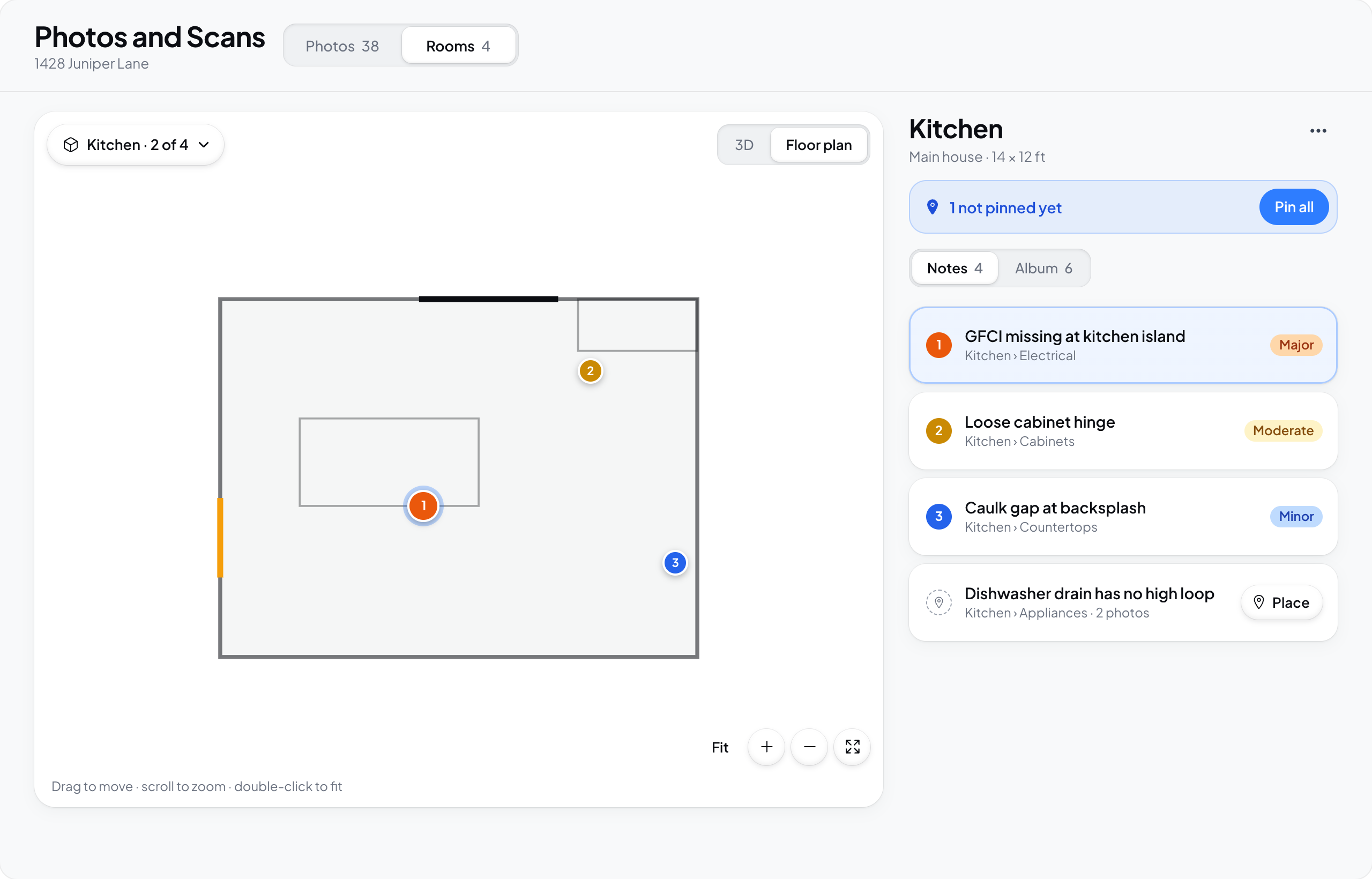
- Capture or upload photos. On the web, open the inspection photo library. Room-enabled accounts use Photos and Scans (also called Photos & scans); other accounts can still show Album. Wait for uploads to finish before asking Hometrace to analyze them.
- Review the report, AI edits, access requirements, and recipients before publishing.
Narrate findings
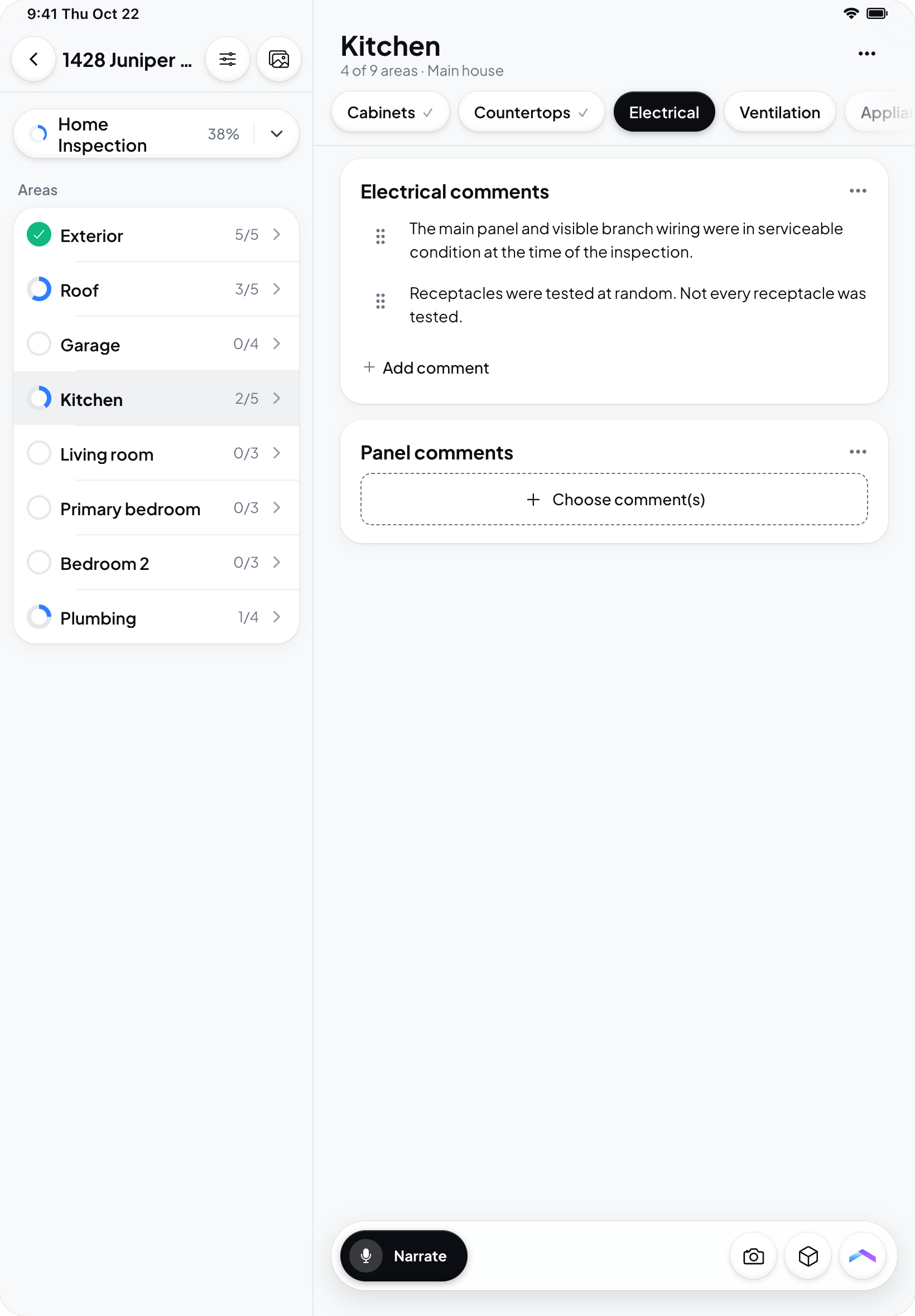
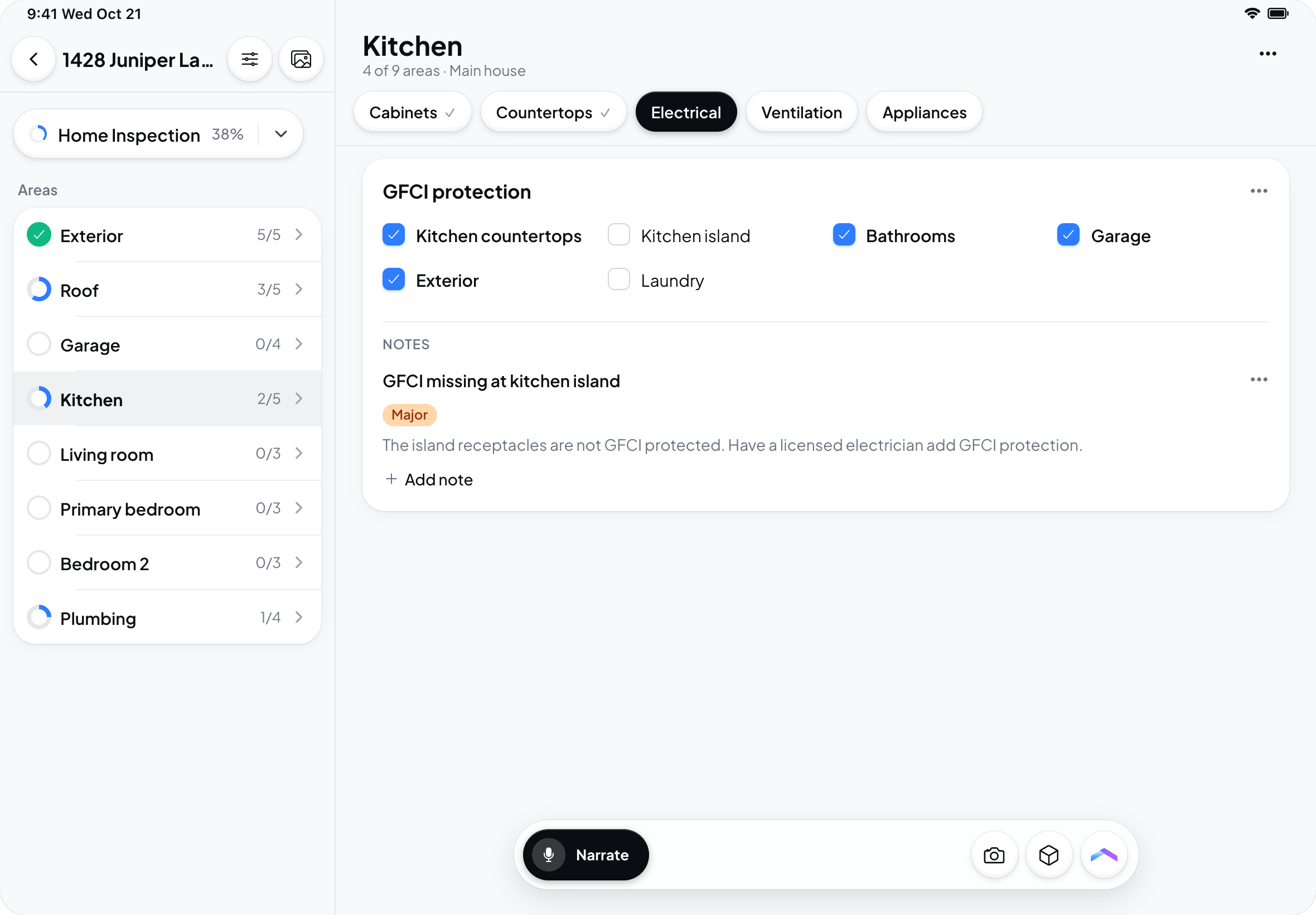
In the redesigned native app, tap Narrate to record observations. Name the room or system and describe what you found. Use the camera to capture supporting photos. Stop sends the recording and captured photos for processing. The recording’s X discards the current take.
Review what Hometrace filed, including placement, wording, severity, and field values. See Voice dictation.
Analyze photos
Ask Hometrace to analyze new photos or attach particular photos to a message. Analysis can save eligible changes directly to the report. Open Review to inspect and correct the results. Do not assume every finding is held as a suggestion awaiting acceptance. See Photo analysis.
Review before sending
Open Review & send. Use Review AI edits, Run final checks, and Preview report as available. Final Checks reviews report text and fields; it does not inspect photos or replace your professional review.
Check Sending to, any payment or document requirements under Before the report opens, and the optional Personal note. Select Publish and confirm when the report is ready. See Delivering reports.
What clients and agents see
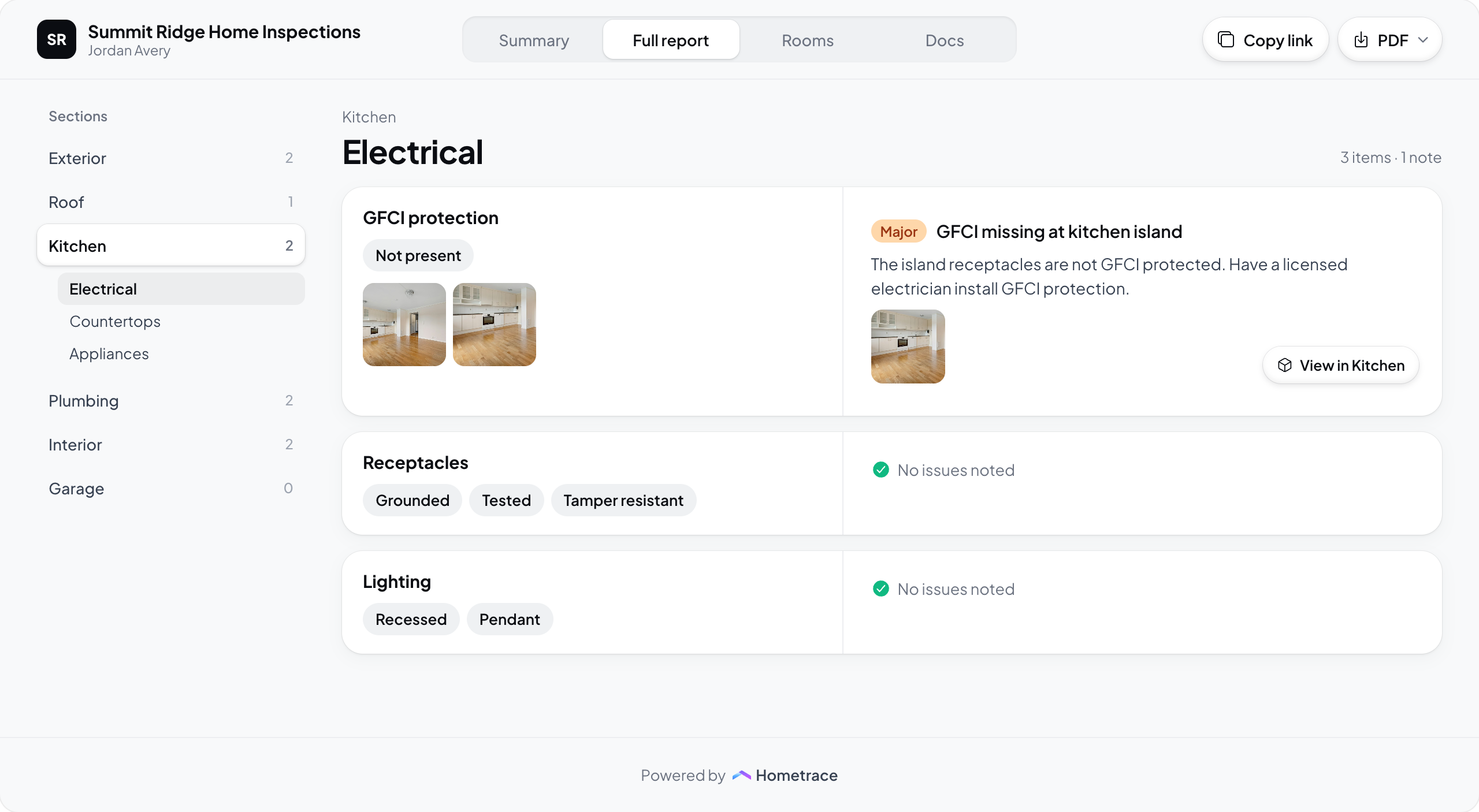
The redesigned client website uses Summary, Full report or Reports, Rooms when available, and Docs. Docs groups invoices, payments, and attachments. A recipient may need to complete payment or required signatures before the report opens.
Eligible buyers and buyer’s agents can create a Repair request from the published report. On phones, the entry appears as Ask seller for repairs on Summary. Availability depends on the inspection and access permissions.
Once the inspection is published, later report edits appear in the same client report. You do not need to publish again for each edit.