Check rooms in the client report
Review scanned rooms, linked notes, and room album shots before delivering an inspection report.
Updated October 22, 2026 · 4 min read
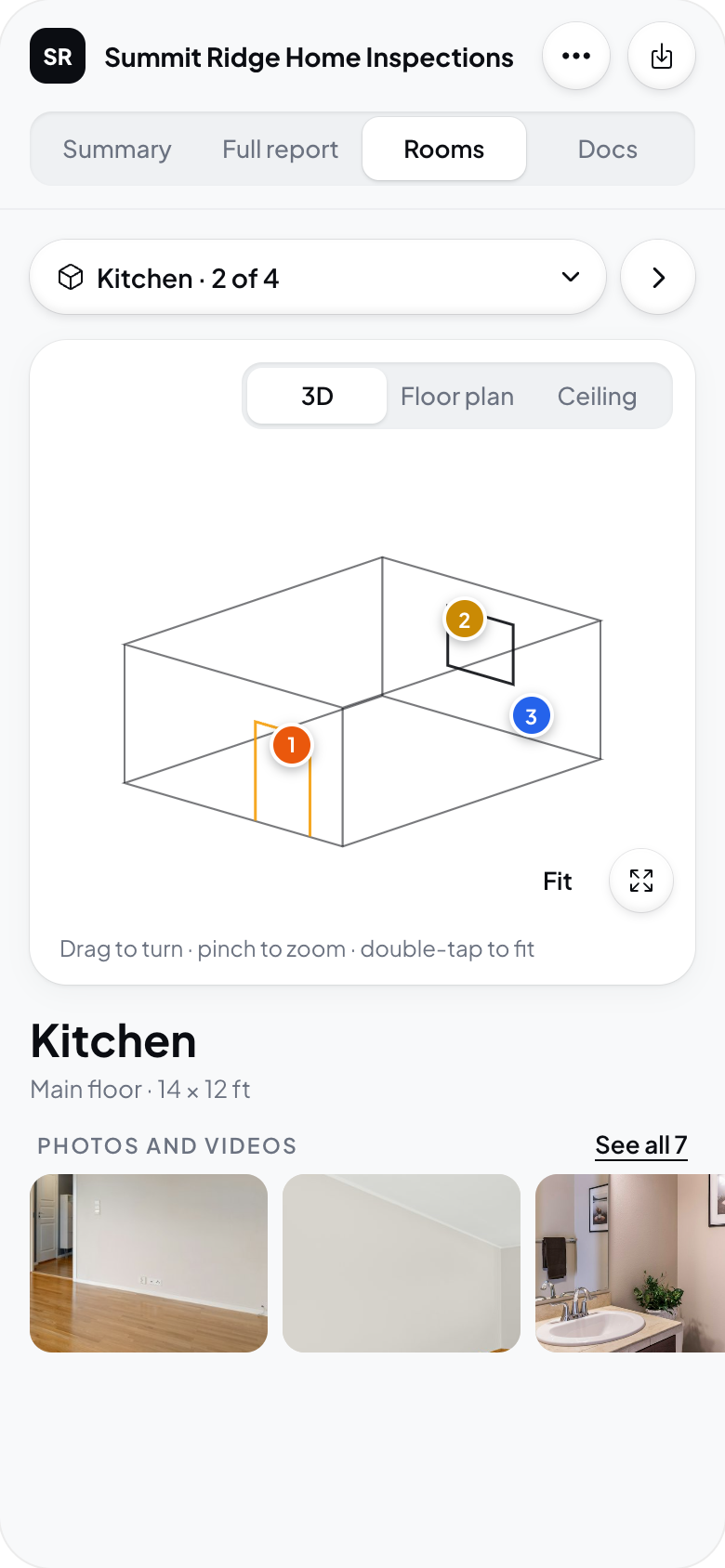
Rooms give clients another way to find information in the report. They can look around a scanned room, select a pin, and read the note for that location.
Review the Rooms view
Open the report preview and choose Rooms. Switch rooms with the room selector. On multi-unit inspections, check that each room is with the correct unit.
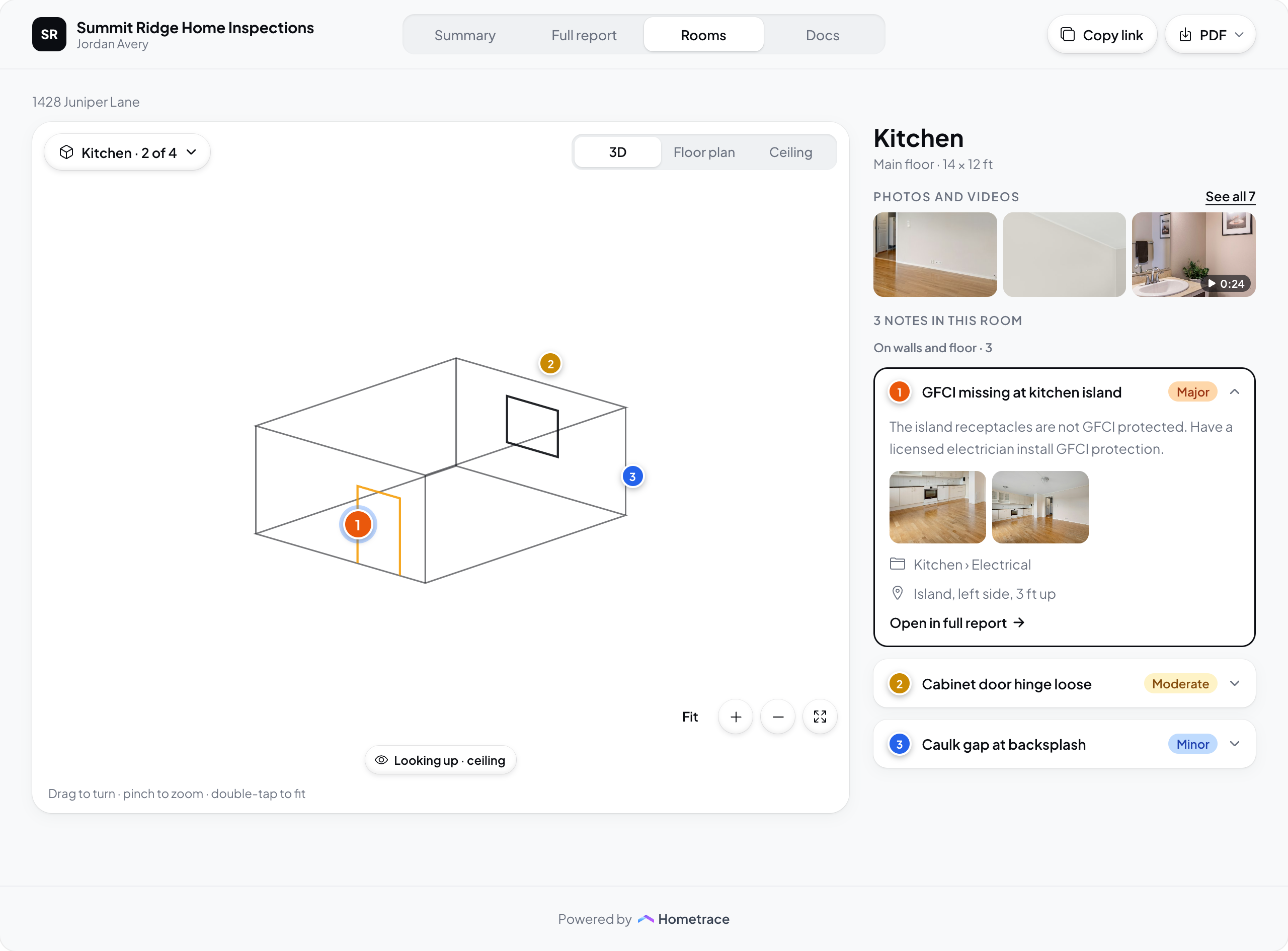
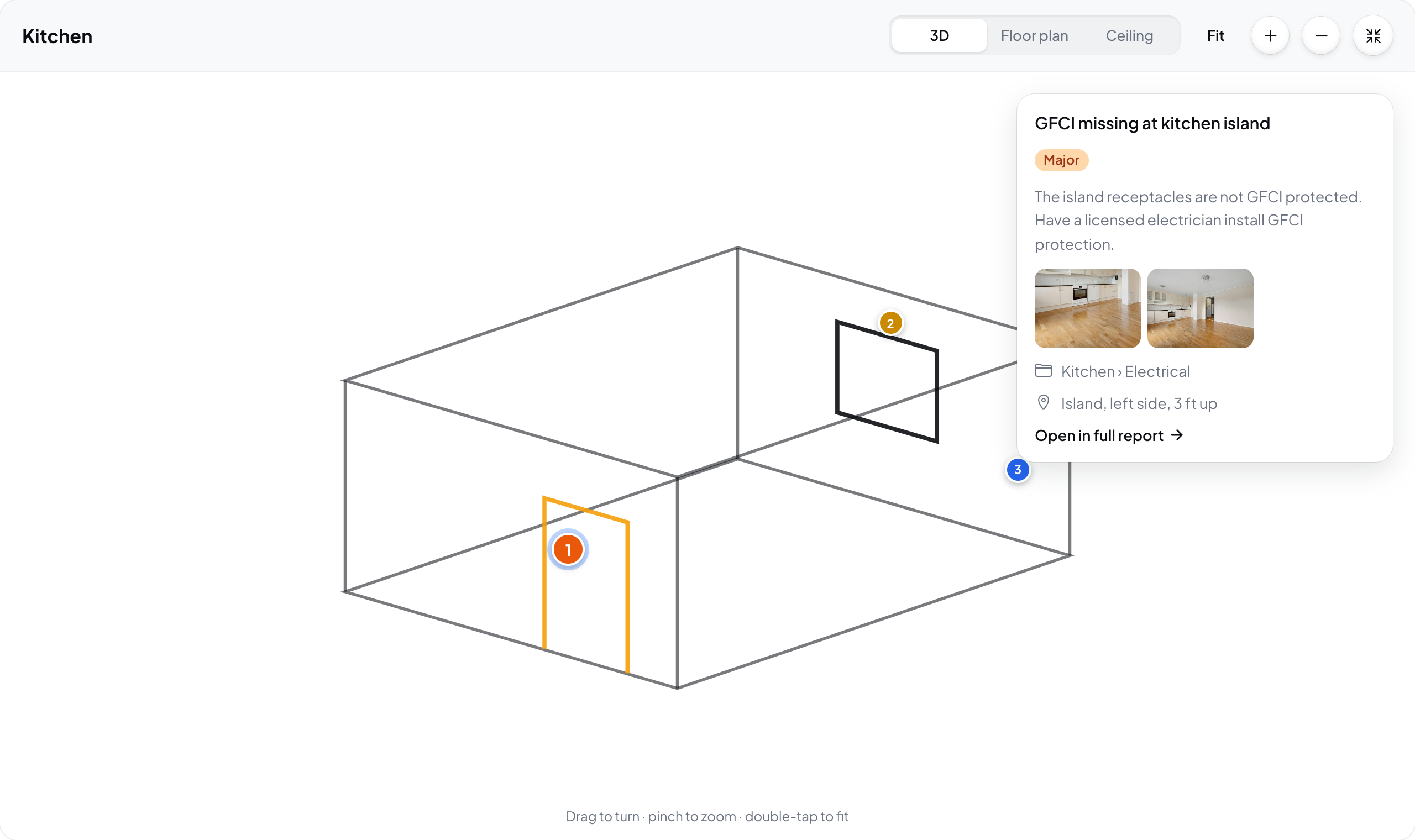
Choose 3D for the model or Top for the floor plan. Select a pin or its note in the list to see the details. Open in full report takes the client to that finding in the report.
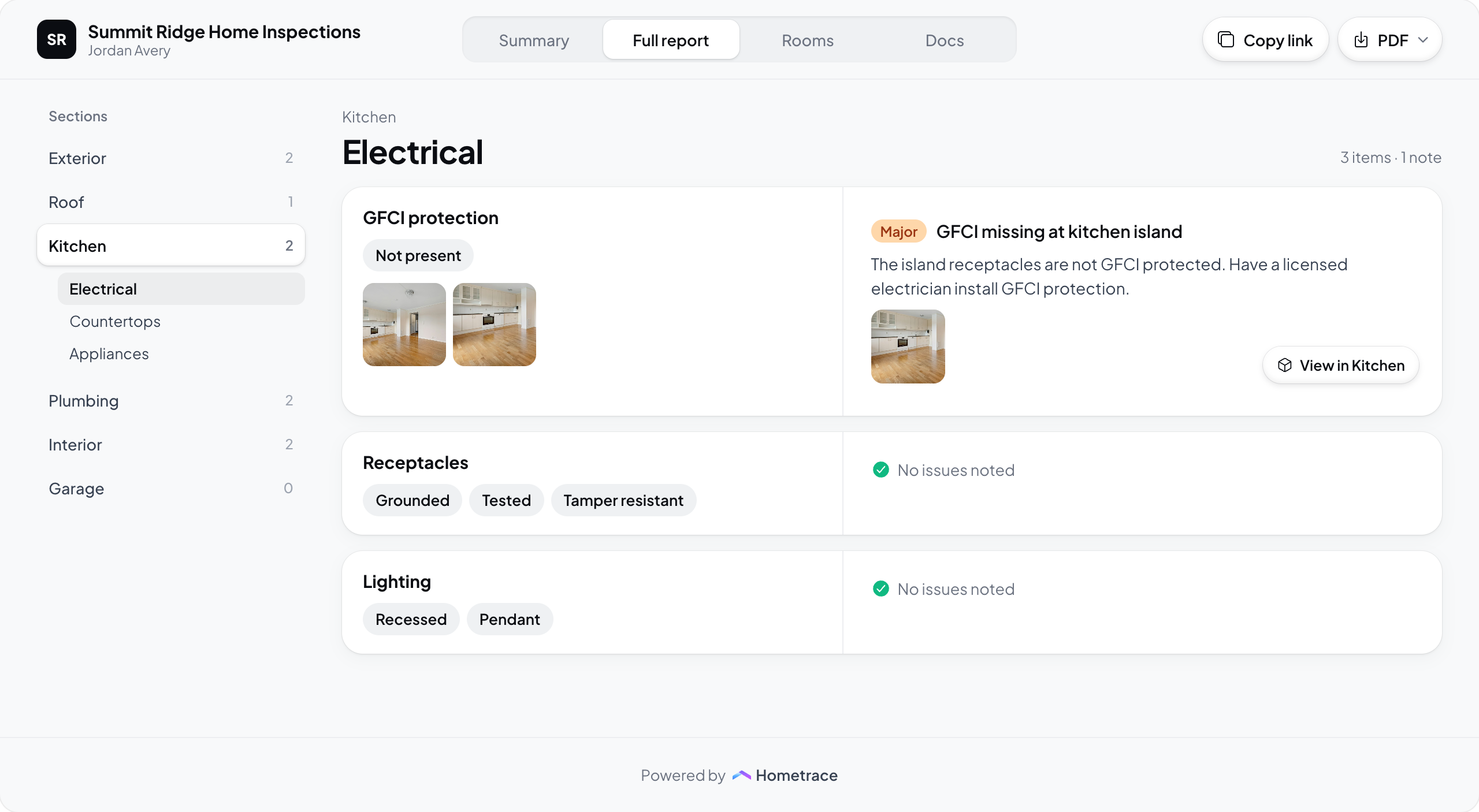
A finding can have several spots in one room. Its spots share one number, and selecting any spot highlights the finding's locations. Linked specs also appear with their label and report context.
The client report uses the room's pin numbers when all pinned notes are included. If a pinned note is hidden from the report, such as a note still needing review, the report skips it and closes the number gap. Later pins can therefore have different numbers in the client report and the editable room.
Rooms without pinned notes can still provide context. A room scan does not replace the written inspection findings.
Check photos and videos
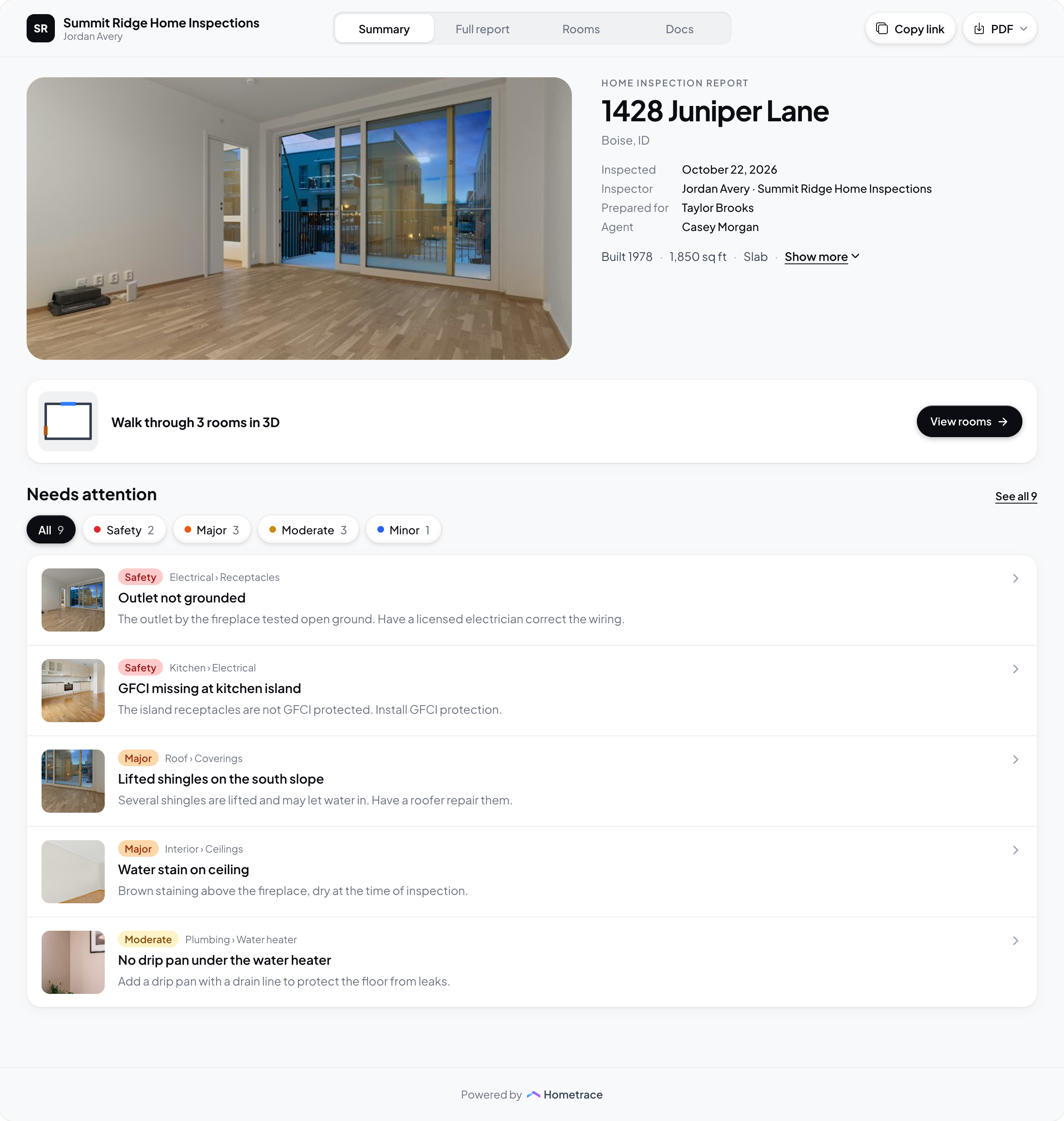
The room's Photos and videos section contains the album shots you left visible to clients. Open a tile, or choose See all, to browse them.
To change that selection, return to the editable room album and use Remove from client report or Add back to client report. A hidden room-album shot may still be attached to a note elsewhere in the report.
Check the larger view
Expand the viewer to inspect locations more closely. On the web, use the zoom buttons or scroll to zoom in fullscreen. Fit brings the whole room back into view.
The interactive 3D room is part of the online report. The PDF uses room floor plans and pin references rather than an interactive model. The room album itself is not included in the PDF; photos attached to notes appear with those notes.
Share rooms with a repair request
Repair requests, including seller room sharing, are available only for reports first published after the launch cutoff. Older reports are not eligible.
In the request builder, Rooms the seller can see shows which scans are included. Scanned rooms are included by default, including rooms without requested items. The buyer can choose Edit to turn rooms off. On multi-unit inspections, rooms are grouped by unit. Inspectors viewing a client's request can review this selection but cannot edit it.
At the seller link, choose the See rooms in 3D card or a requested item's See in room link. Choose a room, then use 3D or Floor plan. On a phone the plan control reads Plan. Expand the viewer, zoom, or use Fit to bring the room back into view.
Seller pins use the request's item numbers. Only pins for requested items are shown. The seller room view does not include the room album or unrelated inspection findings. A room without requested pins can still show the room layout as context.
The rooms included in a request are saved when it is sent. Changes to the draft room selection do not rewrite an earlier sent version. The room viewer uses the current saved scans and pin locations.
The request PDF lists room references and points to the online link for 3D viewing. It does not contain an interactive model.
Finish the report review
Confirm the room names, unit placement, pinned locations, note wording, and visible album shots. Let your room edits and media finish syncing before checking the client preview.
For a report already delivered, use the normal revision and delivery process when updating it.
Return to Use 3D room scans, or see Use the room album for visibility controls.