
Create a repair request from a report
Prepare and send a repair request from an inspection report, then follow up or revise it.
Updated October 22, 2026 · 2 min read
Buyers and their agents can use an available inspection report to prepare a list of items to discuss with the seller. The request contains the items you choose and your request for each one.
Open the request
Sign in with the email address your inspector has on file. Open the inspection report, then choose Repair request. On a phone, look for Ask seller for repairs on Summary.
This option depends on the report's availability and your access. If the report is still locked, complete its access requirements first. Inspectors may be able to view a client's request without permission to edit it.
Choose the items
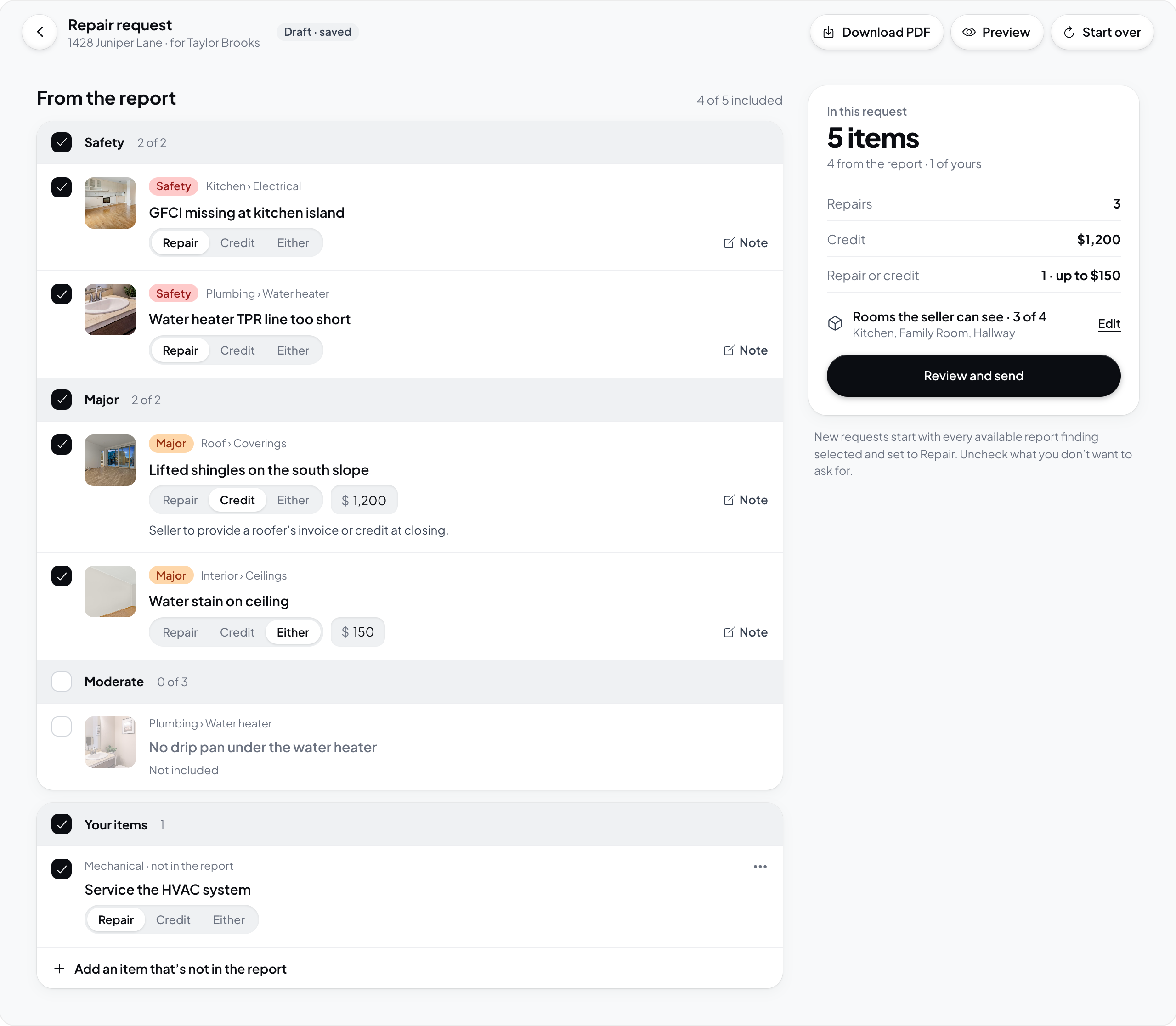
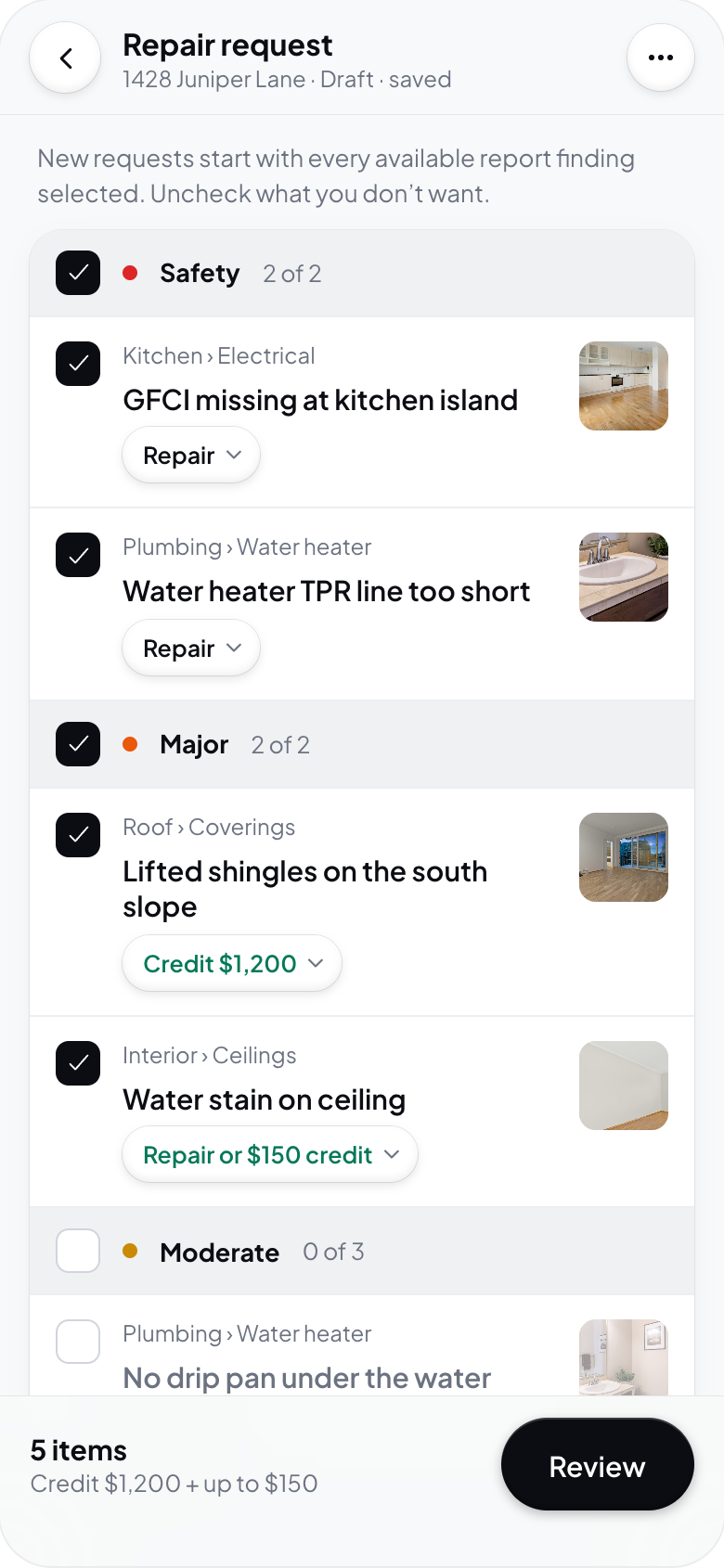
The initial list includes Safety, Major, and Moderate findings. Uncheck the items you do not want to include. Use the grouping control and, on a multi-unit inspection, the unit filter to find the right findings.
For an included item, choose Repair, Credit, or Either. Enter an amount when the option calls for one. Open the item to check its report details and add your note. Use the custom-item option for something outside the report's findings.
Changes save as you edit. Check the save status before leaving. Retry retries a failed save; a conflict can require Reload. These edits change the repair request, not the inspector's original finding.
Review and send
On desktop, choose Review and send from the request summary. On a phone, choose Review.
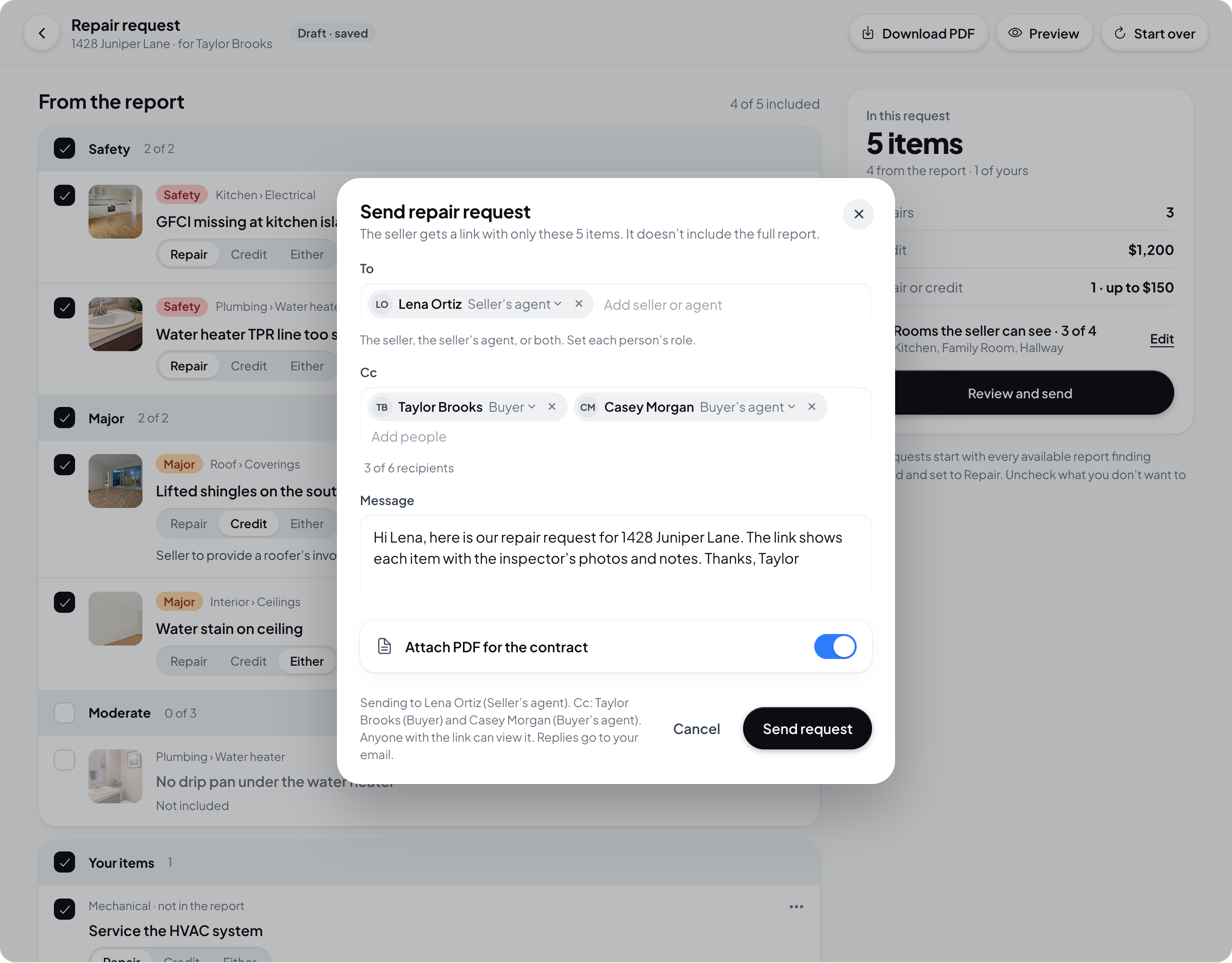
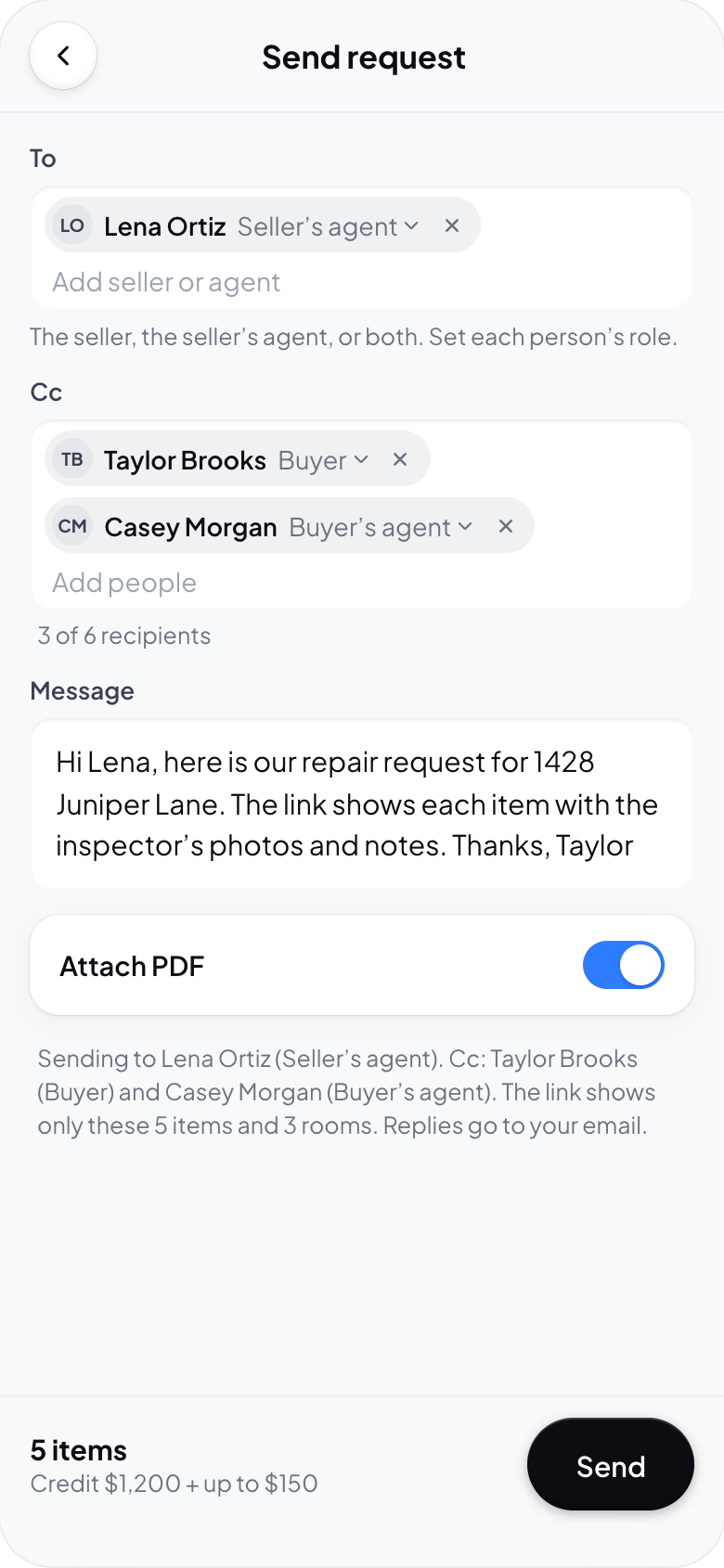
Check To, each recipient's role, Cc, and the optional Message. You can include the request PDF with Attach PDF for the contract, or Attach PDF on a phone. Sending creates a version of the request and attempts to email its recipients. Read the result: a saved version does not by itself mean every email was delivered.
The seller link contains the selected request items. It does not include the full inspection report.
Follow up or revise
After sending, use Activity to review the available send, open, and PDF-download events. Copy link lets you share the saved request link, and Download PDF provides a document copy.
Choose Edit request or Continue editing to prepare changes. The seller keeps seeing the version already sent until you send another version. Review the new version before sending it. Discard changes removes unsent changes after confirmation; Start over also asks for confirmation.