
Use the room album
Collect room photos and videos, attach them to notes, and choose which shots appear in the client's room view.
Updated October 22, 2026 · 3 min read
The room album holds photos and videos for that room. A shot can provide background context, support one or more notes, or be pinned to a location.
Capture photos and videos
Open a saved room and choose Capture. Take your photos or videos, then finish with Done. The shots go into that room's album without creating a note or placing a pin.
On a phone, scroll below Notes in this room to reach the Room album. On iPad, choose Album in the side panel. On desktop, open Album beside the viewer and use Upload photos to add photos or videos.
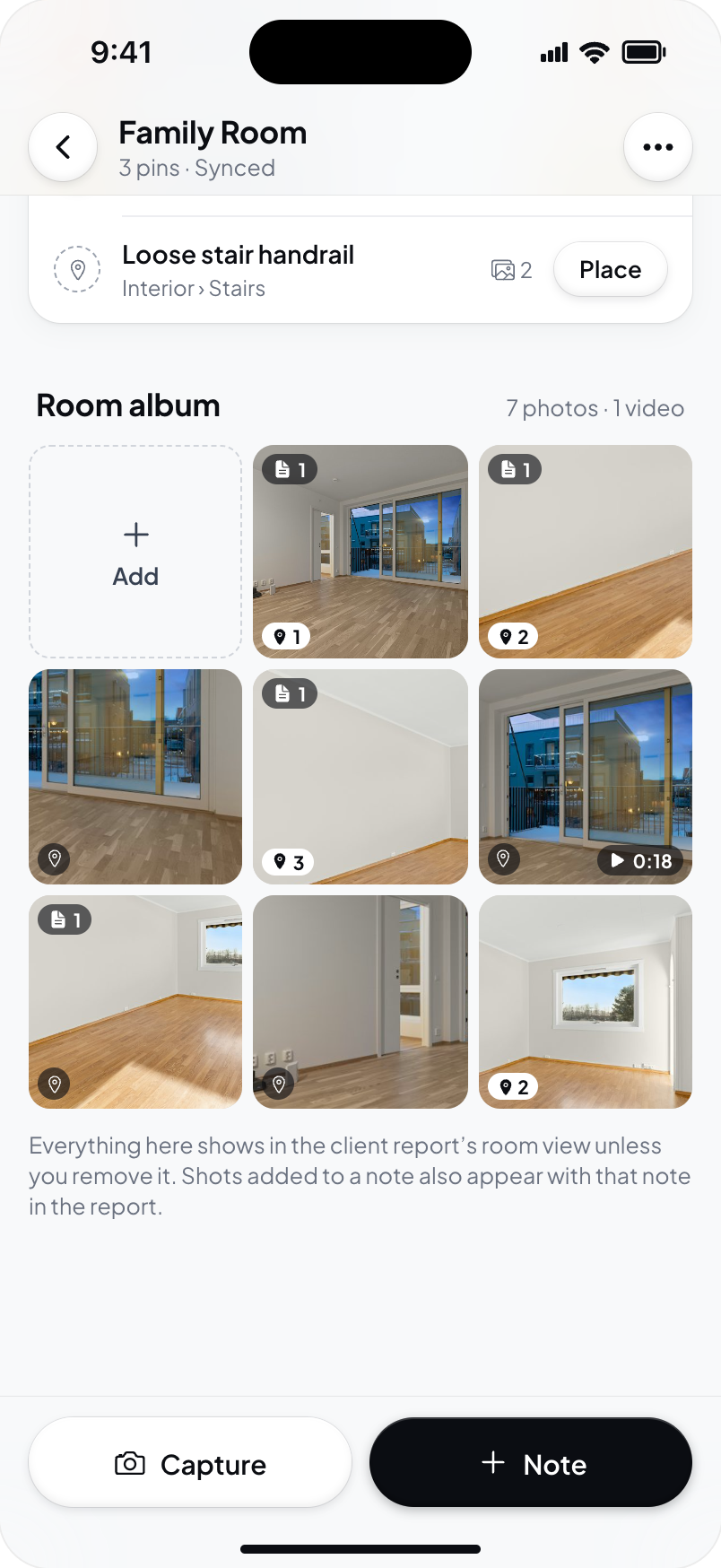
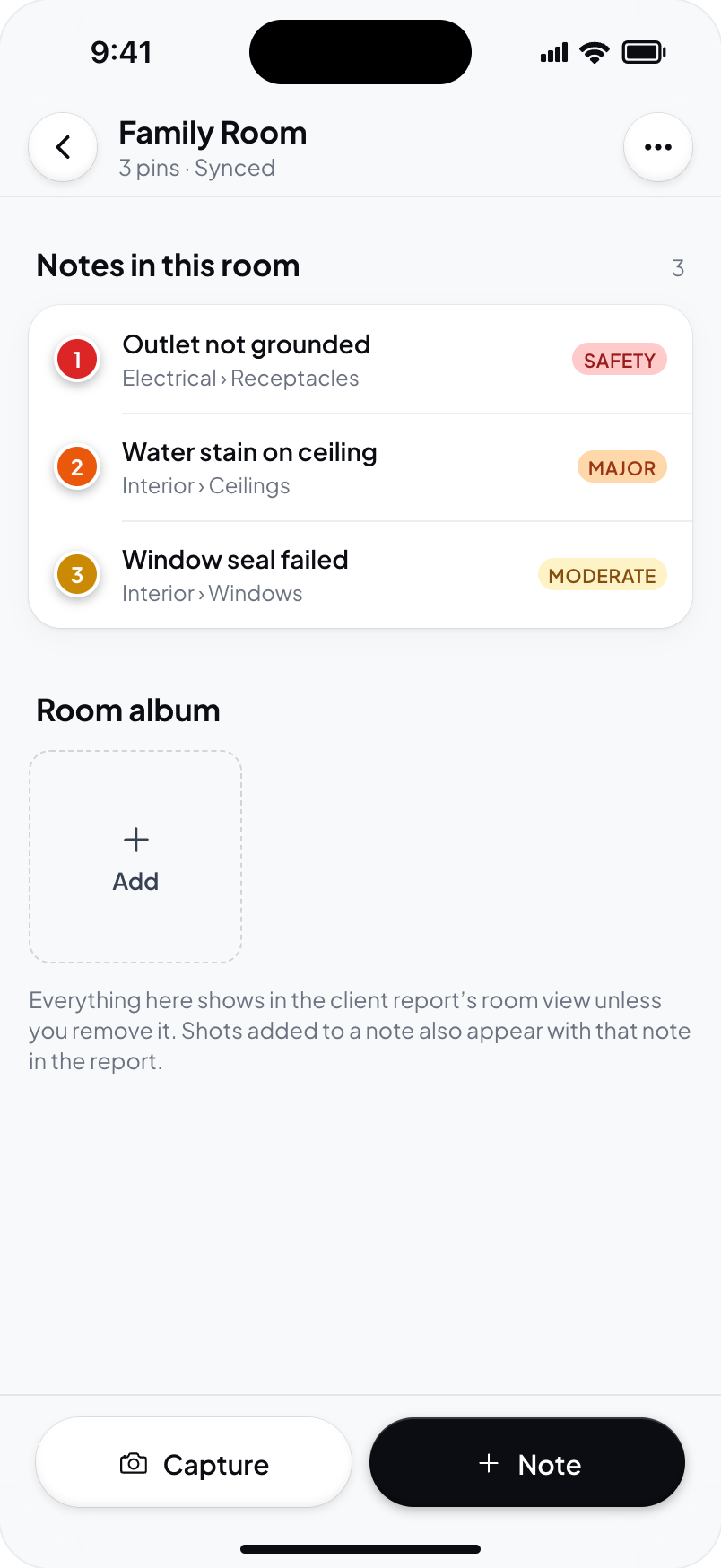
Add shots at any time
The Add tile in the room album lets you take a photo or video, choose from your device library, or choose From this inspection's photos. Select the shots you want to keep with the room. Choosing existing inspection photos links them to the room.
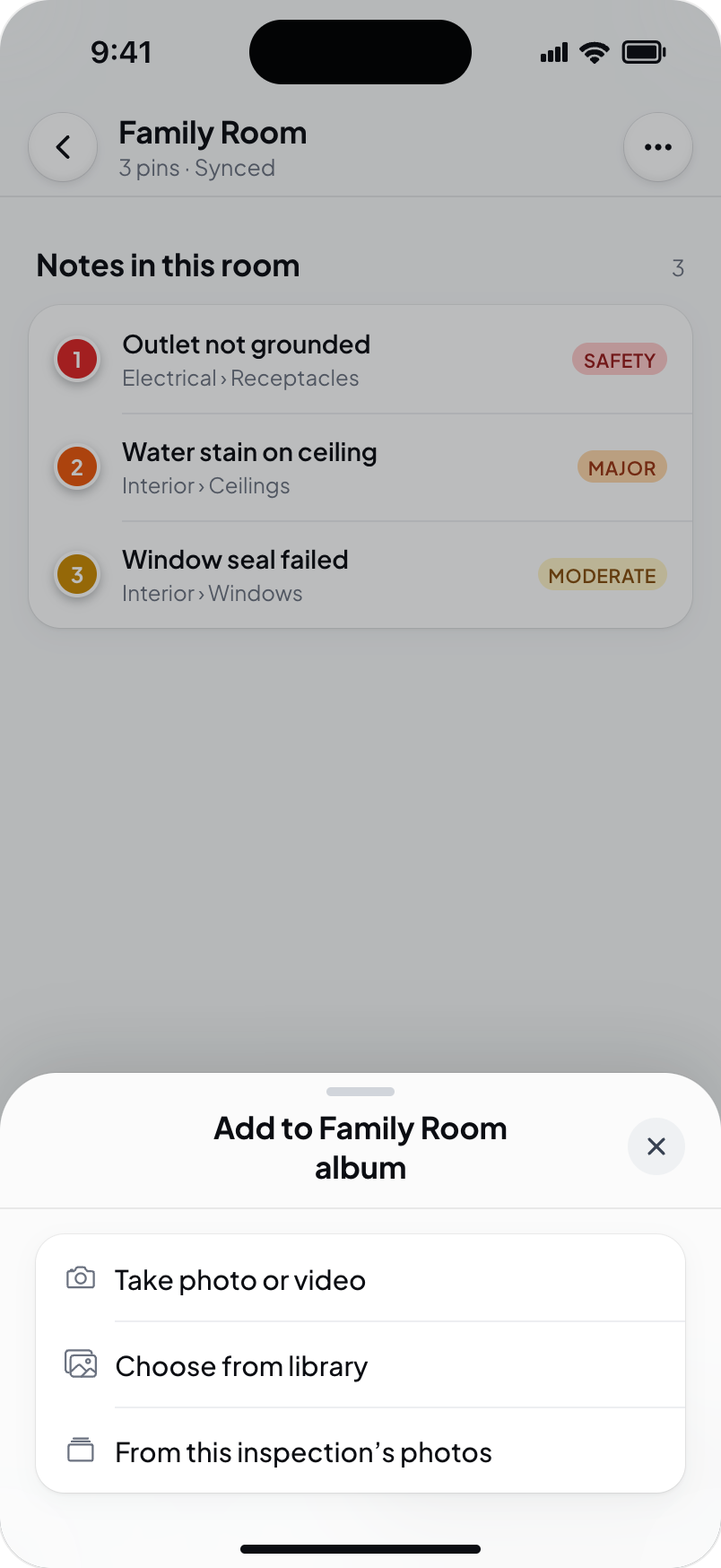
On desktop, use Add to upload files or choose From this inspection's photos. You can also drop files onto the album grid.
Add a shot to notes
- Open a photo or video in the room album.
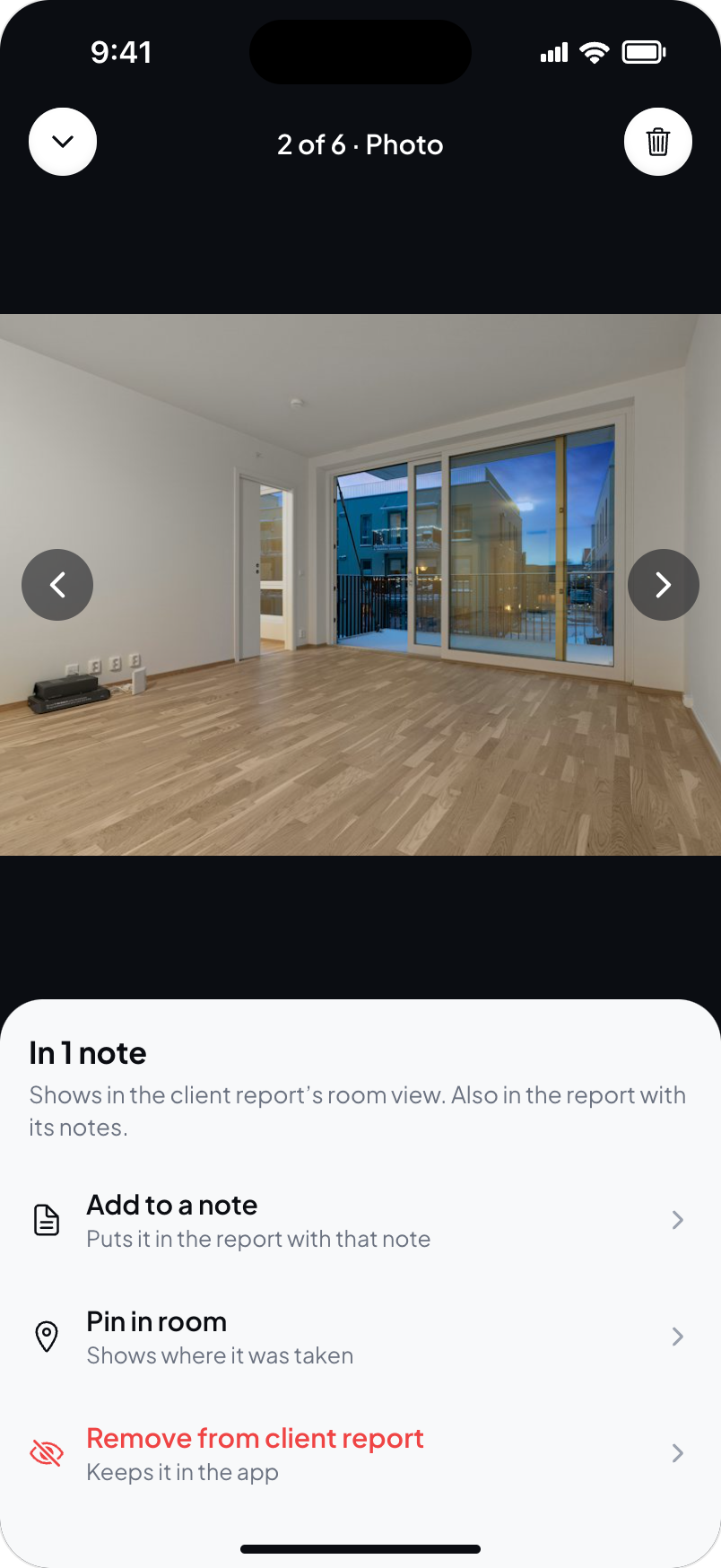
- Choose Add to a note.
- Select one or more notes from the room.
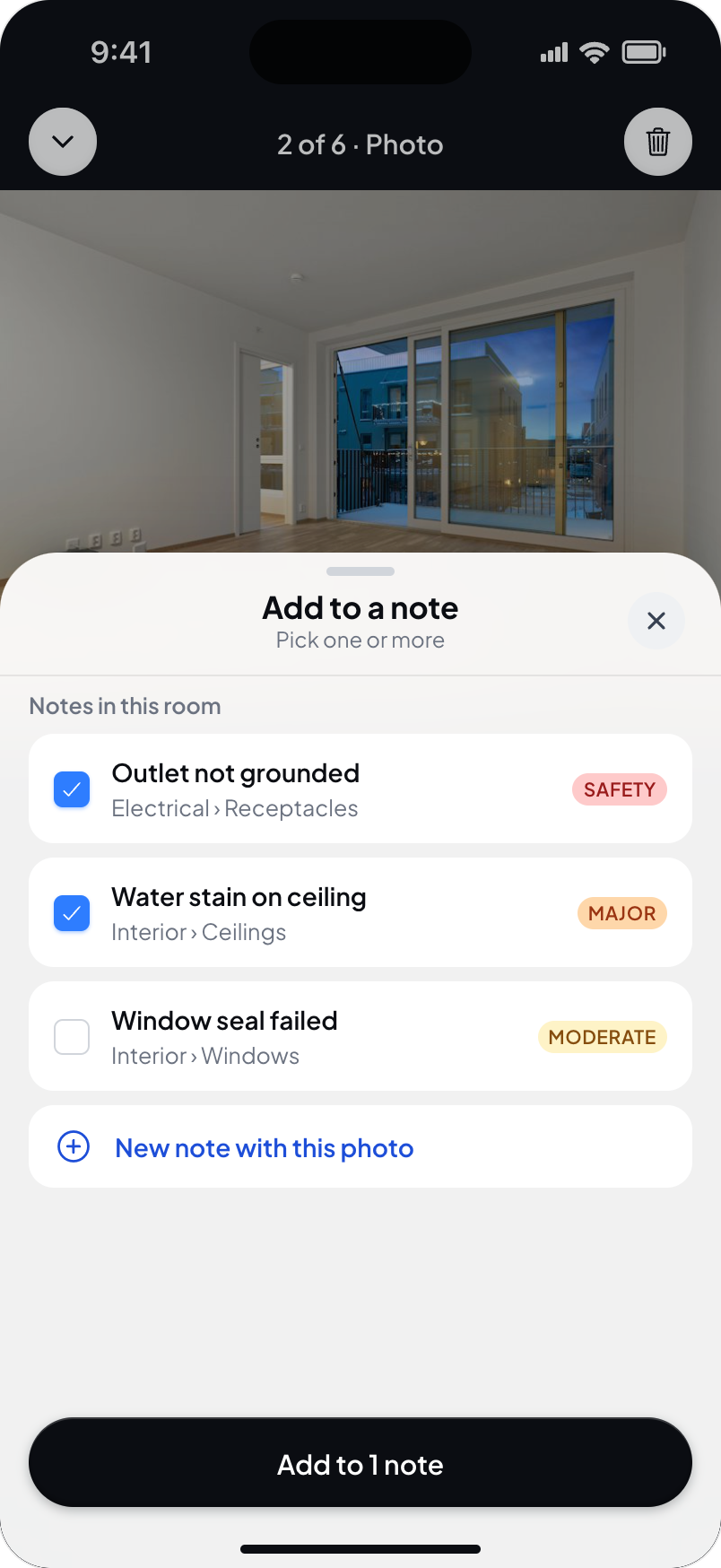
- Choose Add to 1 note, Add to 2 notes, or the matching button for your selection.
Notes that already contain the shot start selected. Uncheck a note to remove its attachment while keeping the shot in the album. If you are only removing attachments, choose Save.
Choose New note with this photo to start a note with the shot selected. Use Pin in room separately when you want to show a location.
Choose what clients see
New room album shots show in the client report's room view by default. Open a shot and choose Remove from client report to hide it there. Choose Add back to client report to restore it.
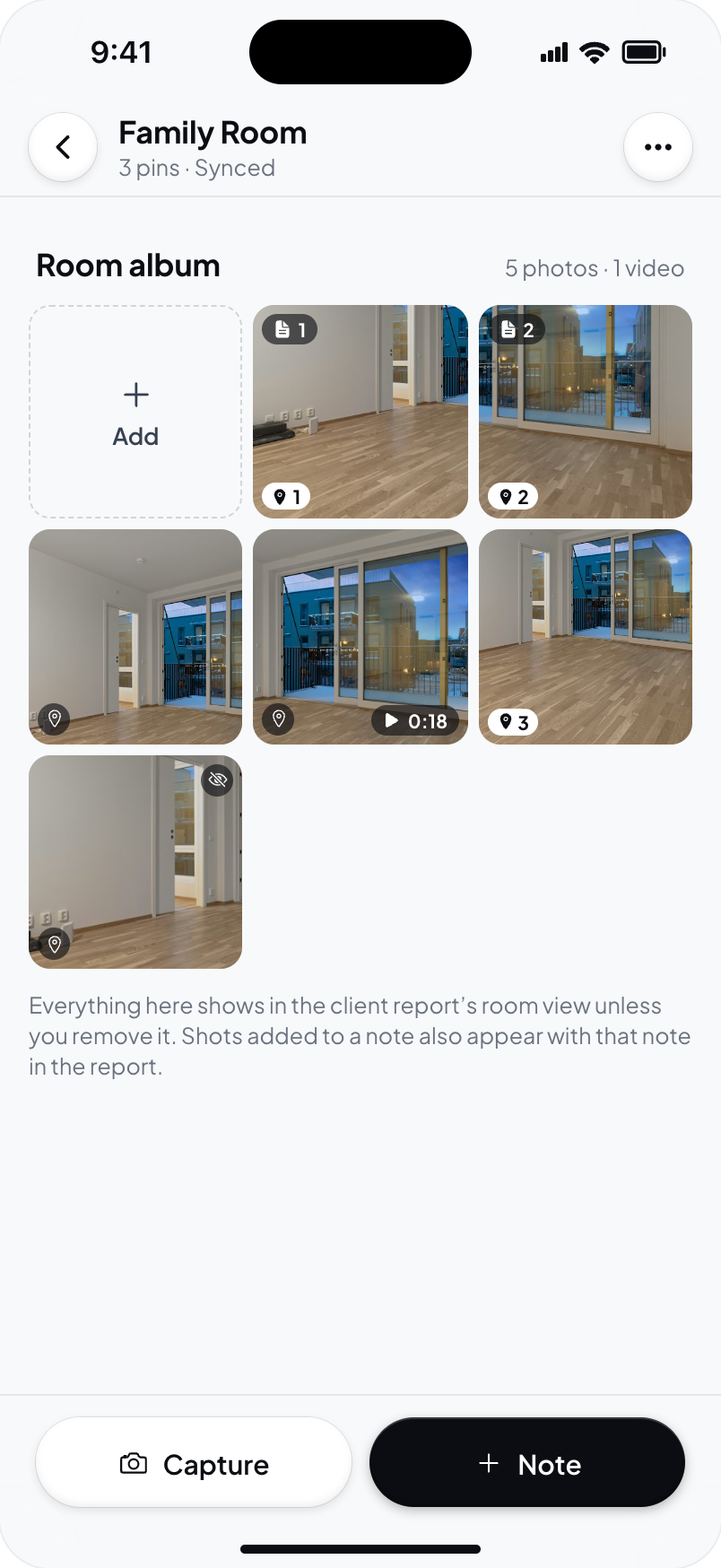
The shot stays in your app. This control only changes the room view. If the shot is attached to a note, it can still appear with that note elsewhere in the report. Check those attachments separately.
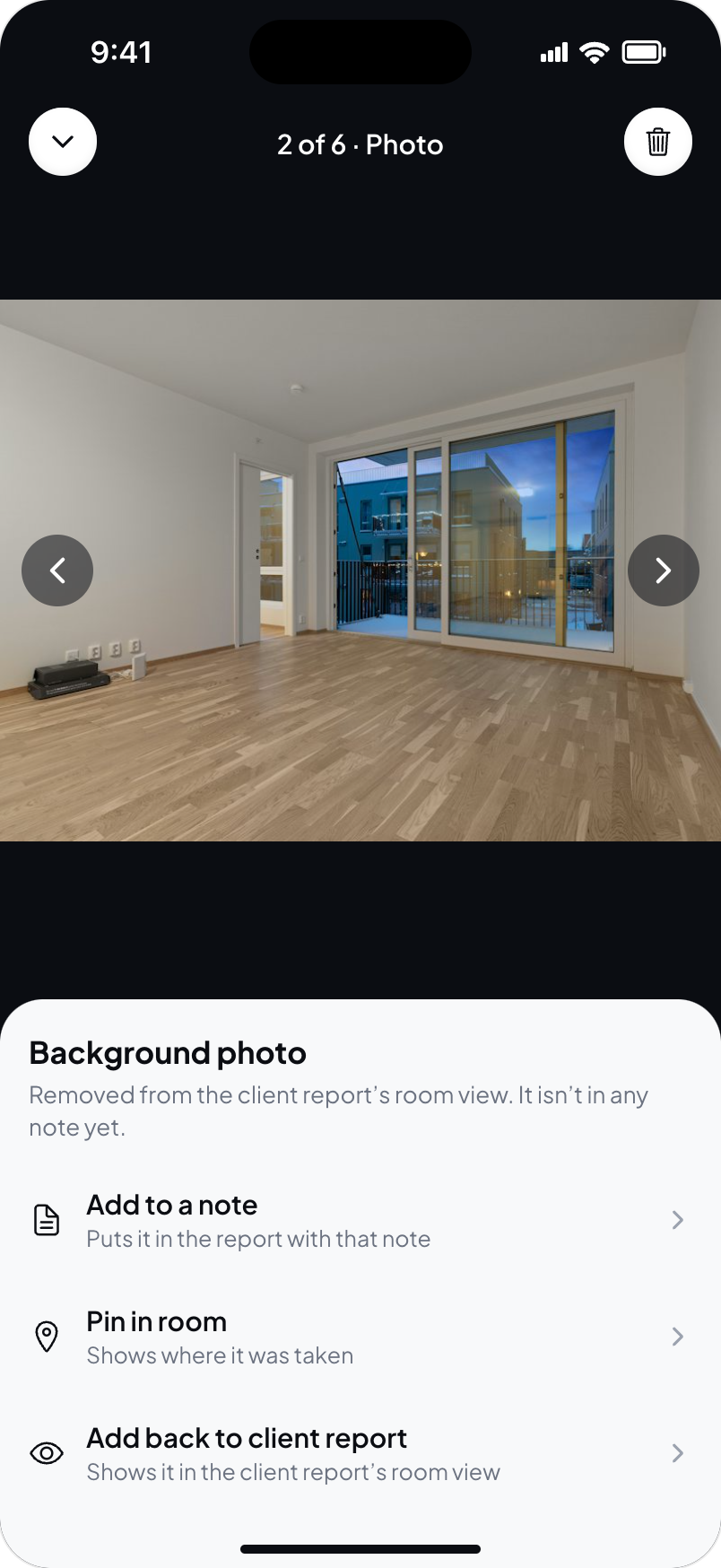
Delete is a different action. Read its message before removing a shot. Notes with an attached copy keep that copy when the shot leaves the room album.
If you added the shot using From this inspection's photos, deleting it from the room only removes that room link. The photo stays in the inspection album.
See Check rooms in the client report before delivering the report.