
Analyze inspection photos with Hometrace
Ask Hometrace to analyze your inspection photos, fill in report details, and show you the results to review.
Updated September 18, 2026 · 3 min read
Hometrace can use your inspection photos to help write findings, fill in report fields, read appliance data plates, and organize photos into report sections. You choose which photos to analyze and check the results against what you inspected.
Get your photos ready
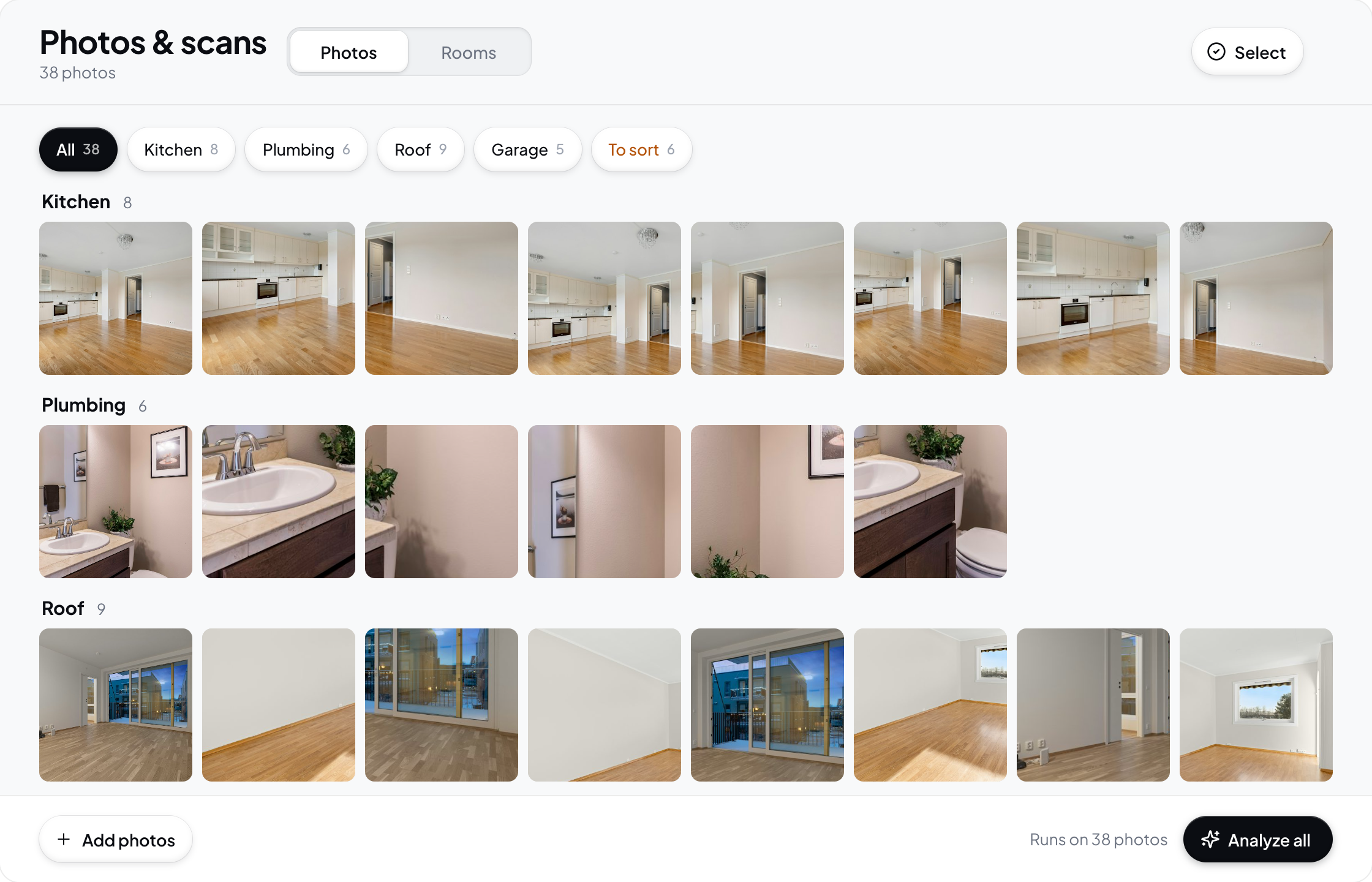
Open the inspection and the editable report you want to fill in, then take or upload your photos. Wait for them to finish uploading before asking for analysis. Photos still on your device or waiting to sync aren't ready to analyze.
Use a wide view to show the location and close-ups to show the condition. For equipment, include a clear data plate photo as well as a photo of the appliance. If a label is blurry or partly hidden, take another photo rather than relying on a guess.
Ask for analysis
Open Hometrace from the inspection and describe the scope you want:
- New photos: "Analyze the new photos in this inspection and fill in the report."
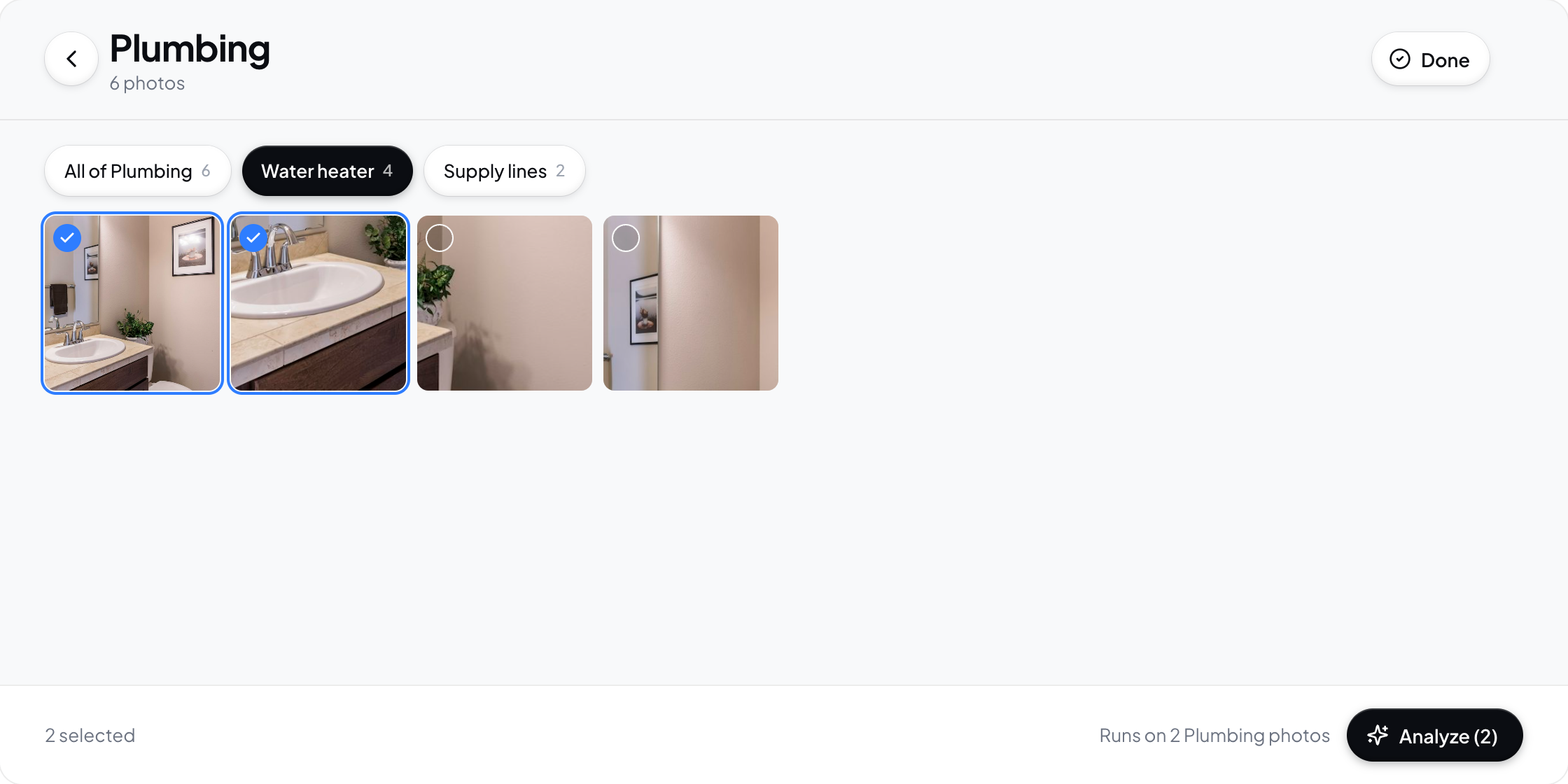
- Specific photos: Attach the photos to your message and ask: "Analyze only these photos for this report." Wait for the attachments to finish uploading before sending.
- Another pass: "Reanalyze all the photos in this inspection."
You can also start from Analyze all photos in the inspection photo library (Photos and Scans on room-enabled accounts, or Album where that view is not enabled). Read the response for the number of photos included and whether it is analyzing new photos or running another pass.
An ordinary whole-inspection request uses eligible photos that a successful earlier analysis hasn't already covered. If all eligible photos have already been analyzed, Hometrace can ask whether you want another pass. Ask explicitly for reanalysis when that's what you want. Photos already placed in a report section can still be included; placement and analysis are different steps.
Follow the job
Analysis runs in the background, and the conversation shows one line for that job with its progress, such as how many photos it has worked through. Wait for the result before deciding whether to run it again. If Hometrace reports an upload problem, a usage limit, or another error, read what completed and what did not.
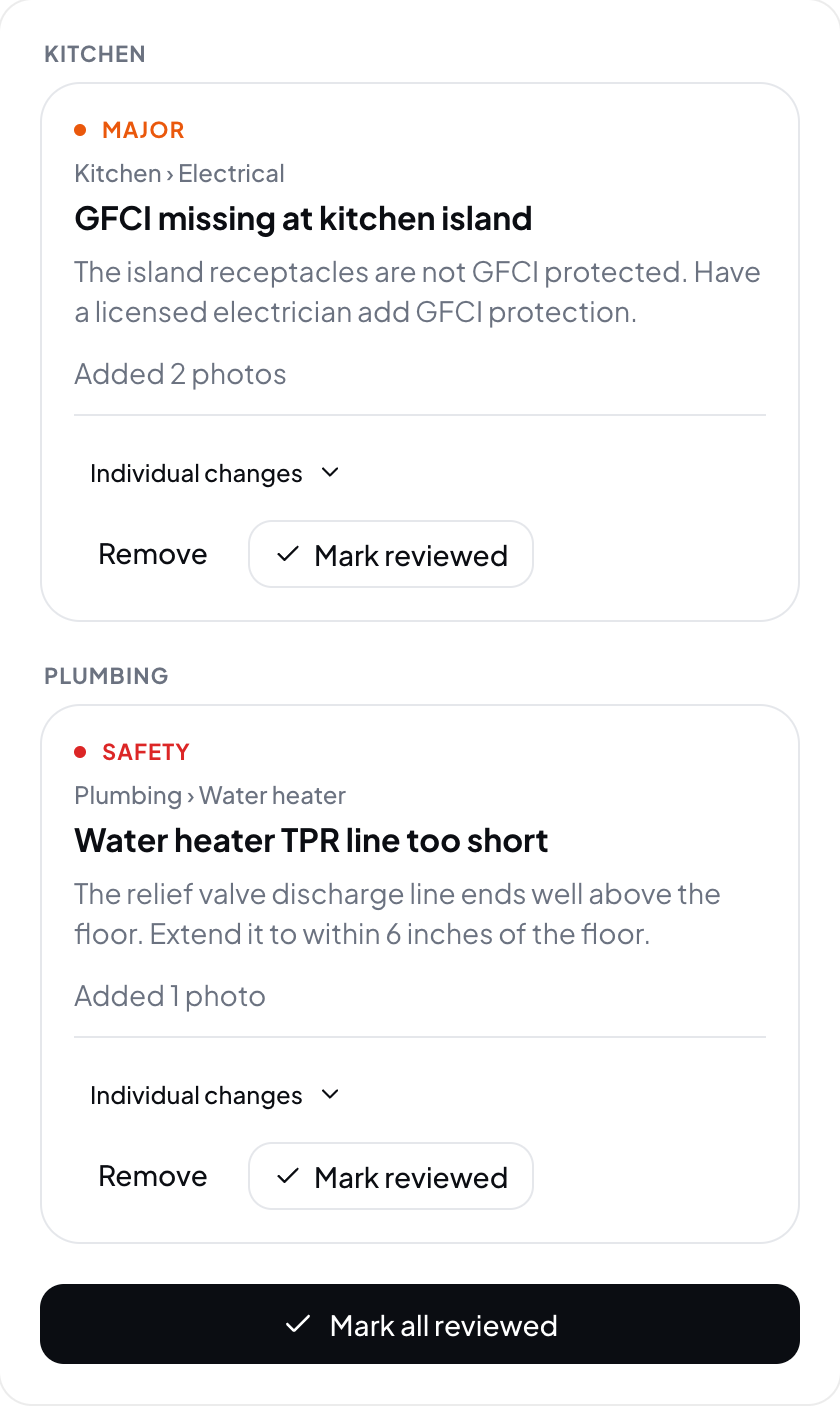
Photo analysis can save eligible edits directly to your report. Review is where you inspect and correct saved changes afterward. Photo analysis never stops to ask a confirmation question; it files what it finds and you review it.
Review the results
- Open Review from the inspection, or tap Review on the job's line in the conversation.
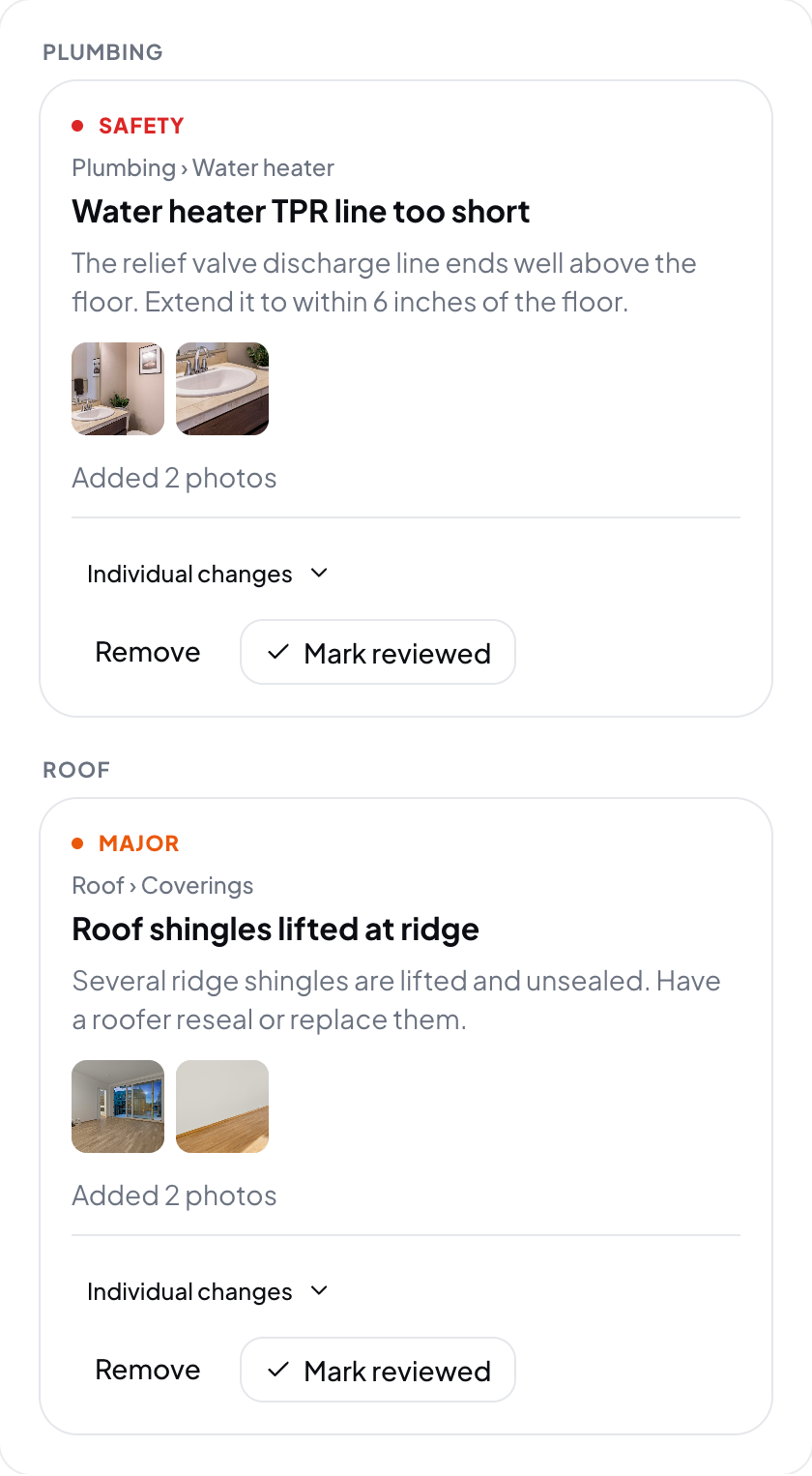
- Check each finding against the photo and your on-site observation. Confirm the location, description, severity, and recommendation.
- Check field values and appliance details, especially manufacturer names, model numbers, and dates read from labels.
- Use the available edit or removal controls to correct anything inaccurate. Check that supporting photos are placed where you expect them.
The analysis is a starting point for your report. A photo cannot establish whether an outlet trips, a fixture leaks during use, or equipment operates correctly. Add your test results and access limitations yourself or ask Hometrace to record them.
Add more photos later
Let the new photos finish uploading, then ask Hometrace to analyze the new photos. If you want it to reconsider something from an earlier run, identify those photos or explicitly ask for another pass.
If a result is wrong, you don't need to rerun the entire photo collection just to fix its wording. Edit that finding or ask for a specific correction.
See Review and undo what Hometrace changed for more on correcting saved work.