
Pin findings and specs to rooms
Place findings in a scanned room, add several spots to one finding, and link saved specs.
Updated October 22, 2026 · 4 min read
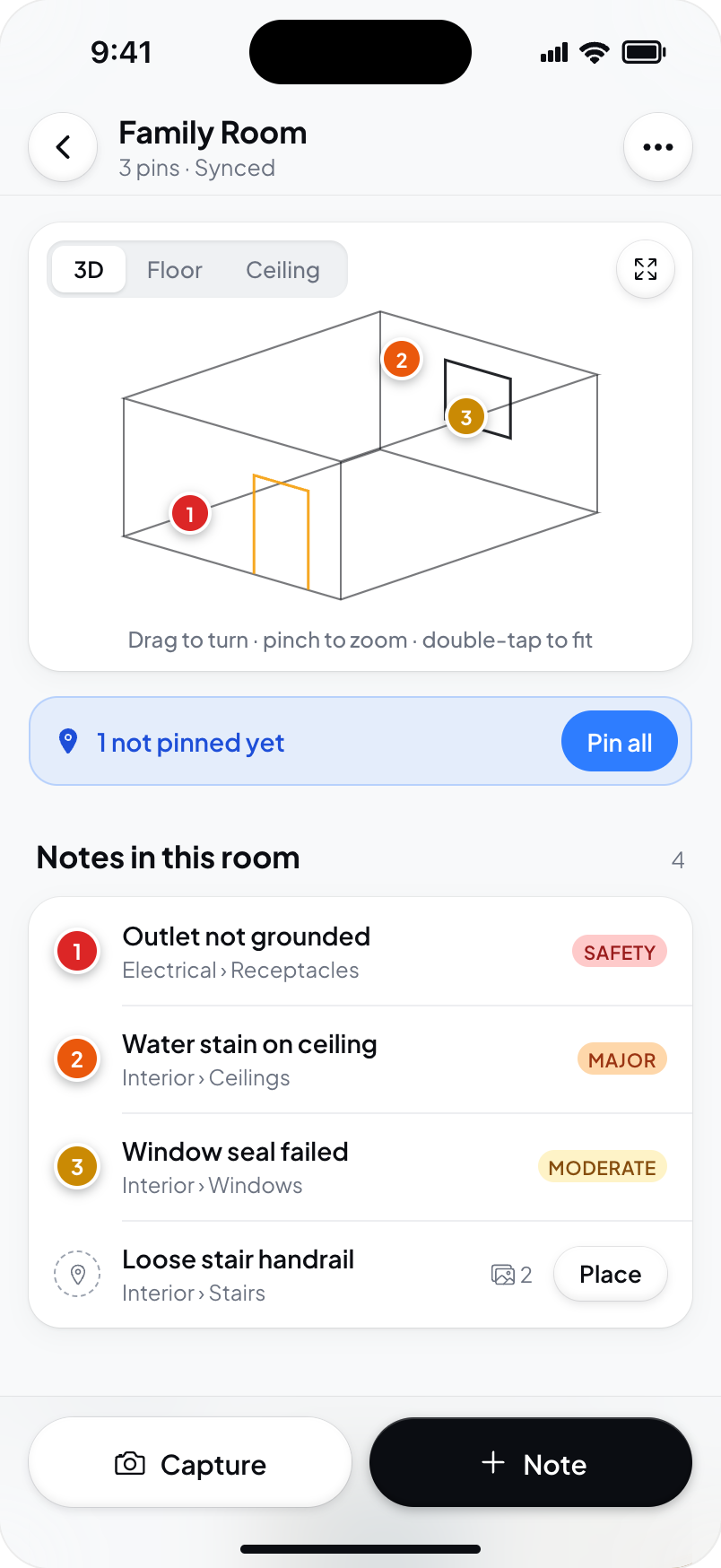
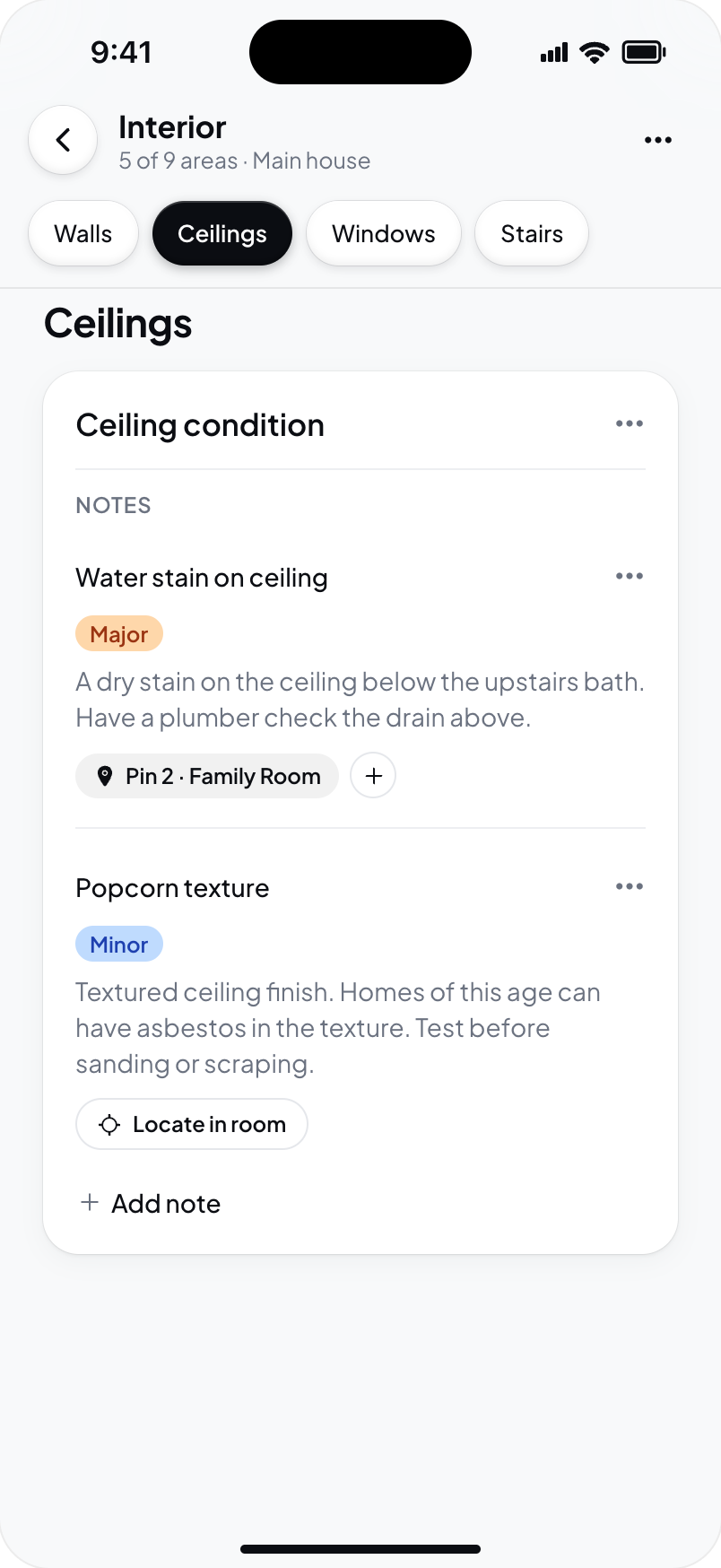
Pin a finding to show where you observed it. The finding keeps its wording, photos, and place in the report; the pin adds its location in the room.
Save notes before placing pins
In a saved room on your phone, choose Note. Search notes or choose Other or custom note, and select one or more notes. Add any supporting photos. Add N saves one unpinned note for each selection; Add and pin saves them and queues them all for placement. Selected photos attach to every note you chose.
Use the not pinned yet strip and Pin all to work through saved items later. Use Pin on an individual row to place just that item. Photos captured in the room can also wait for placement.
Place and save a pin
- Open pin mode for the item you want to place.
- Drag to turn the room. On phone and iPad, pinch to zoom. On desktop, use the scroll wheel to zoom.
- Tap or click the model to place a draft pin.
- Tap or click somewhere else if you need to move it.
- Choose Save pin.
Tap or click to place the draft; drag to turn the room. The draft is not saved until you choose Save pin. Add pin, Place again, and Link note to room use this same flow, with no aiming reticle. Desktop hints still say Tap; use a mouse click.
After saving, pin mode moves to the next item. Skip leaves an item unpinned. Use X to leave pin mode, or Esc on desktop. There is no Done button in pin mode. Pins you already saved stay in place.
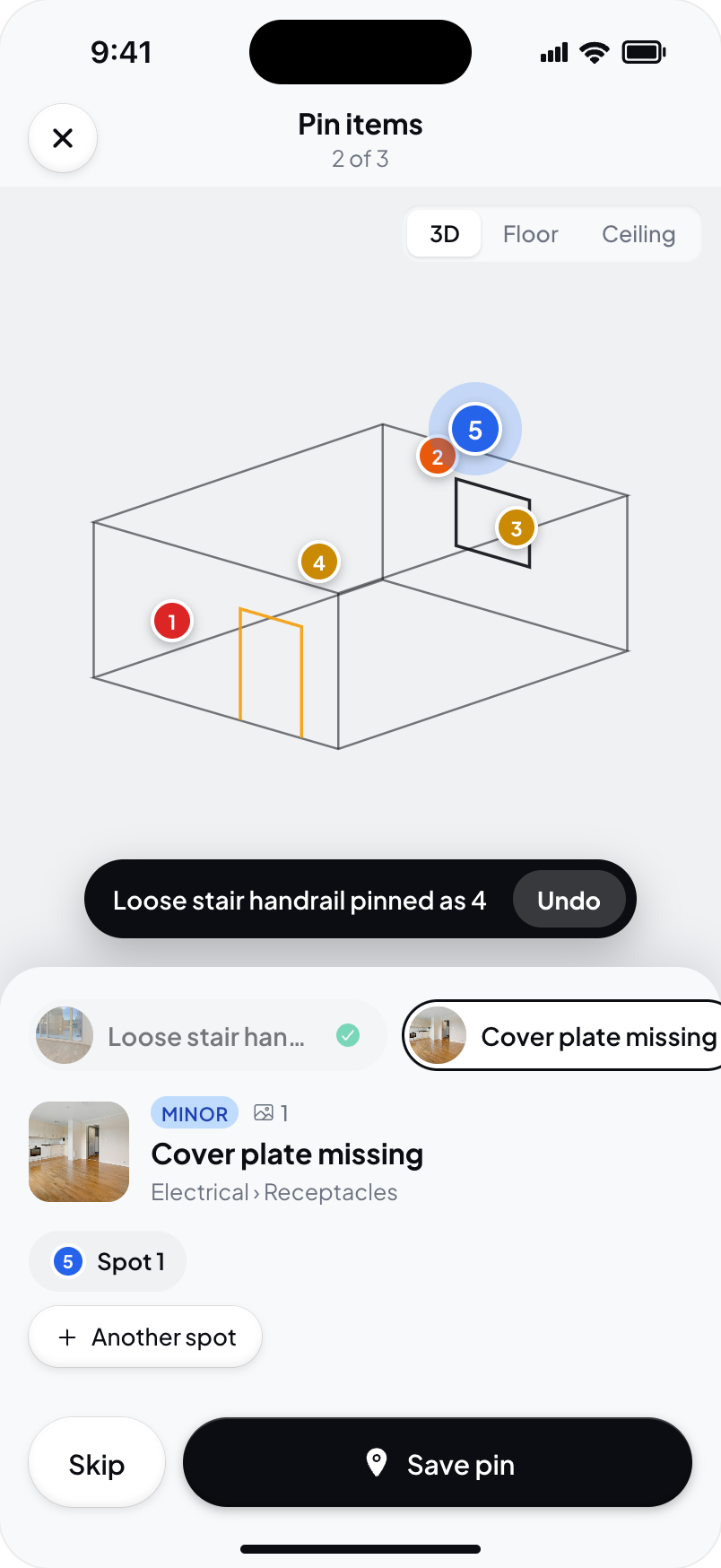
With two or more queued items, the tray shows item pills. The current item has a ring; saved items are dimmed with a check. Choose a pill to jump to that item. The pills are hidden when only one item is queued.
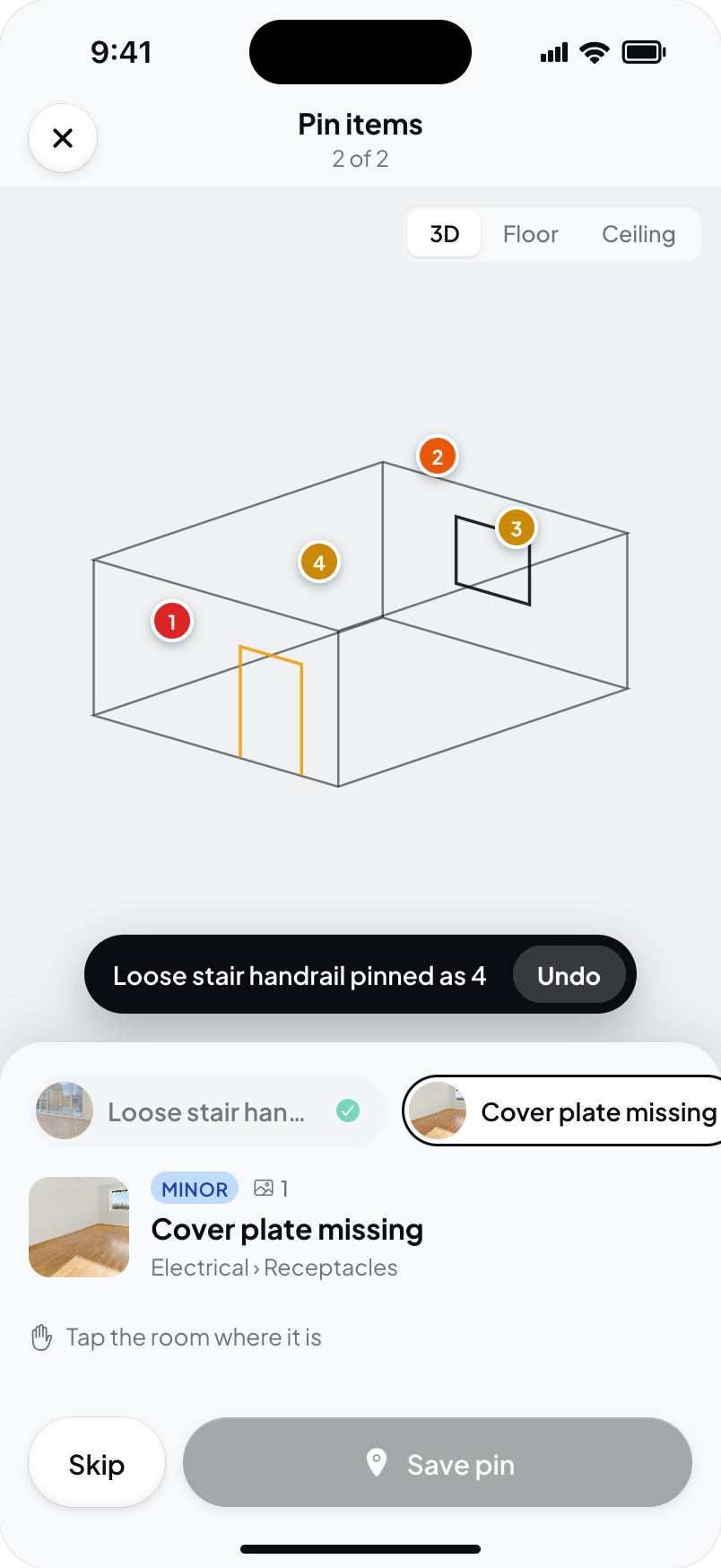
Mark several spots for one finding
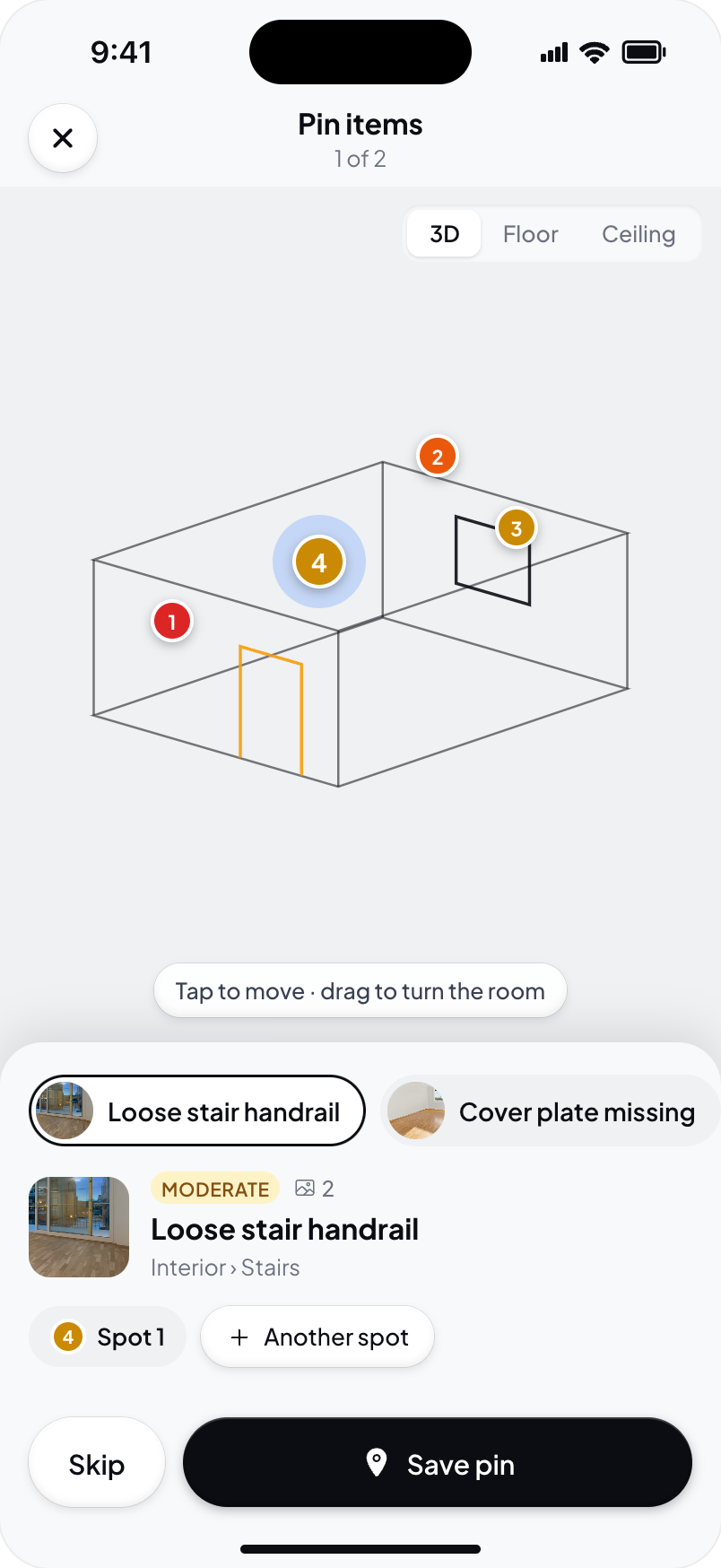
Place the first draft spot, then choose + Another spot and tap another location. Repeat for each place where the same finding applies.
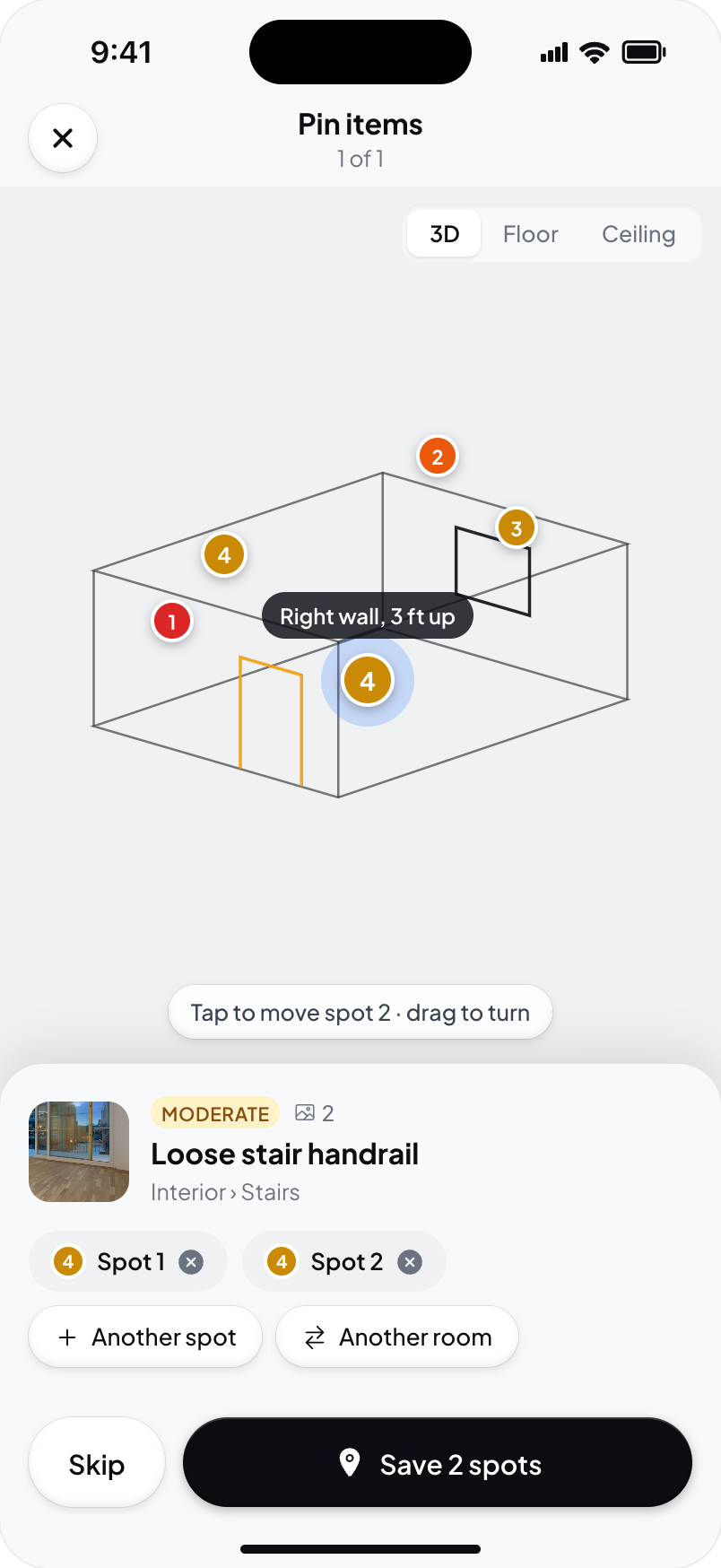
Each Spot chip selects a spot so your next tap or click can move it. The chip's X appears only when the finding has two or more spots. Use it to remove that spot. To remove a single saved spot, use Remove on the pin popover or Remove pin in the note. Choose Save 2 spots, or the matching count, when the locations are correct.
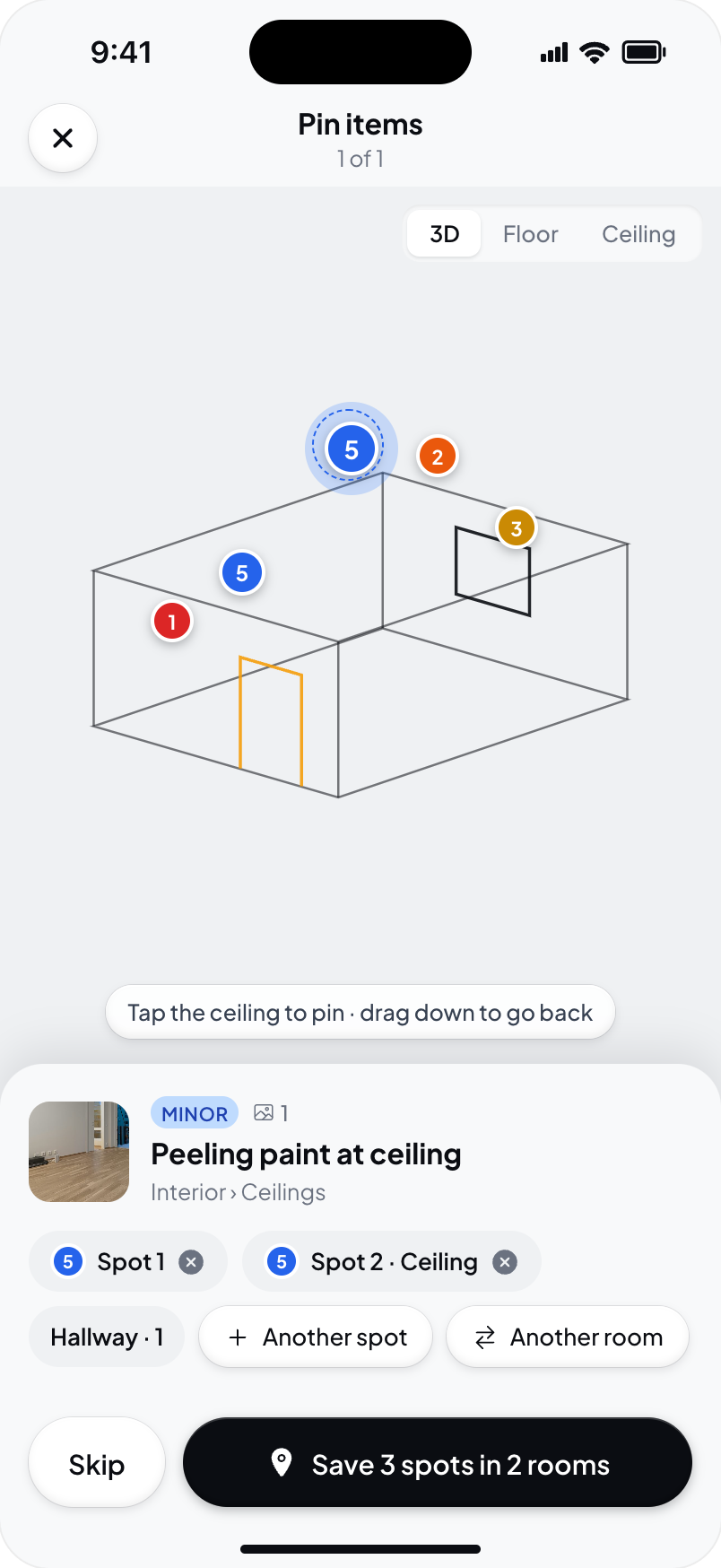
Every spot for one finding uses the same number. Selecting any of them selects that finding and highlights its spots. To edit later, open the note and choose Spots with its current count.
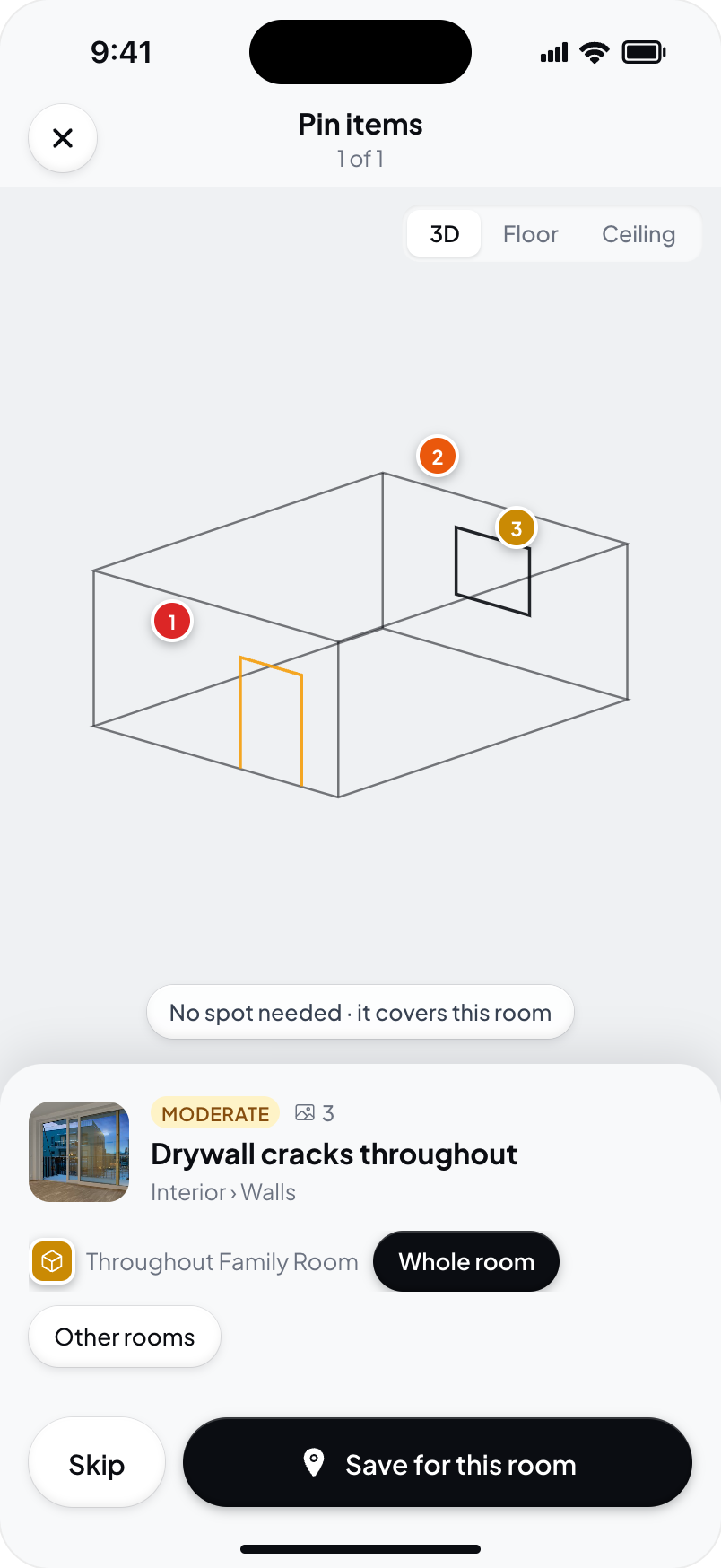
Move or remove a saved pin
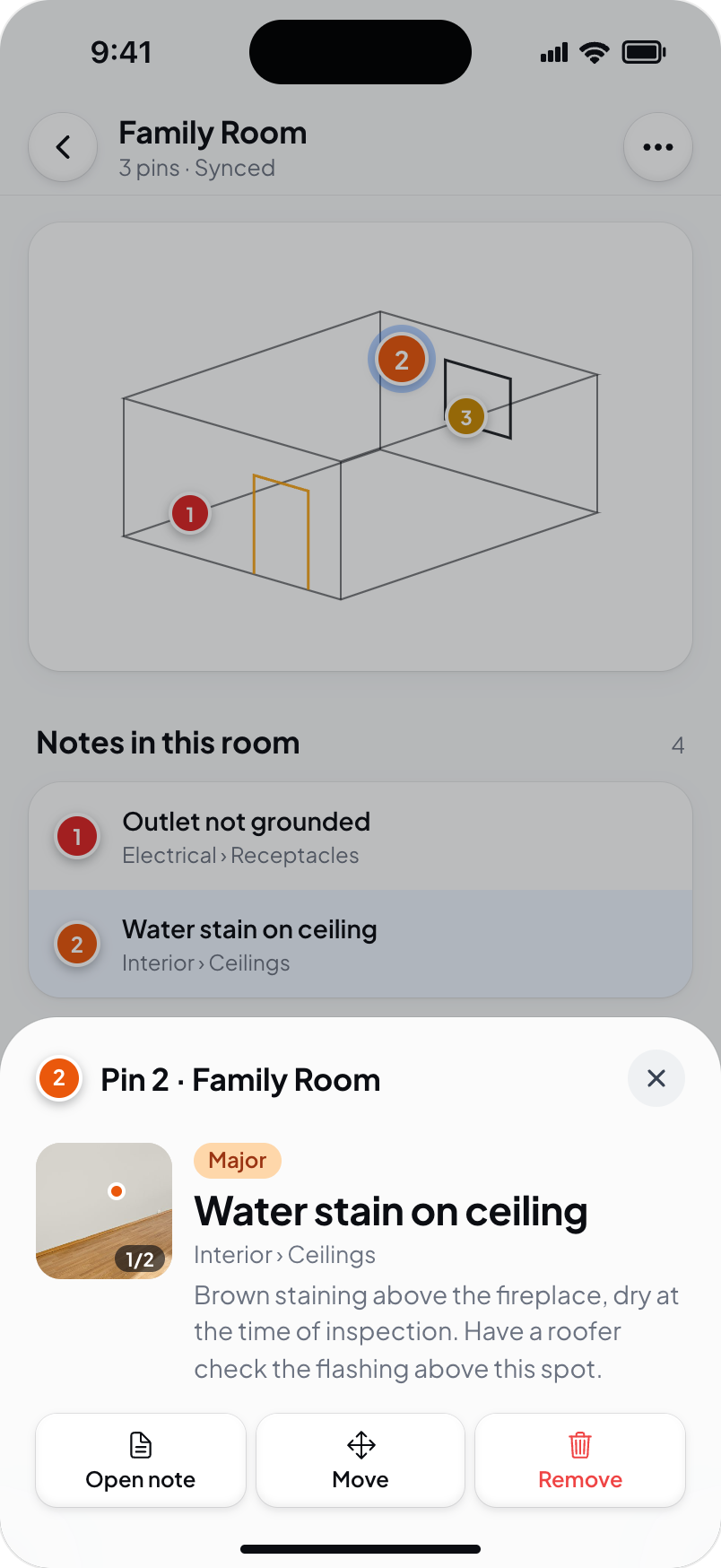
Tap or click a saved finding pin. Choose Open note to read the finding, Move to adjust that spot, or Remove to remove it. Use Undo if you removed the wrong spot.
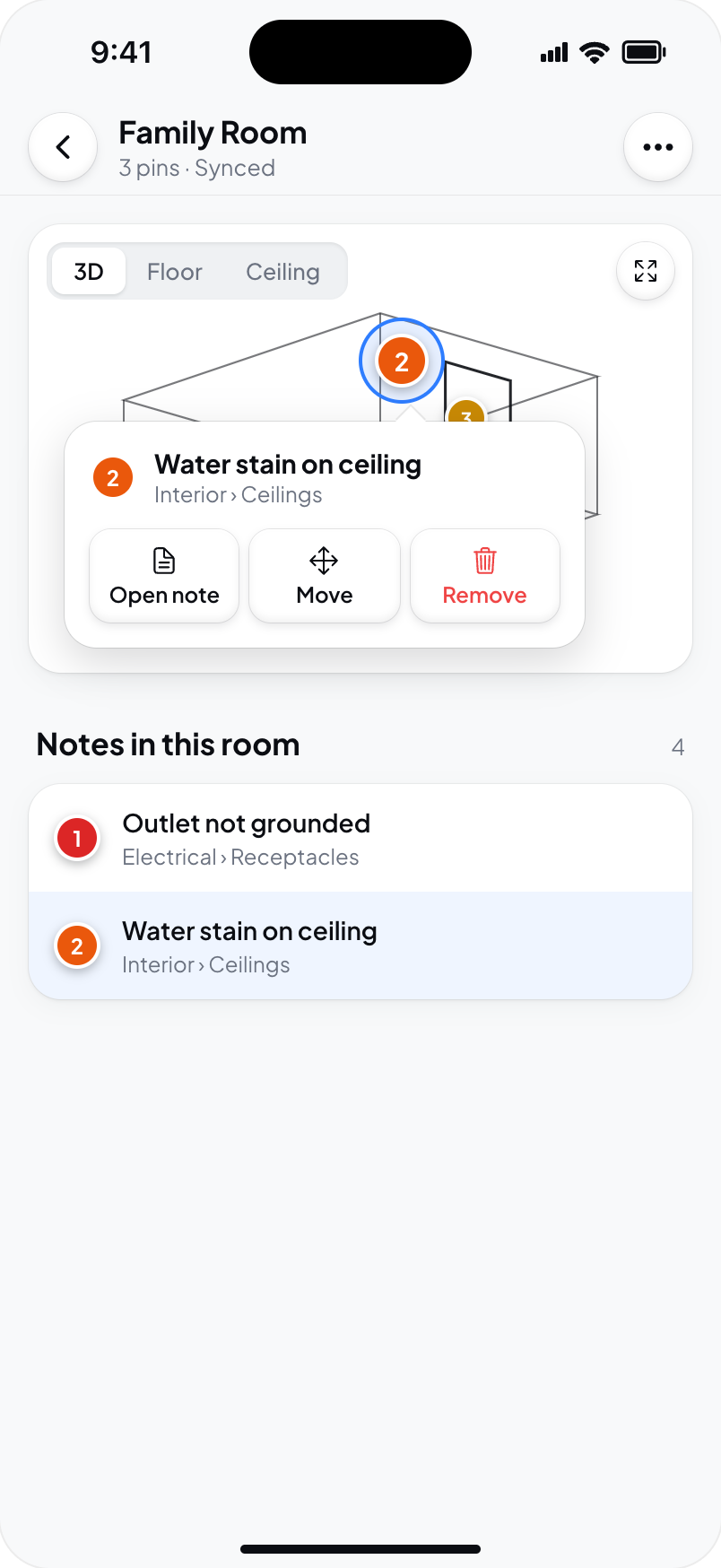
Removing one of several spots keeps the others and their number. Removing the last spot leaves the finding unpinned; it does not delete the finding. Later pin numbers move down to close the gap. Pinning that finding again puts it at the end of the room's numbered items.
A loose photo pin, for a shot that is not attached to a note, works differently: tapping it opens the photo. It has one spot and does not open the finding-pin popover or offer + Another spot.
Work through loose findings
In the mobile inspection album, choose Pin loose findings. The walkthrough starts with unpinned defects from this report. Turn on Show all notes to include other note types.
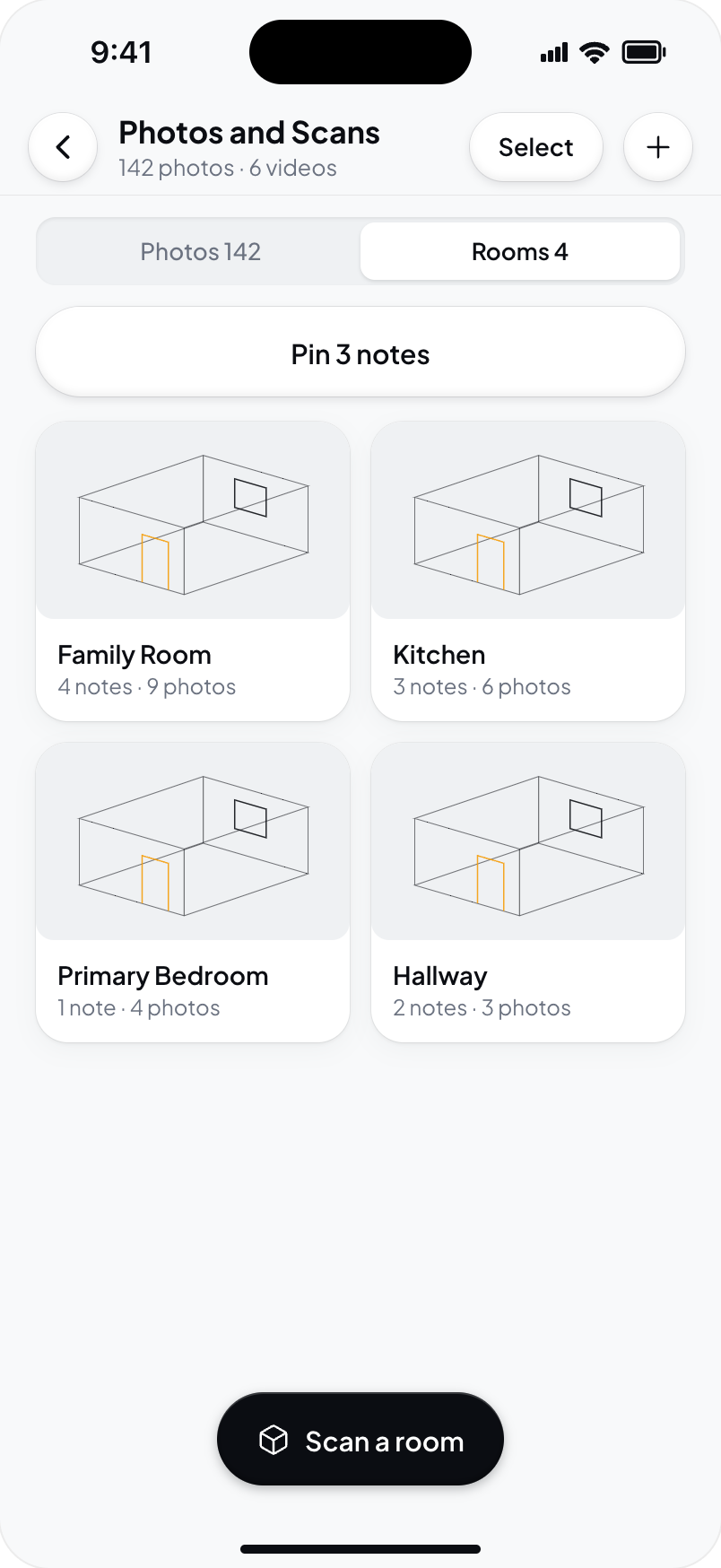
Choose a saved room for each finding and place it. Continue with Next when offered, or Skip to leave it for later. Skipped findings remain available next time.
Link a saved spec
In the native app on a scan-capable device, open a saved spec's menu and choose Link to Room. Choose a saved room, place the draft pin, and save it.
The pin carries the spec's label and report location. Existing links offer Open Pin with the number and room name. This menu is currently available on supported LiDAR devices.
See Check rooms in the client report to review the locations clients will see.