
Use Hometrace from ChatGPT and Claude
Use the power of the Hometrace Agent from your favorite AI apps
A lot of inspectors already keep ChatGPT or Claude open all day. They use it to clean up a tricky finding, draft a reply to a nervous buyer, or think through a pricing change.
Until now, that meant copying text out of Hometrace, pasting it into the chat, then pasting the answer back. You can now connect Hometrace directly to ChatGPT or Claude. The assistant can find your jobs, read your reports, and make edits in the same report you open in Hometrace.
This post covers what a connected assistant can do, what it will never do, how to set it up, and a handful of requests that work well.
What a connected assistant can do
Once you approve the connection, ChatGPT or Claude works inside your Hometrace account with the same access you have. Nothing more.
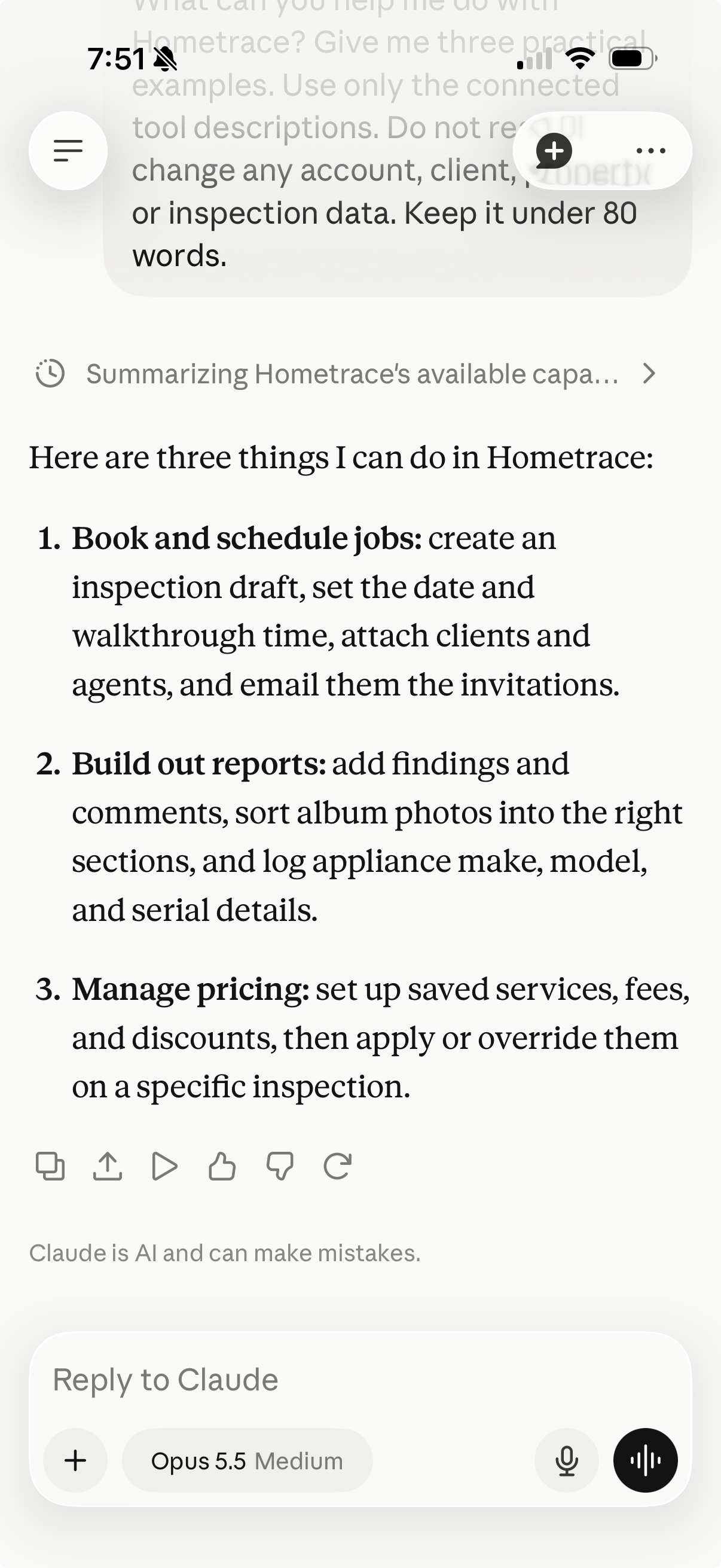
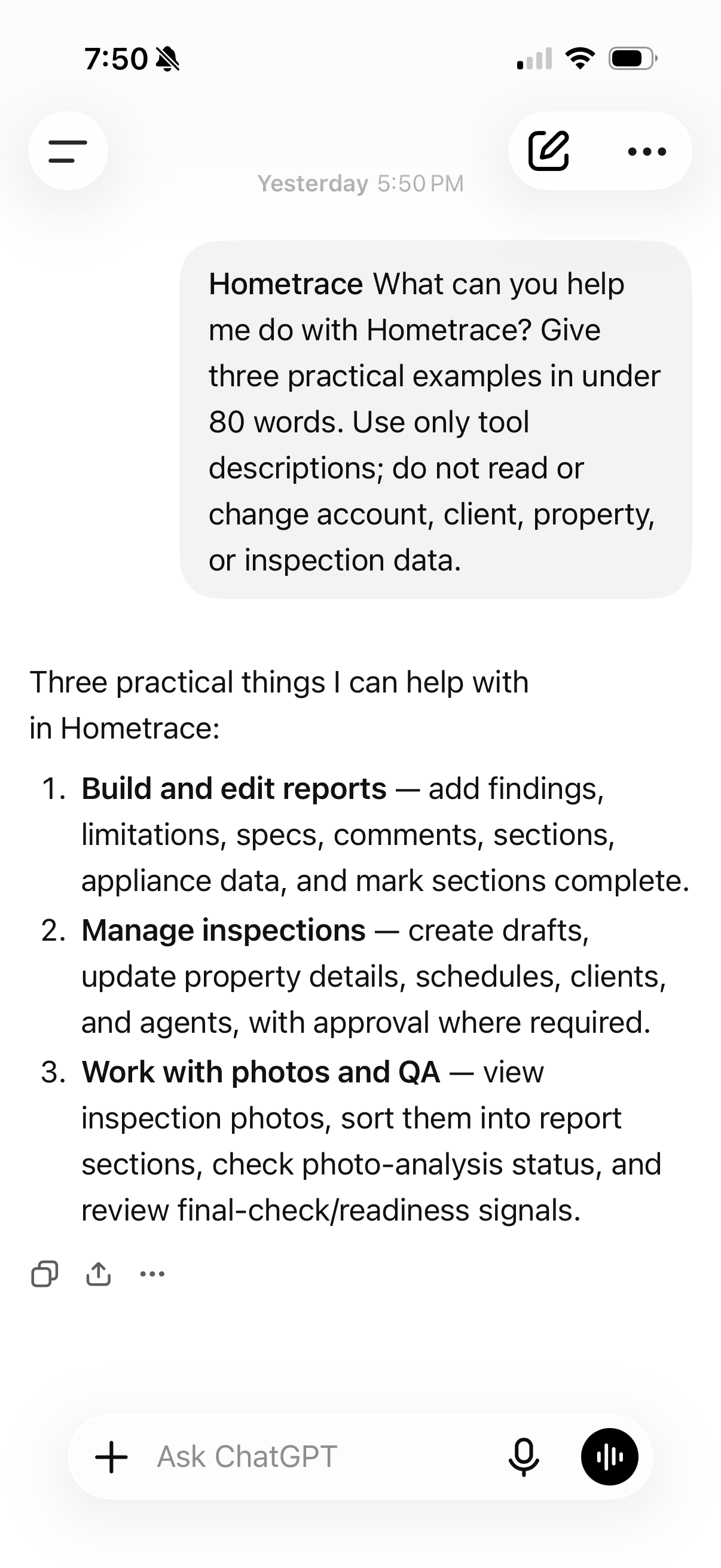
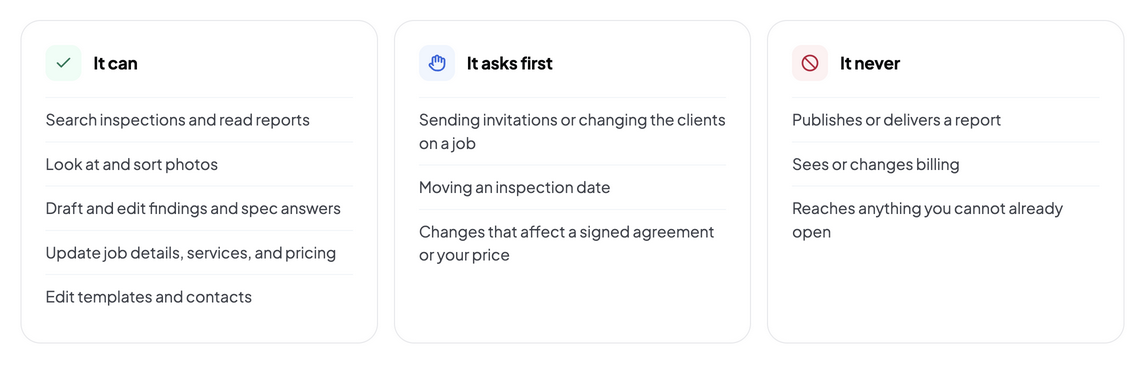
- Find and read your work. Search inspections by address or client name, and read the report.
- Look at and sort photos. See the photos on a job and move them into the right area of the report.
- Draft and edit findings. Add a finding, tighten the wording, answer spec questions, and log appliance details.
- Update the job. Change property details, add or remove units, and adjust services, fees, and discounts.
- Build out your setup. Add to your report templates and templated notes, and keep your contact book current.
Its edits show up in the report as soon as it makes them. There is no export step and no second copy to keep in sync.
What it asks first, and what it never does
Some changes reach your clients or your money. Those stop and ask you first, every time:
- Sending inspection invitations, or changing the clients on a job
- Moving an inspection date
- Changes that affect a signed agreement or the price you quoted
The assistant tells you who will hear about it and waits for your yes. If you say no, nothing happens.
A few things are simply off the table. A connected assistant cannot publish or deliver a report, cannot see or change your billing, payouts, or subscription, and cannot reach any inspection or organization you could not already open yourself.
You are still responsible for the report. Read what the assistant changed before you deliver, the same way you would check a new hire's work.
What you need
- A Hometrace trial or paid plan. The connection checks this on every request, so it stops working if your plan lapses.
- A ChatGPT or Claude account. For ChatGPT, that means Plus, Pro, Business, Enterprise, or Education, because the setup uses ChatGPT's Developer mode. Claude supports custom connectors on Free, Pro, Max, Team, and Enterprise. Free Claude accounts are limited to one custom connector.
It does not use your Hometrace AI allowance. The assistant runs on your own ChatGPT or Claude plan.
Connect Claude
In Claude on the web or Claude Desktop:
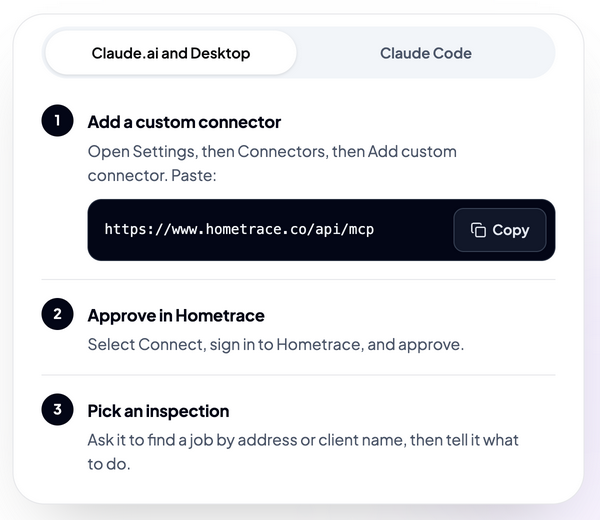
- Open Customize, then Connectors.
- Select the plus button, then Add custom connector.
- Paste the Hometrace server address,
https://www.hometrace.co/api/mcp, and select Add. - Select Connect, sign in to Hometrace, and approve.
- In a chat, open the plus menu at the lower left, choose Connectors, and make sure Hometrace is on.
If you are on a Claude Team or Enterprise plan, an owner adds the connector for the organization first. Then you connect your own Hometrace account from Customize, then Connectors.
Claude Code users can add it from a terminal:
claude mcp add --transport http hometrace https://www.hometrace.co/api/mcp
Then run /mcp inside Claude Code, choose hometrace, and sign in.
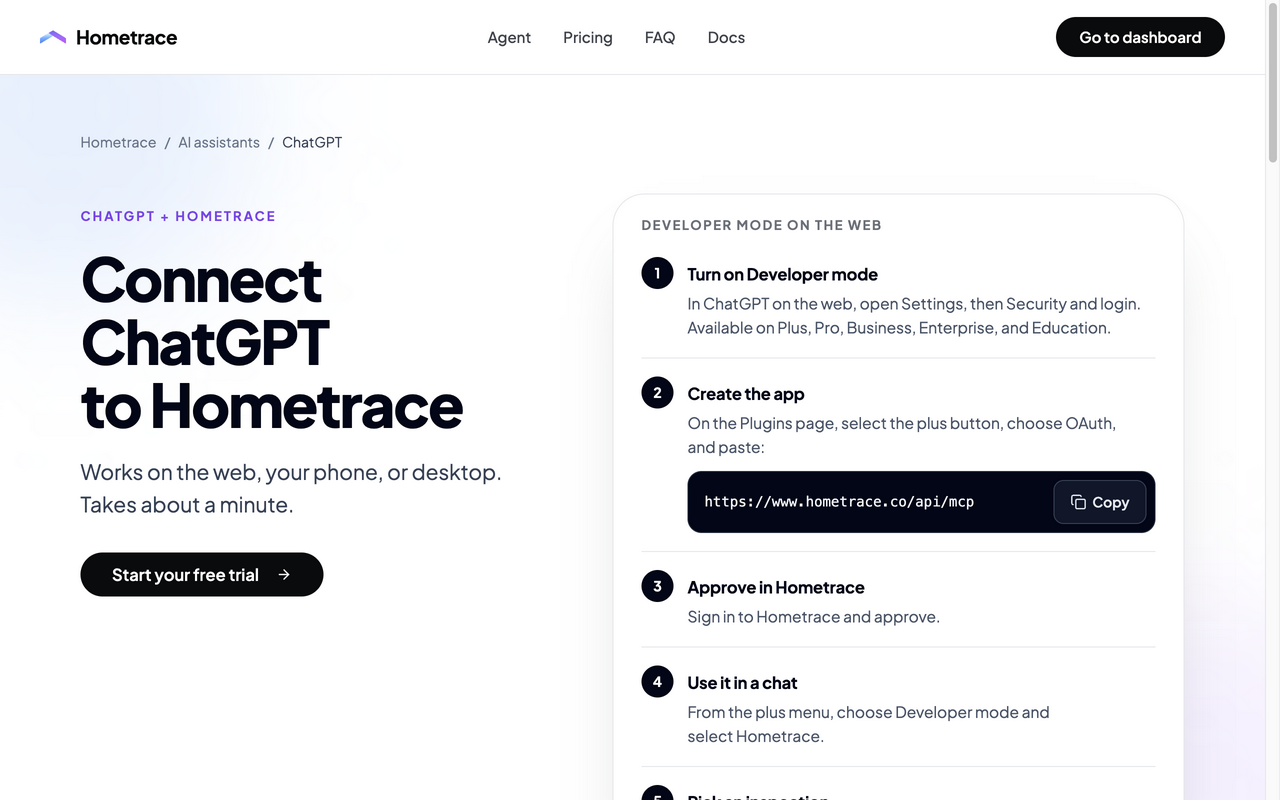
Connect ChatGPT
ChatGPT connects through Developer mode, which you turn on once in ChatGPT on the web.
- In ChatGPT on the web, open Settings, then Security and login, and turn on Developer mode.
- Go to the Plugins page, select the plus button, choose OAuth, and paste:
https://www.hometrace.co/api/mcp - Sign in to Hometrace and approve.
- In a chat, open the plus menu, choose Developer mode, and select Hometrace.
ChatGPT also asks you to confirm write actions by default, so you will see two checkpoints for anything sensitive: ChatGPT's own confirmation and Hometrace's.
Requests that work well
You do not need special commands. Name the job, say what you want, and give it the facts. A few examples to start with:
- "Find my inspection at 412 Maple and list the findings marked as safety issues."
- "In that report, add a deficiency under Electrical: the GFCI outlet beside the kitchen sink did not trip when tested. Recommend evaluation and repair by a licensed electrician."
- "Rewrite the attic insulation finding so a first-time buyer can follow it. Keep the measurement and the recommendation."
- "Sort the unsorted photos on this job into the right areas."
- "Add a radon test to tomorrow's inspection at the price in my saved services." It will ask before it changes what the client owes.
- "Save my standard wording for missing downspout extensions as a templated note under Exterior, Gutters."
If you only want ideas, say so: "Suggest wording in chat, and do not change the report."
See and disconnect your connected apps
Every connection shows up in Hometrace under Settings, then Connected Apps, with the date it was connected and when it was last used. The same page has the server address with a copy button.
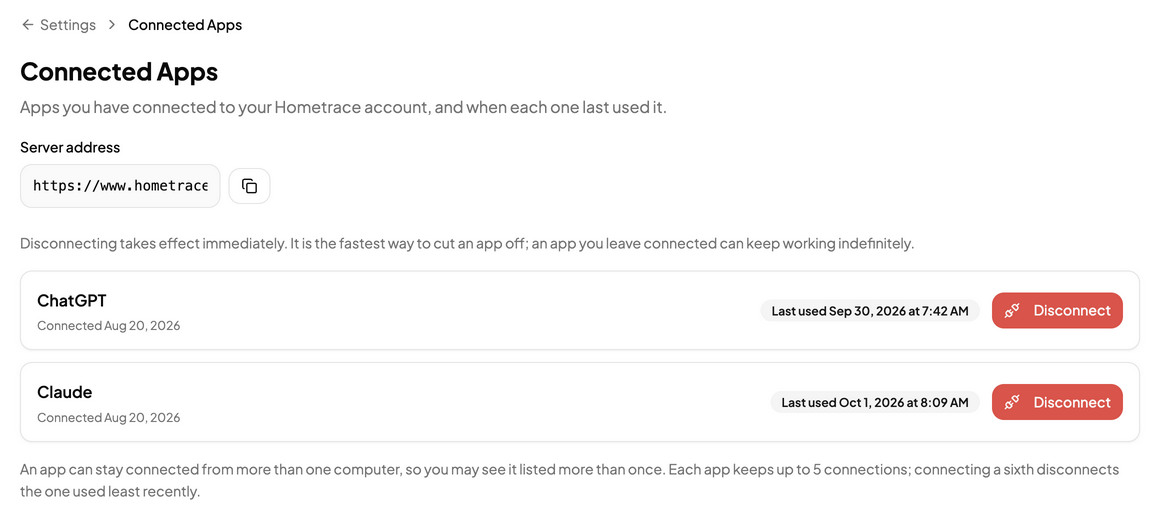
Disconnecting takes effect immediately. It is the fastest way to cut an app off. If you use the same assistant on more than one computer, you may see it listed more than once.
Try it
If you already use ChatGPT or Claude, connecting Hometrace takes about a minute. Step-by-step instructions live in Connect ChatGPT or Claude to Hometrace, and the setup pages for Claude and ChatGPT have the server address ready to copy.
New to Hometrace? See how it works and start a free trial.