A redesigned Hometrace, 3D room scans, and repair requests
A modern design to accompany a new standard in inspection reports

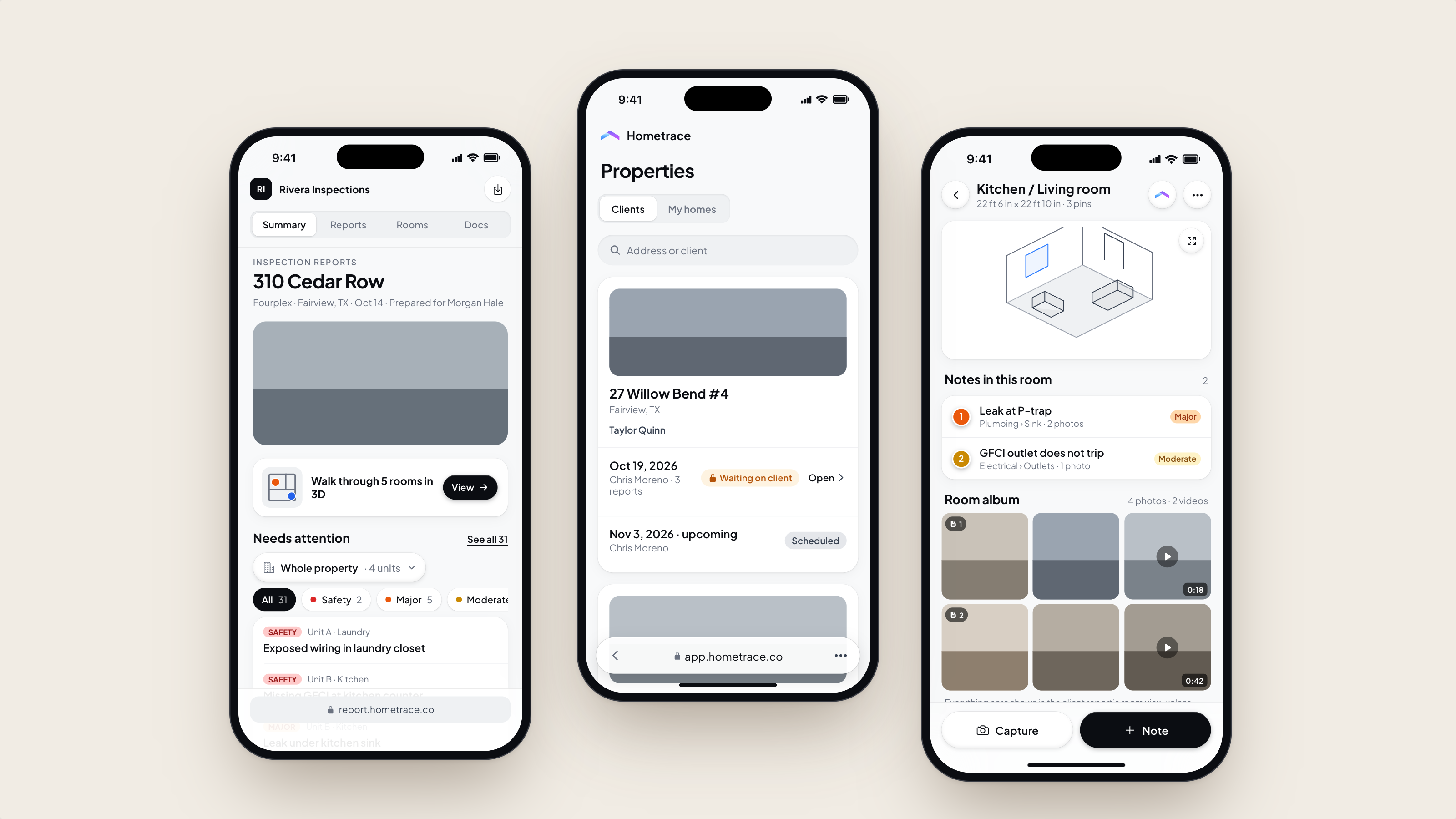
Hometrace looks different this week. We completely redesigned the app on web and mobile for clarity and to solve a variety of experience issues from before. LiDAR-based 3D room scans are also here. The goal? Hand your clients a report that is super easy to read and super easy to act on.
Here is what changed, what your clients will see, and what is coming next.
3D room scans
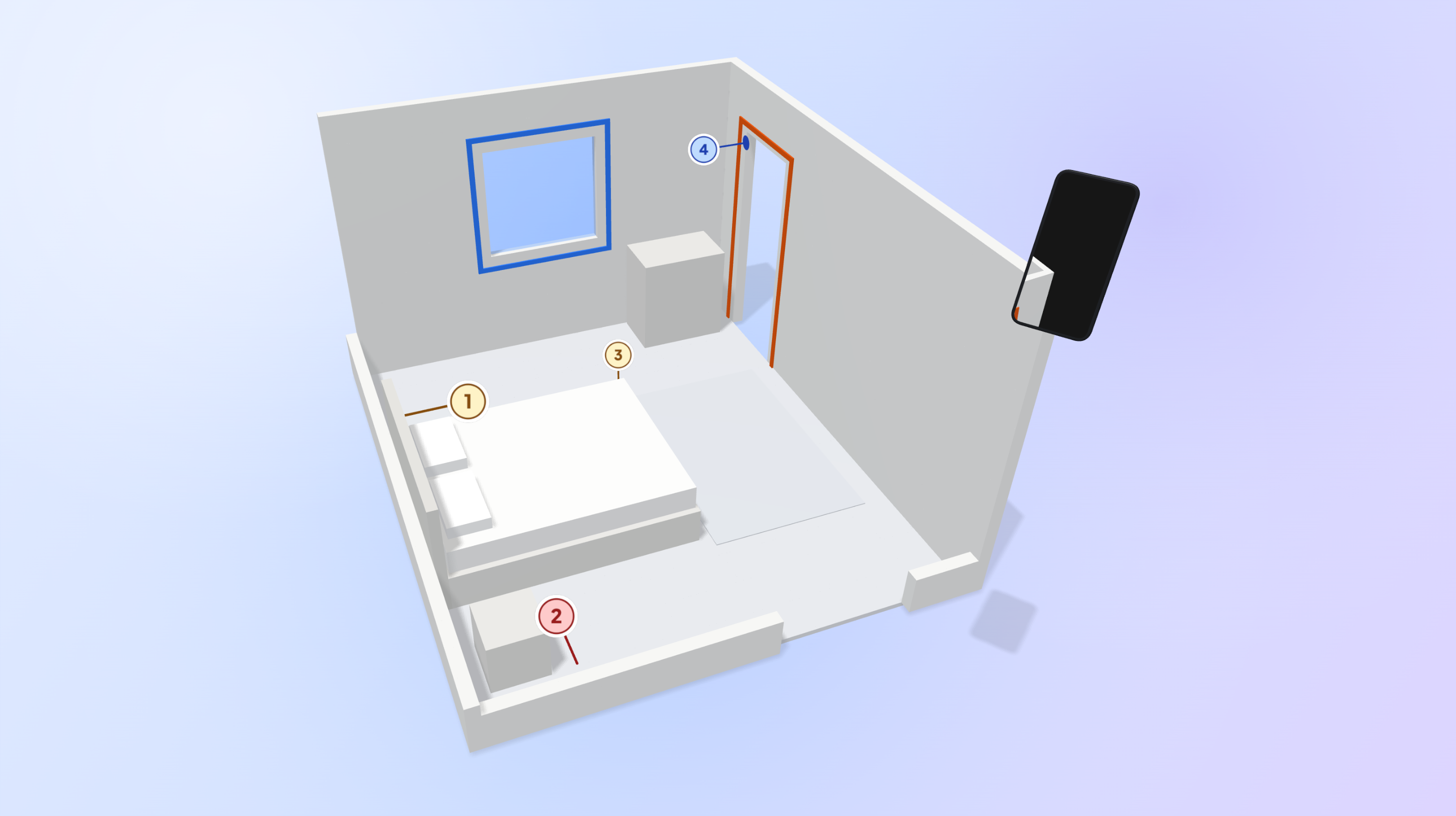
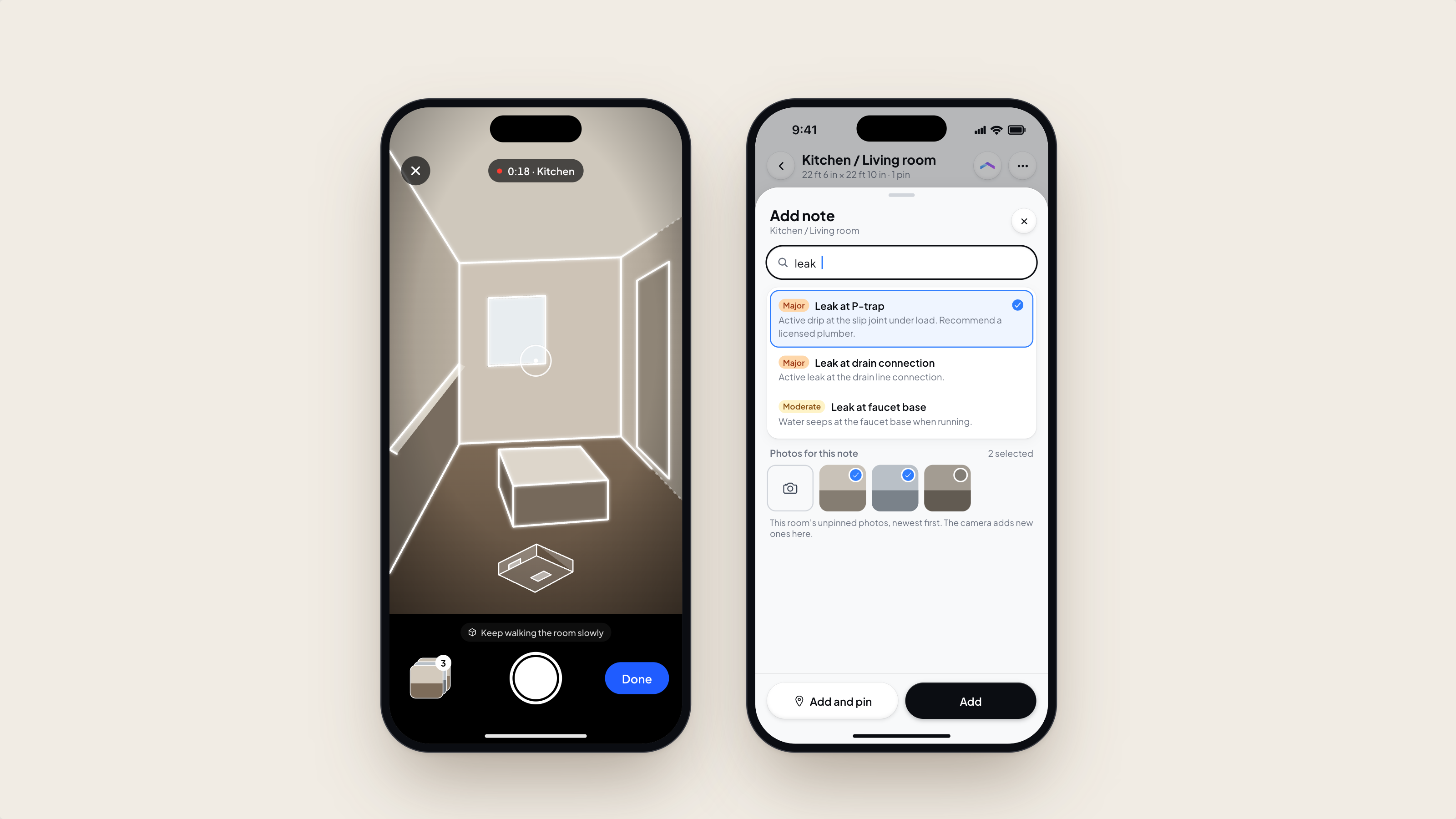
If your iPhone or iPad has LiDAR, you can now scan a room in about 30 seconds and pin your findings to it. That means an iPhone 14 Pro or a later Pro model, or an iPad Pro with an M1 chip or later, on iOS 17 or newer.
- Scan. Tap Scan a room in the capture dock, or Locate in room on a finding. Walk the room while the app guides you. You can take photos during the scan.
- Pin. Tap a spot on the model or in a room photo, then pick the note under What's the defect? A note can be pinned in more than one spot, and pins are numbered in report order when you publish.
- Check it. Switch between 3D and Top to see the room from any angle or as a floor plan.
For those who may be on an Android platform or using phones without LiDAR sensors, we will be working on expanding access to this feature over time, including access via an external LiDAR sensing devices.
A clearer report
The client report is where the redesign shows the most. Your client, their agent and the seller's side all get the new layout when they open your report.
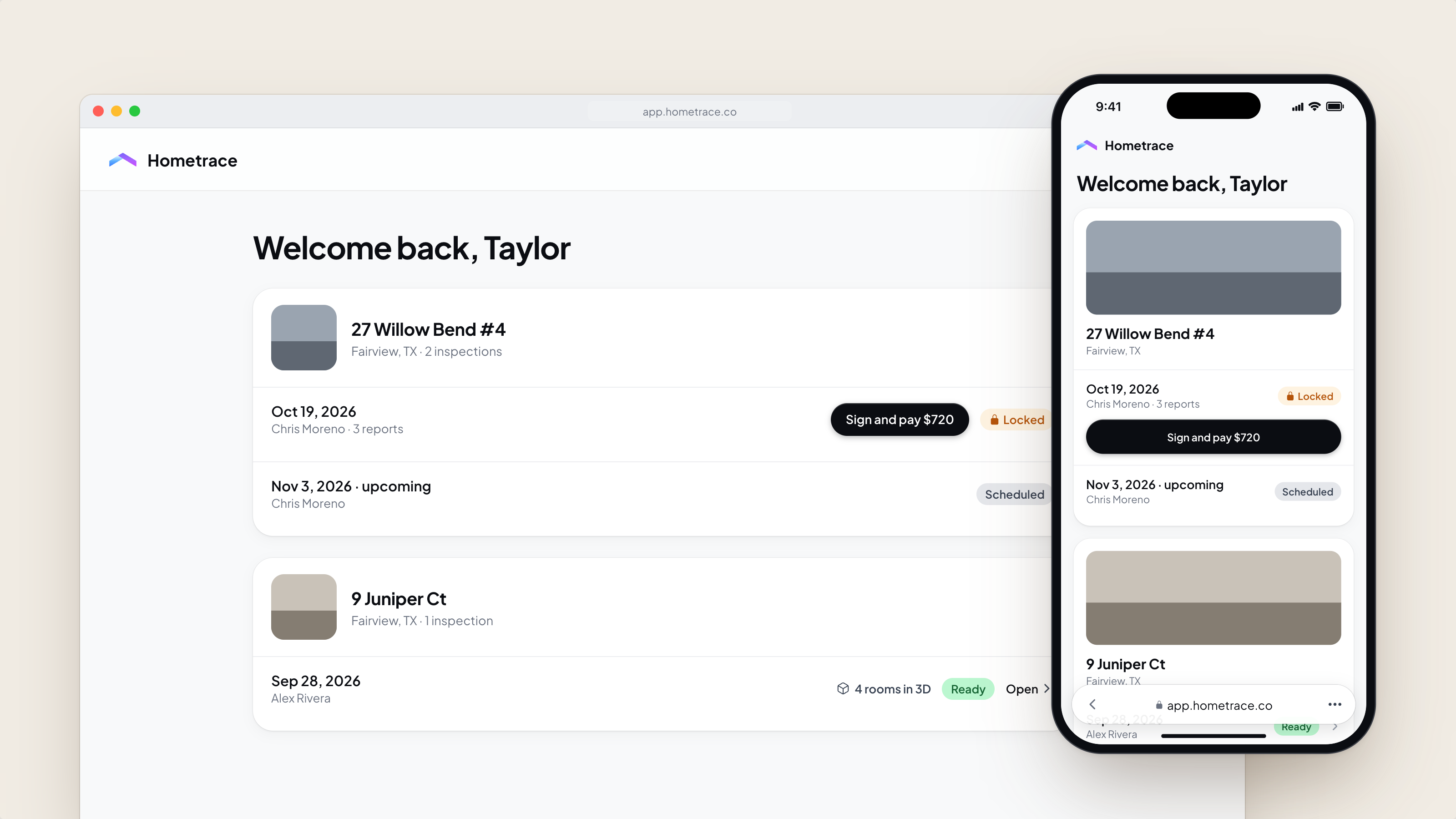
- Four simple tabs. Summary, Full report, Rooms and Docs. A buyer who wants the short version reads the summary. An agent who needs every detail opens the full report.
- One clear step to unlock. If the report waits on a signature or a payment, the client sees a single sign and pay step instead of hunting for it.
- Multiple units and reports stay together. Properties with several units, or more than one report, are easier to move between.
- Documents in one place. Agreements and other files sit under Docs, and anything still unsigned has a Sign button next to it.
What your clients see
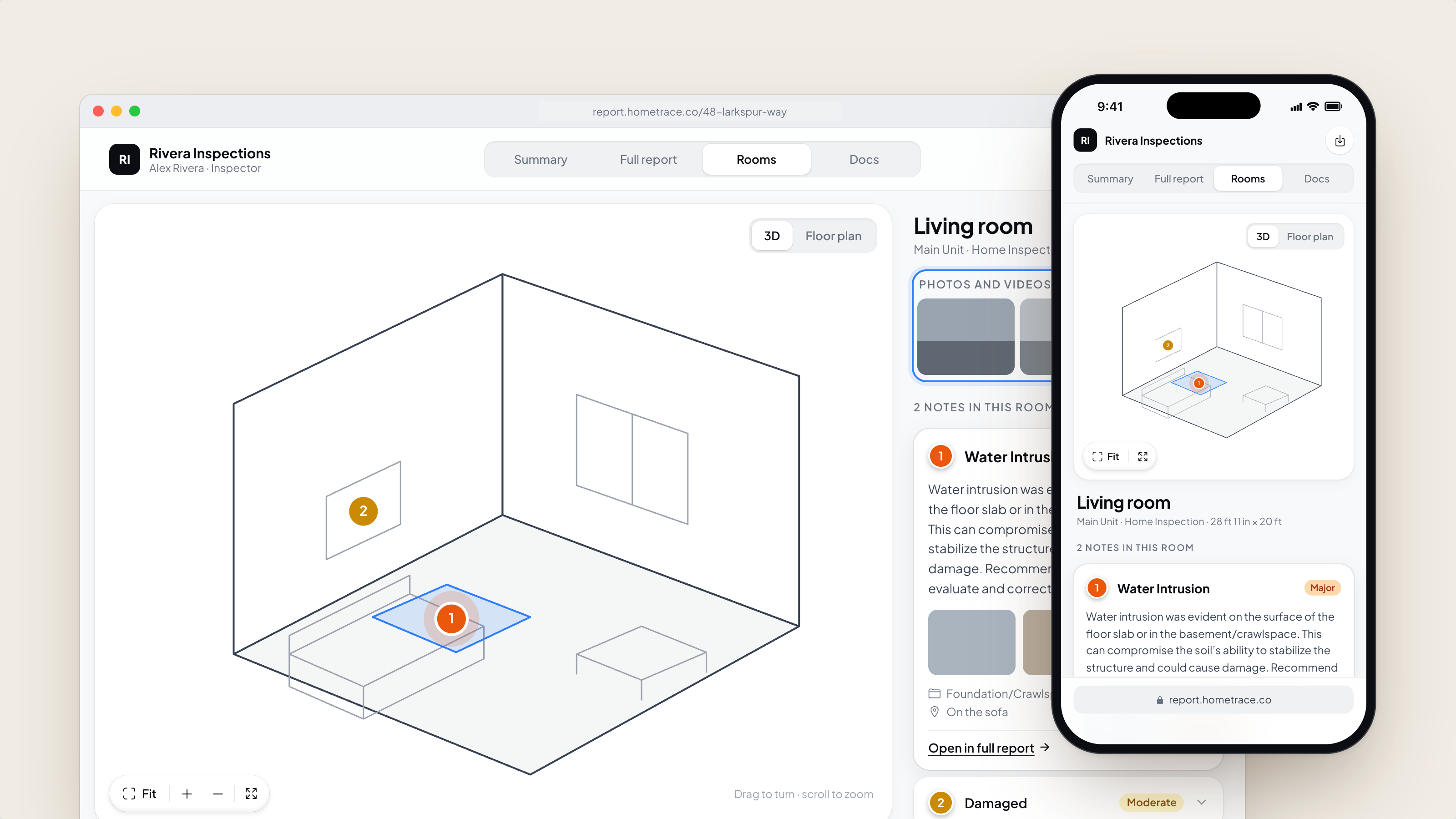
A pin on the wall above the water heater tells a buyer more than "see photo 14." On the client report:
- The summary shows Walk through rooms in 3D with a View rooms button.
- The Rooms tab pairs each room with the notes pinned in it. Drag to turn the room, scroll to zoom, and tap a pin to open its note. There is a full screen view, a floor plan and a Show measurements toggle.
- The PDF gets a floor plan with numbered dots that match the pinned notes.
Repair requests, starting today
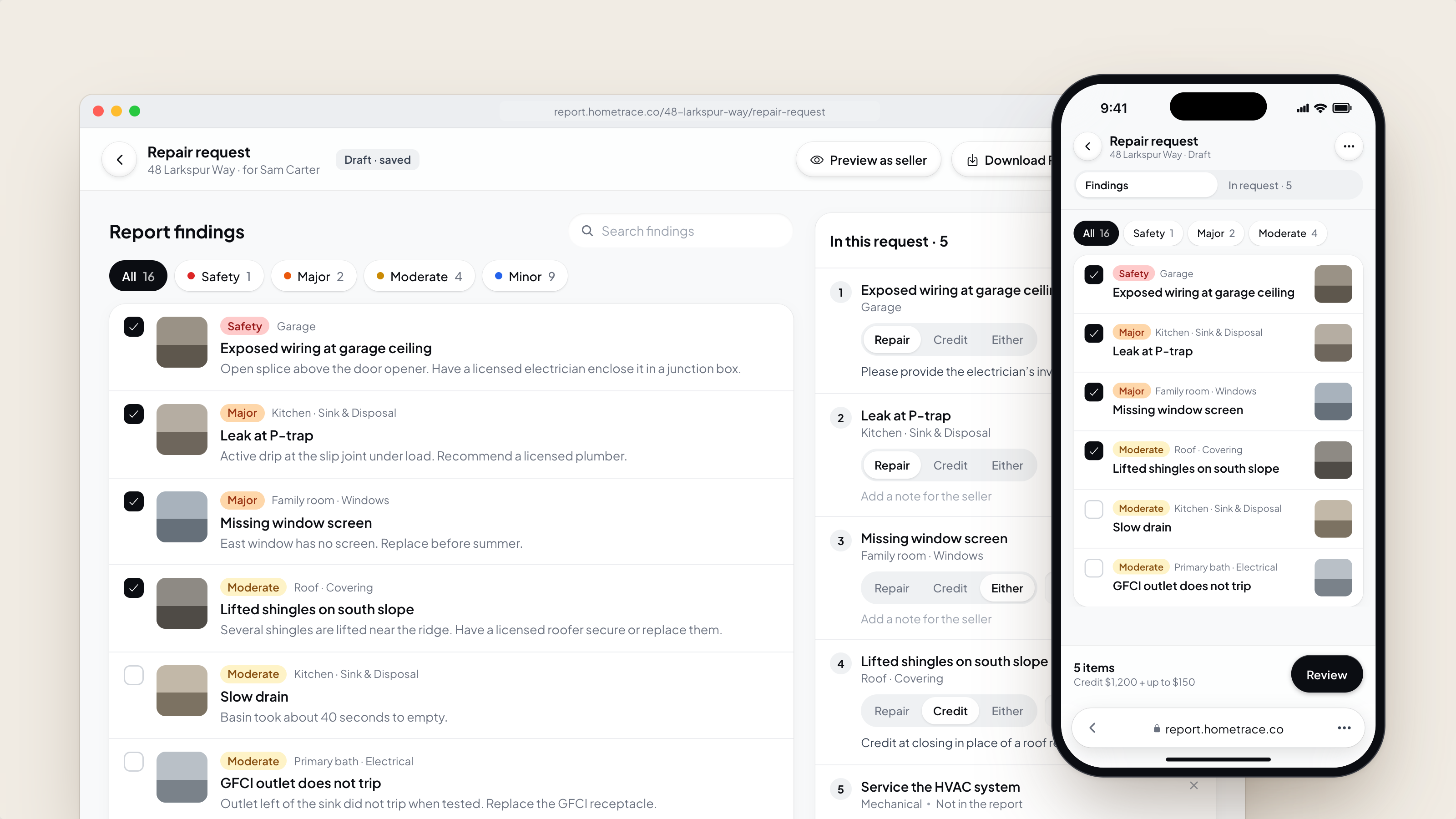
Once your client has the report, they or their agent can build a repair request from it. Every Safety, Major and Moderate finding starts checked and set to Repair. They switch each item to Repair, Credit or Either, add an amount or a note, and add their own items if they need to.
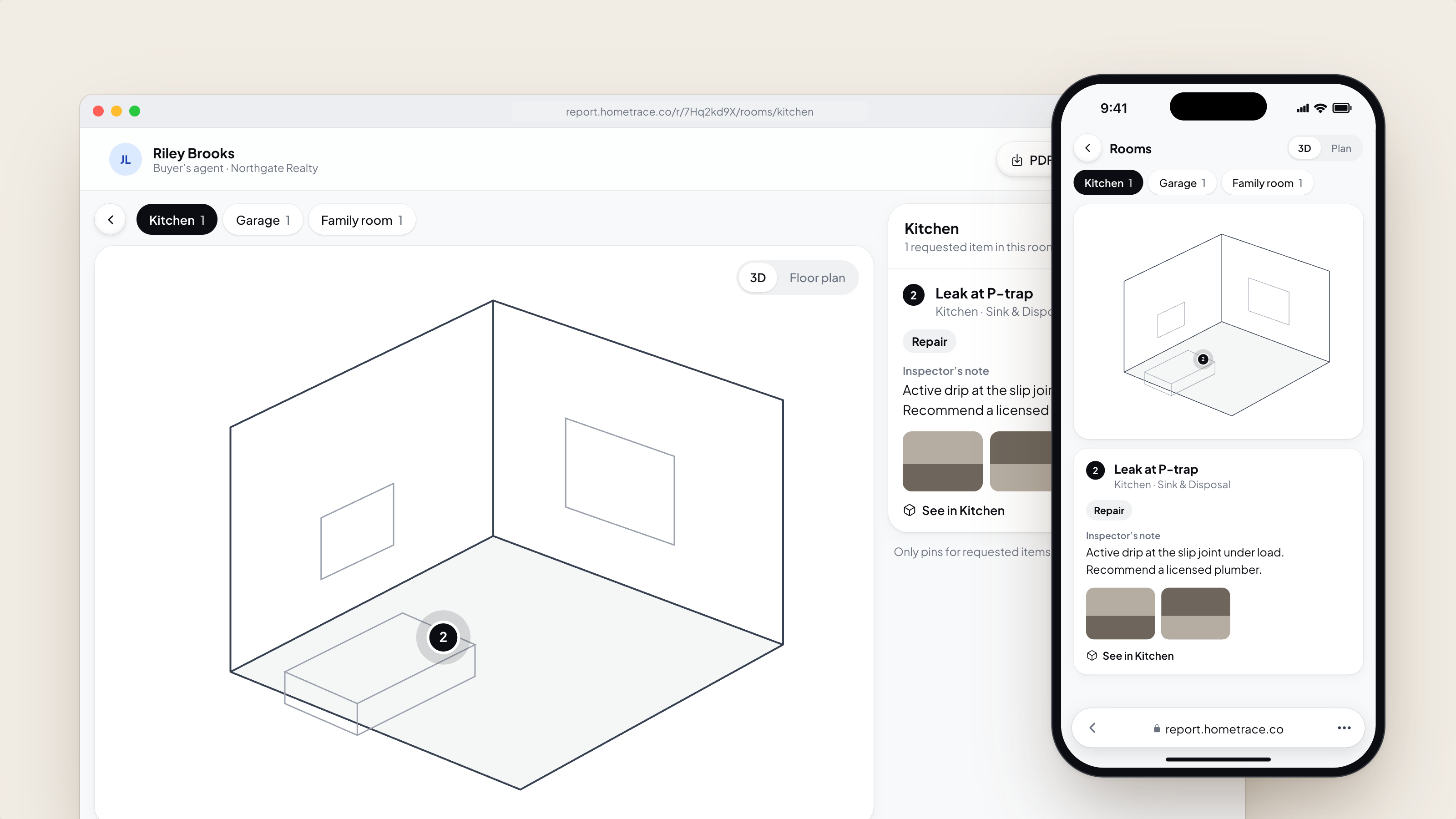
When they send it, the seller's side gets a link that shows only the requested items, without severities, and no sign-in is needed. You can see the request on your report, but you can't edit it, so it stays between the parties.
How to get the new stuff
- Update the app. Install the latest Hometrace version from the App Store or Google Play.
- Nothing to turn on. The new design and room scans (for eligible phones) are on for every account.
- For iOS users, try one room. Scan the kitchen on your next job, pin a finding, and open the client report preview to see what your client will get. 3D room scans make it easy to pass on requested repairs to the seller and help contractors identify precisely where issues are in the house.
If something looks off or a screen slows you down, tell us. We read every message.