
Switching software without rebuilding your templates
Import your existing template, check the wording and structure, and test the client report before moving real jobs.
Your template holds years of decisions about how you describe defects and explain recommendations. Before switching inspection software, find out how much of that work you can bring with you and what needs checking afterward.
Hometrace has template import tools, but formats differ. Start with an export from your current software and review the result before using it for a client's inspection.
Choose the matching import
The Templates screen supports Spectora spreadsheet exports, Home Inspector Pro .tpz bundles, and HomeGauge .ht5 files. Choose the importer for the file you have so it can interpret the structure correctly.
Spectora sections become areas, with items and specs mapped into Hometrace's template. Comments are mapped to note types and severities. Home Inspector Pro imports also bring across sections, specs, and comments, with a preview before committing the import.
For another format, use Hometrace's documented CSV layout and sample file. An arbitrary CSV export may need rearranging to match that layout. Hometrace JSON is its own template export format, useful for backups or moving a template between accounts; it is not a general importer for any JSON file.
Expect some cleanup
Do not assume every feature of the old template transfers. Check comment photos, annotations, cost estimates, and custom calculations separately. Some information may need to be added again, and referenced files may not be included in an export bundle.
Read the imported narrative library by section. Check that limitations and deficiencies have the appropriate types and that severities match your intent. Home Inspector Pro comments require type and severity inference, which makes this review particularly important.
Official state forms have their own structure. For a recognized Spectora TREC export, Hometrace maps comments onto the official form. Review anything placed outside that structure, along with the finished report.
Test what the client will receive
Open the imported template and check the area order, spec response types, and checkbox options. Correct anything that would slow you down while inspecting.
Then use it for a test inspection. Answer specs, add a few findings, and attach photos as you would on a real job. Open the client report and read the result. A template can look sensible in the editor while producing wording or organization you want to change in the report.
Fix those issues before relying on the template for paid work. Keep your current software available while you get comfortable with the new process, and save copies of reports you have already delivered.
Move contacts separately
Clients, agents, and contractors can be imported by CSV using the sample files in the app. Keep the expected column layout and check the imported records before using them for a booking or delivery.
If your office uses ISN, plan for that separately. Hometrace does not connect to ISN; a contact import does not transfer the scheduling integration.
Get help with a difficult file
If your export does not fit, send it to support@hometrace.co or reply to your welcome email. The Hometrace team can help move the template and narrative library into your account.
Use the 30-day trial to import your own template and inspect the result. You can decide whether the switch works after seeing your wording in a completed report.
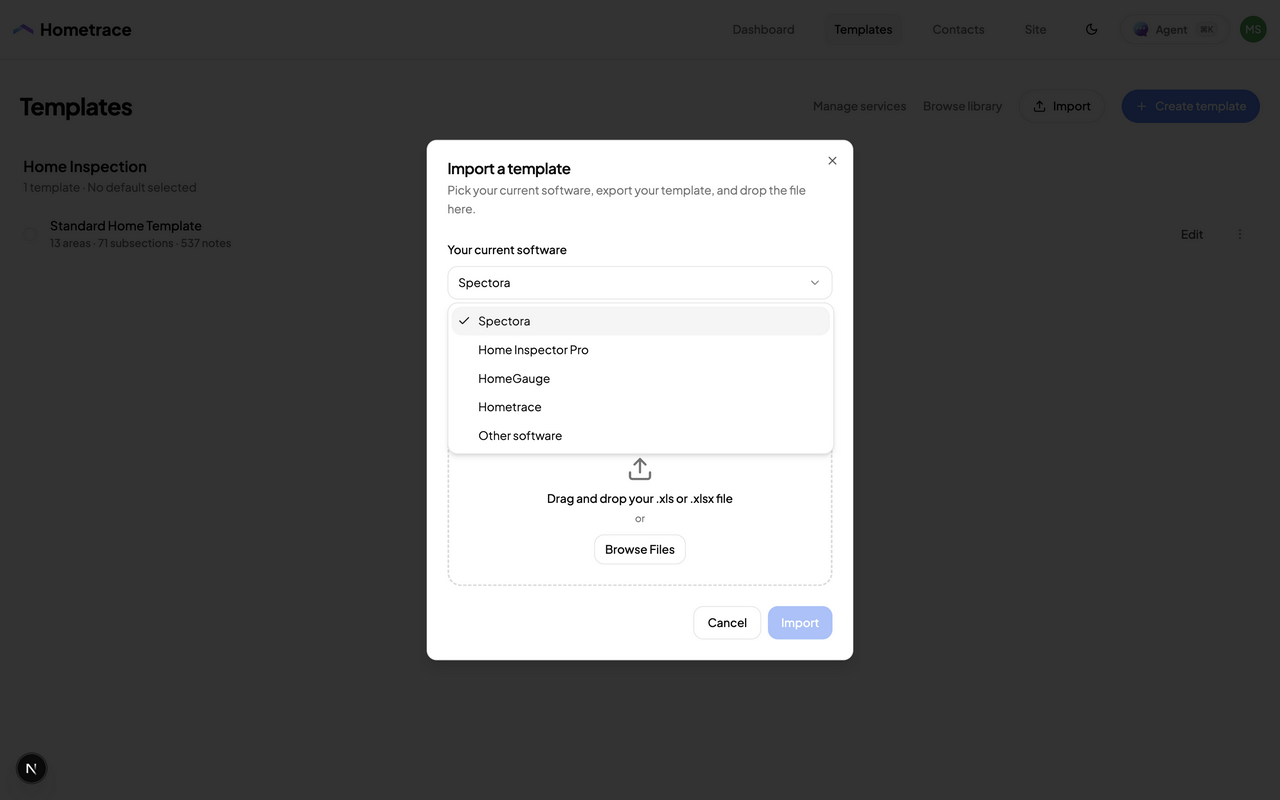
Choose the importer for your file, then check the imported template before using it on a job.