Quick Capture for the Hometrace Agent
We rebuilt Hometrace Agent around one conversation and a new way to capture.
Most of what goes into a report happens with your hands full. You are on a ladder, in a crawlspace, or holding a flashlight on a water heater. That is the worst possible moment to open an app, find the right section, and type.
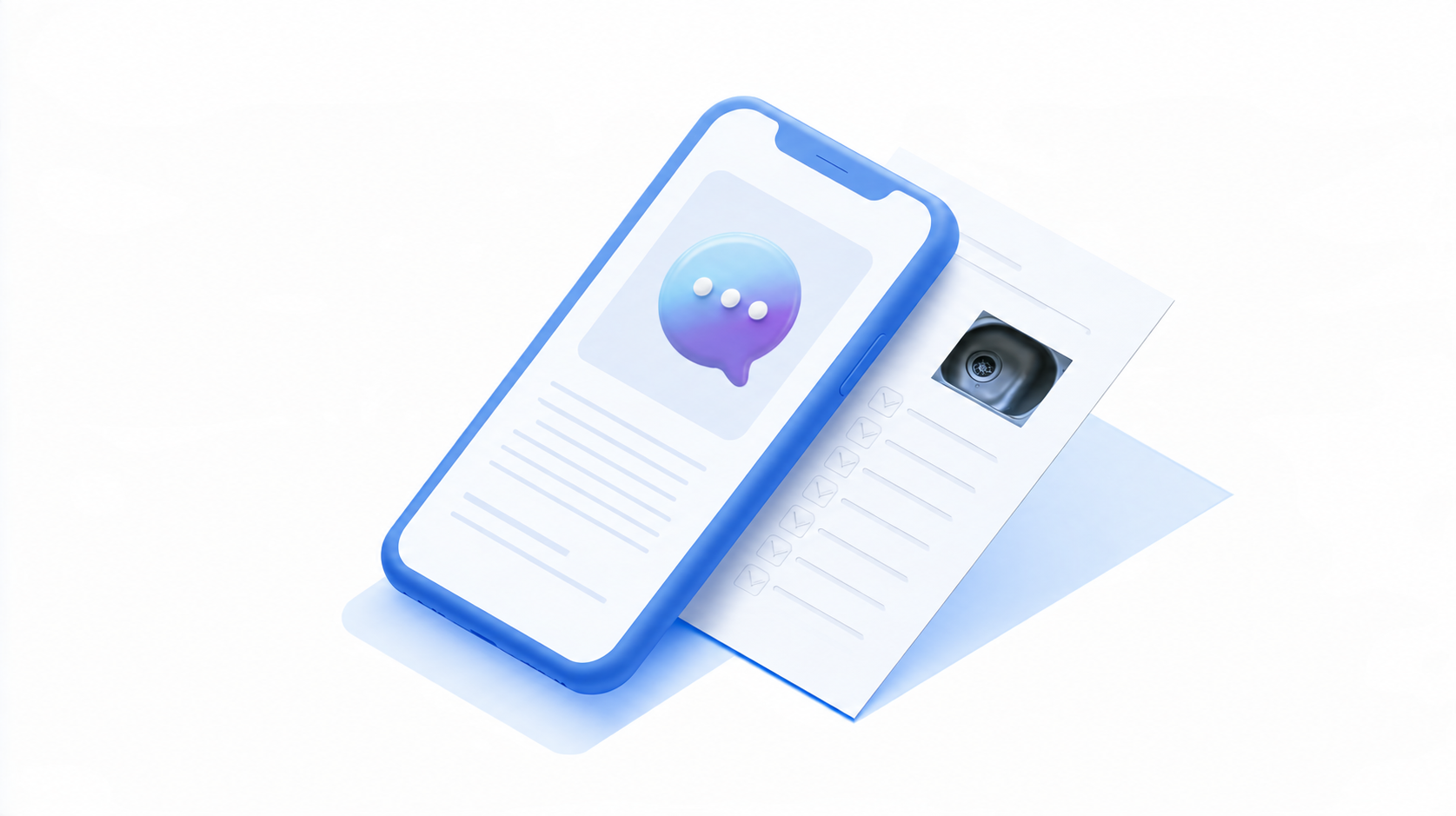
So we rebuilt Hometrace Agent around that moment. The biggest change is a new way to capture: long-press the agent button, talk, take photos, and tap Stop. Hometrace writes it into the report while you move on to the next room.
What changed in the agent
The first version of Hometrace Agent worked like a list of tasks. Each request became its own item, and you tracked them separately. It worked, but it asked you to manage the agent instead of the inspection.
The redesign keeps things simpler:
- One conversation. Everything you ask, from any screen, on your phone or on the web, lands in one thread in the order it happened.
- Background work shows as one line. A batch you sent shows its own progress, like "Filed 3 in Kitchen," so you can keep working and queuing up more report items/photos while it finishes.
- Easier review. Inside an inspection, Review lists everything Hometrace filed on that report. Outside one, Changes lists what it changed across your account.
- It asks before touching what you rely on. Renaming a template or a templated note, or changing a contact, service, fee, or discount, stops for a question first. Adding something new never asks, and Undo takes it straight back out.
All of that supports the part you will use most in the field: Quick Capture.


Long-press to start talking
In the mobile app, press and hold the agent button. Inside an inspection it sits in the footer. Anywhere else it is in the tab bar. Either way, a small dock opens already listening.
Now just talk the way you would to a helper standing next to you:
- "In the upstairs bathroom, deficiency: the sink drain is leaking at the trap. Recommend repair by a plumber."
- "Roof covering is asphalt shingles, about 15 years old."
- "Limitation under Attic: stored belongings blocked access to the far end."
- "Moving to the kitchen. The outlet beside the sink didn't trip when I tested the GFCI."
There are no commands to learn. Name the room or system when you move, say whether something is a deficiency, a note, or a limitation, and give your actual test results. Pausing between observations is fine. The recording keeps going.
You also don't need to be on the matching screen. Dictate from the roof section about the furnace and Hometrace files it under the furnace.
Take photos without stopping
The dock has a camera button on every screen. Tap it and a camera card opens above the dock while dictation keeps recording. You can photograph the damaged flashing while you describe it, in one motion.
Hometrace gets your words and your photos together and works out which photos belong with which finding. You don't tag anything.
Stop sends a batch
The center button is Stop, not pause. Each Stop sends everything since the last one, dictation and photos together, as one piece of work. It runs in the background, and the dock stays open, ready for the next room.
A typical walkthrough looks like this:
- Long-press the agent button in the kitchen.
- Talk through the sink, the range, and the GFCI, snapping photos as you go.
- Tap Stop and walk to the next room.
- Tap record and keep going.
By the time you finish the house, most of the report is already written. Close the dock with the X and anything still unsent goes with it.
Your templates come first
If you have spent years building templated notes, you want your wording in the report, not something new. When Hometrace files a finding from your dictation, it looks for the matching note in your template first and uses it. It only writes fresh wording when nothing in your template fits.
It works in a crawlspace
Dictation works with no signal. The dock shows Saved on device while you talk, and everything uploads on its own once you are back in range. In the conversation, the batch waits as "Queued, waiting for connection" until it can run.
Your recordings are kept for seven days after they are transcribed, in case a batch needs to be run again, and then they are deleted.
You stay in control
Quick Capture writes directly into the report so you are not stuck approving every line. That also means you should read what it filed.
Open Changes inside the inspection and you'll see one card per edit: the exact wording, where it landed, and the severity. Fix anything that isn't right, or undo it. You are still the inspector. Hometrace handles the typing so you can spend your time looking at the house.
Want live voice instead?
Some inspectors prefer a back-and-forth. The button on the left of the X button of the dock hands off to a live voice conversation, sending what you already dictated first. Tap the mic to go back to dictation in the same session.
Try it on your next inspection
Update the Hometrace app, open an inspection, and press and hold the agent button. Talk through one room, tap Stop, and check the Review page.
If you don't use Hometrace yet, see how it works. We would love to hear how Quick Capture holds up in your crawlspaces.