
Inspecting a house with no cell service
Prepare your inspection before losing signal, keep capturing on the phone, and check the upload queue before analysis or delivery.
A basement or rural property can leave you without enough signal to upload a photo. Before relying on an inspection app there, check which work stays on your phone and which features need a connection.
Hometrace saves inspection capture work locally and queues changes for sync. The preparation matters: open the app with a good connection before heading into a property, and make sure the inspection and template you need are available.
Prepare before you lose signal
Let the app finish syncing your scheduled and in-progress work. Open the inspection you plan to use and check its template. If you expect to create a new inspection offline, its template needs to have synced to the device first.
Check available storage too. Photos need room on the phone while they wait to upload. This is worth doing before a large job, especially if the device is already close to full.
A short test on your own phone is more useful than assuming everything you see online will be available later. Put the phone in airplane mode and open the prepared inspection before you rely on it in the field.
What you can capture offline
On an inspection available on the device, you can answer specs, write findings, and take photos. You can attach photos to an area or finding, enter appliance details manually, add notes, and mark areas complete.
You can also create an inspection offline using a template already on the phone. Address autocomplete needs a connection, so be ready to enter the property details yourself.
Keep writing observations as you normally would. For voice features, plan on having a connection: recording a thought does not mean an offline transcription will reliably appear later. Typed notes are the safer way to preserve information you need in the report while disconnected.
What needs the server
Photo analysis, Agent, and Final Checks need a connection. So do the client report preview, publishing, and delivery. Payment and subscription screens also depend on online services.
You can take the photos during the inspection and analyze them after reconnecting. Leave time for the upload and review before you promise delivery. Capturing the work on the phone and having it ready on the server are separate steps.
Check the queue when you reconnect
Open the app and keep it in the foreground while uploads finish. If you lock the phone or move to another app, the queue may pause until you return.
The sync sheet shows work waiting on the device and the remaining uploads. Watch it until the work is synced. If an item fails, read the reason and resolve it before continuing; a connection coming back does not prove every file arrived.
Then run any analysis you postponed, review its suggestions, and run Final Checks. Open the client report and confirm that the photos and findings you expect are present before publishing.
Try the whole sequence
During the 30-day trial, prepare a test inspection online, switch to airplane mode, and record a few findings with photos. Reconnect and follow the queue through to the report preview.
Repeat that test on the device you take to work. You will know what to expect when the signal drops, and what to check before delivering the job.
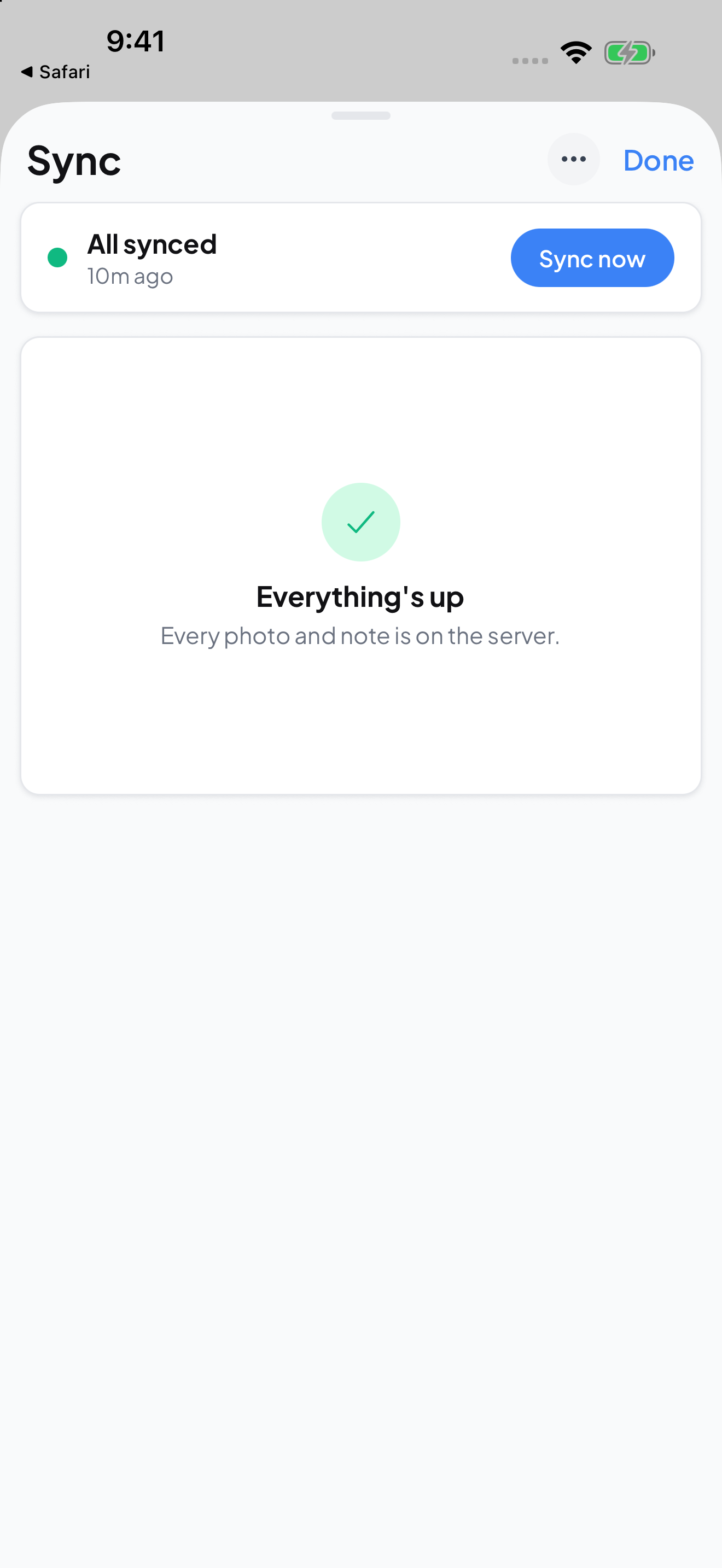
After reconnecting, check that every photo and note has reached the server.